Auto Pay
Auto Pay automatically purchases infra credits when an account’s available balance falls to or below a configured threshold. That helps prepaid customers keep services running without manually topping up every time the wallet runs low.
Auto Pay helps customers:
- Prevent service interruption due to low balance
- Automatically recharge infra credits
- Avoid manual payment every time the balance becomes low
- Maintain continuous billing for cloud resources
Auto Pay works only for prepaid accounts that use an infra-credit wallet. Postpaid and manual payment modes do not use Auto Pay.
Customer path: Billing → Auto Pay
Global setting
Enable or disable the Auto Pay feature for the platform in Admin Panel → Global Settings.
| Setting | Value | Category |
|---|---|---|
| Flag name | autopay | Billing |
| Typical values | true / false | |
| Purpose | Enable or disable the Auto Pay feature |
| Value | Behaviour |
|---|---|
true | Auto Pay is available to eligible prepaid customers under Billing → Auto Pay |
false | Auto Pay is disabled platform-wide |
Who can use this feature?
| Account type | Supported? |
|---|---|
| Prepaid customer accounts | Yes |
| Postpaid | No |
| Manual | No |
Prerequisites
Before a customer can enable Auto Pay:
- The global setting
autopaymust betrue - The account must be prepaid and active
- The user must have permission to manage billing
- A valid, active payment method must be added
- The payment gateway must support off-session payments (save a payment method and charge a variable amount later)
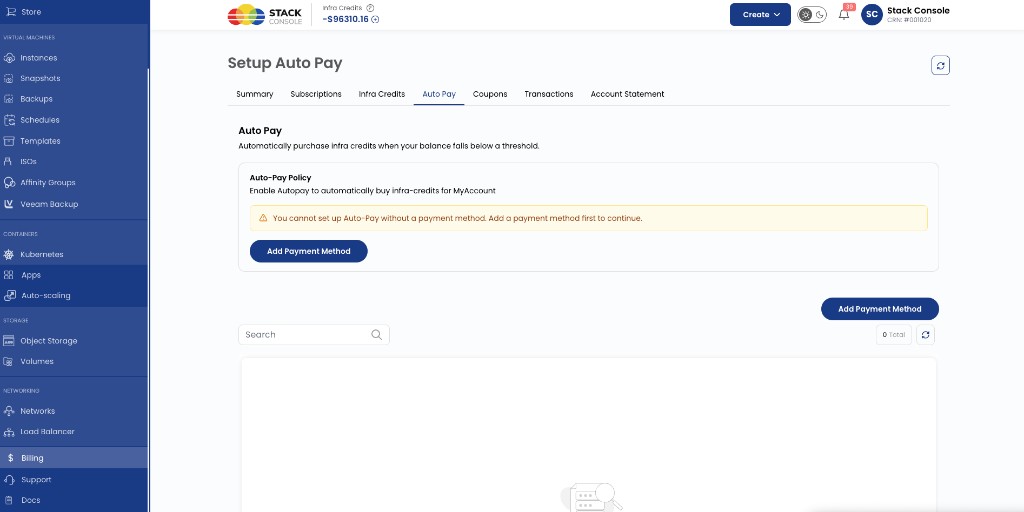
Auto Pay cannot be enabled without adding a payment method. The Auto Pay tab shows a warning until a method is saved:
You cannot set up Auto-Pay without a payment method. Add a payment method first to continue.
Add a payment method
- Go to Billing → Auto Pay
- Select Add Payment Method
- In the Payment Gateway popup, choose a provider and select Proceed
- Complete the provider flow to save a secure payment method
- Confirm the method appears in the payment methods list (for example as Primary)
Payment Gateway popup
The Payment Gateway popup lets the customer select the provider used to add a payment method for Auto Pay.
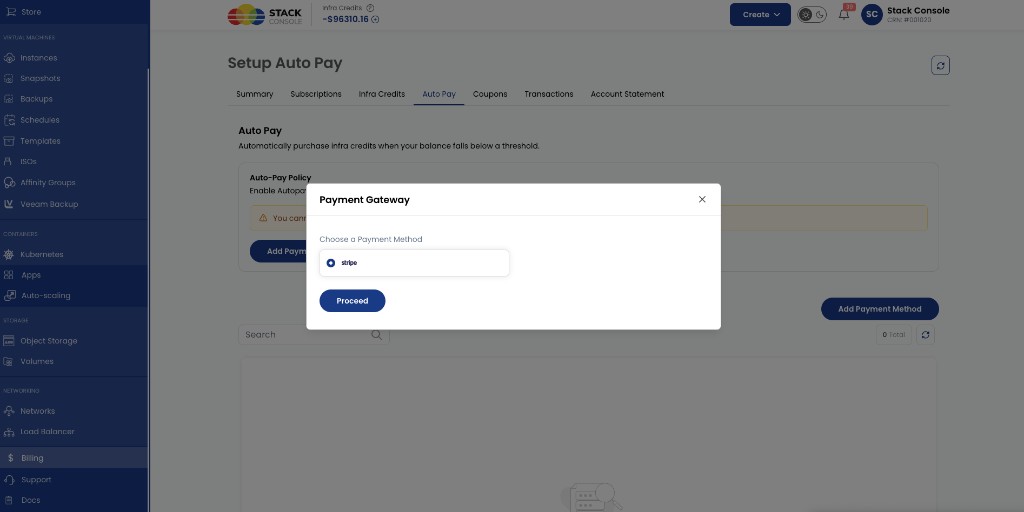
Purpose of this step:
- Select a payment gateway
- Proceed to the payment provider
- Add a secure payment method
- Continue Auto Pay configuration
In the current implementation, Stripe is available as the supported payment gateway for Auto Pay. Only gateways that support off-session / saved-method charging can power Auto Pay.
See Stripe for provider configuration.
Configure Auto-Pay policy
After a payment method is saved, configure the Auto-Pay policy on Billing → Auto Pay.
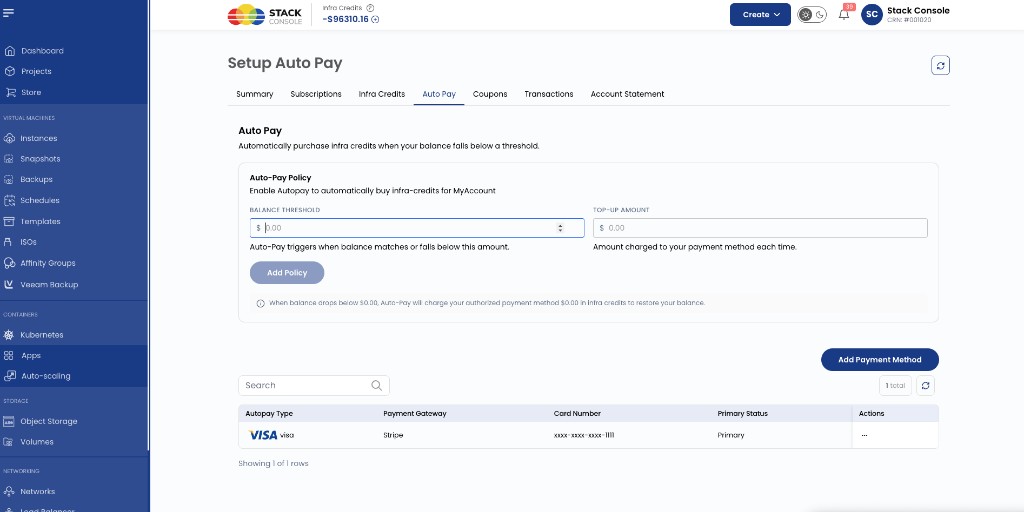
Balance Threshold
Required. Available balance amount that triggers Auto Pay. Auto Pay runs when the balance matches or falls below this amount.
Example: $50.00
Top-Up Amount
Required. Amount charged to the saved payment method each time Auto Pay triggers. That amount is added to the customer’s infra credits.
Example: $100.00
Add Policy
Saves the threshold and top-up amount for the account.
The policy summary updates as values change — for example: when balance drops below the threshold, Auto Pay charges the authorized payment method the top-up amount in infra credits.
Set the top-up amount high enough relative to hourly usage. A very low top-up can cause repeated charges if the balance drops below the threshold often. See Future improvements.
How Auto Pay works
Example policy:
| Setting | Value |
|---|---|
| Balance Threshold | $50.00 |
| Top-Up Amount | $100.00 |
Typical flow:
- Customer adds a payment method (for example via Stripe) and enables Auto Pay
- Customer sets Balance Threshold and Top-Up Amount
- As cloud resources are consumed, infra credit balance decreases
- When balance reaches $50.00 or below, the Auto Pay policy is triggered
- CMP charges the saved payment method $100.00
- $100.00 is added to the customer’s Infra Credits
- The Auto Pay transaction is recorded under Billing → Transactions
Limitations
- Auto Pay is prepaid-only
- A valid payment method must be added before policy setup
- Only payment gateways that support off-session charging (saved method + variable amount) support Auto Pay
- Currently documented customer gateway for this flow: Stripe
Future improvements
Planned behaviour when a very low top-up is hit repeatedly (for example every hour):
- Limit Auto Pay charges to 2 transactions in 24 hours
- On a third threshold hit within that window, notify the admin and the customer to raise the threshold / top-up amount
Until that lands, advise customers to set threshold and top-up values that match expected daily usage.
Related
- Prepaid payment mode
- Low Infra Credit Notifications — alert-only; does not charge a card
- Stripe
- Payment Gateways
- Billing Overview
- Platform Features