Product Billing
Configure product prices on the rate card after the product exists.
Path: Settings → Billing Setup → Rate Cards → select rate card → Packages → Products
Then open the product (for example Managed Support Level - 1) and use Edit Product Price.
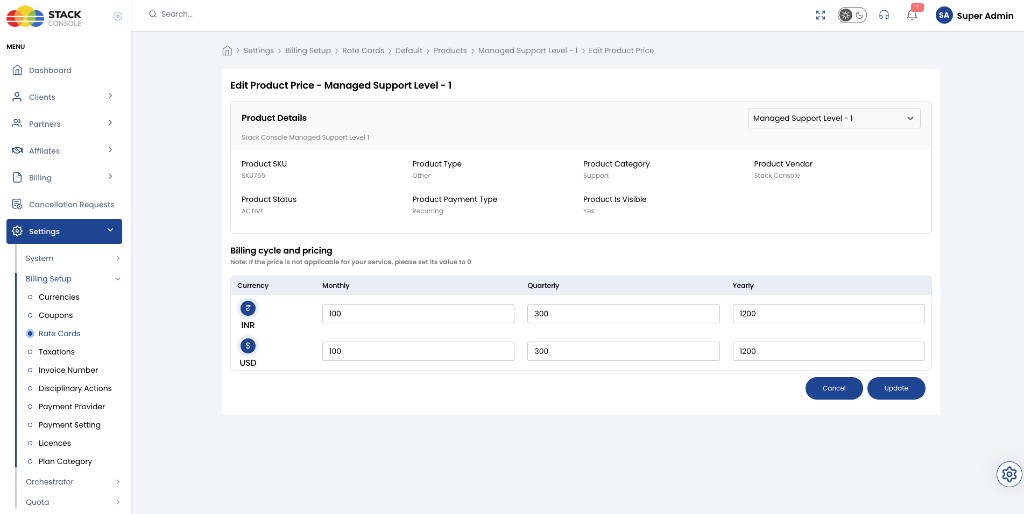
Edit Product Price
The page shows read-only product metadata (SKU, type, category, vendor, status, payment type, visibility) and a pricing grid by currency and cycle.
The Edit Product Price screen may show all billing cycle columns (Monthly, Quarterly, Yearly) for each currency.
That does not mean every cycle is offered to the customer. End users only see cycles that were enabled for that product when it was created (billing rules matrix on Add Products).
Example: Product A enables Monthly only → customers pick Monthly in the Store, even if the rate card form still displays Quarterly and Yearly fields. Set unused cycle prices to 0.
If a price is not applicable for a cycle, set its value to 0.
Typical columns:
| Column | Purpose |
|---|---|
| Currency | For example INR, USD |
| Monthly | Monthly rate |
| Quarterly | Quarterly rate |
| Yearly | Yearly rate |
Save with Update.
Billing rules (pro-rata vs calendar) are set on the product form and explained under Billing behaviour. General package math: Pricing Formulas.
Billing for an order starts when the customer places the order — there is no separate “activate billing” step. Confirm prices and rules before the product is Active in the Store.