Orders
When a customer places a product order, CMP:
- Sends a confirmation email to the customer
- Notifies the administrator about the new order
Admins track and fulfil orders from email, the dashboard, and the Orders page.
Admin Dashboard
New orders appear on the Admin Dashboard so staff can see work that needs fulfilment.
Orders page
Path: Settings → Products → Orders
img/screenshots/cmp-products-orders-list.png
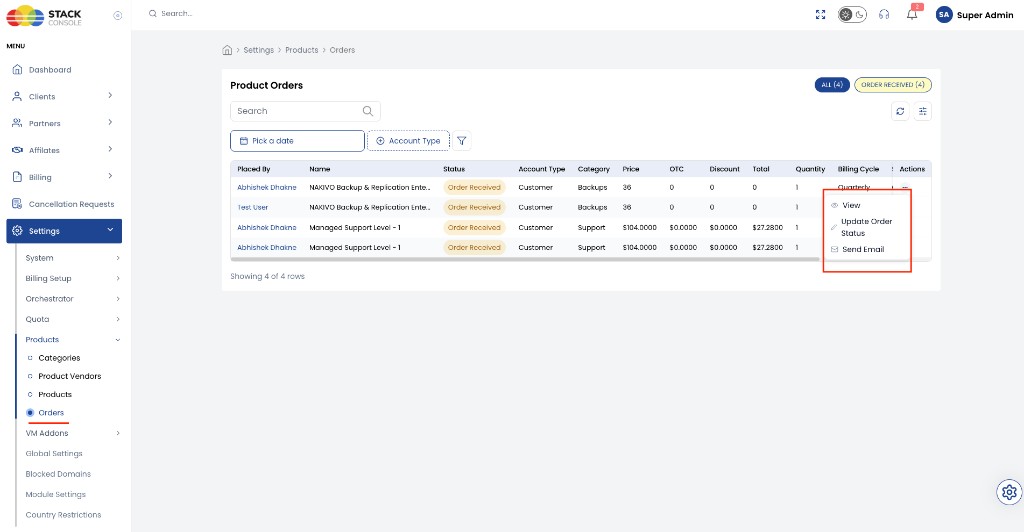
Typical columns: Placed By, Name, Status, Account Type, Category, Price, OTC, Discount, Total, Quantity, Billing Cycle.
Row actions:
| Action | Purpose |
|---|---|
| View | Open Order Overview |
| Update Order Status | Change fulfilment status |
| Send Email | Message the customer about the order |
Order Overview
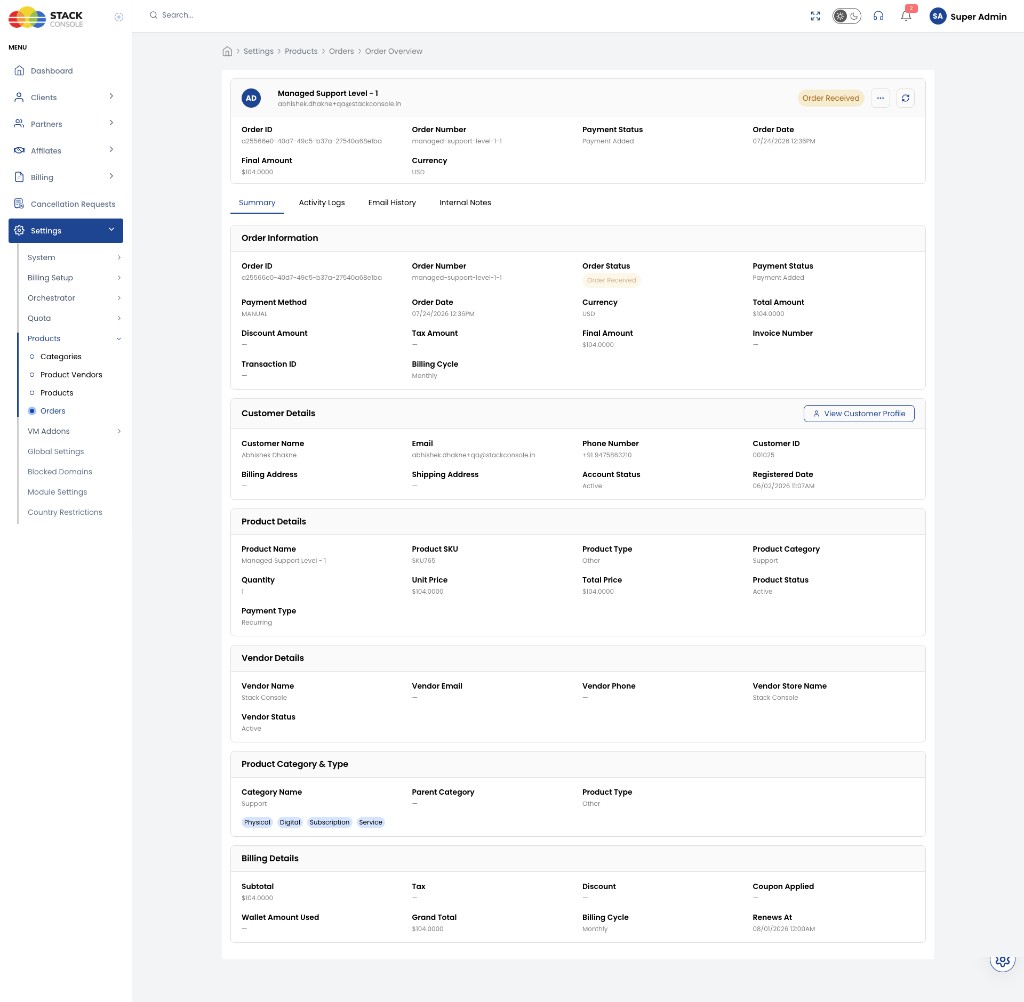
Tabs include Summary, Activity Logs, Email History, and Internal Notes.
Summary covers order information, customer details, product details, vendor, category/type tags, and billing (including Renews At for recurring products).
Order status
When a customer places an order, CMP sets status to Order Received by default.
| Status | Who sets it | Meaning |
|---|---|---|
| Order Received | System (default on place order) | New order waiting for fulfilment |
| In Progress | Admin | Fulfilment work has started |
| Completed | Admin | Delivery finished (license, docs, service, and so on) |
Admins change status from Order Overview or the Orders row ⋯ → Update Order Status.
Update order status
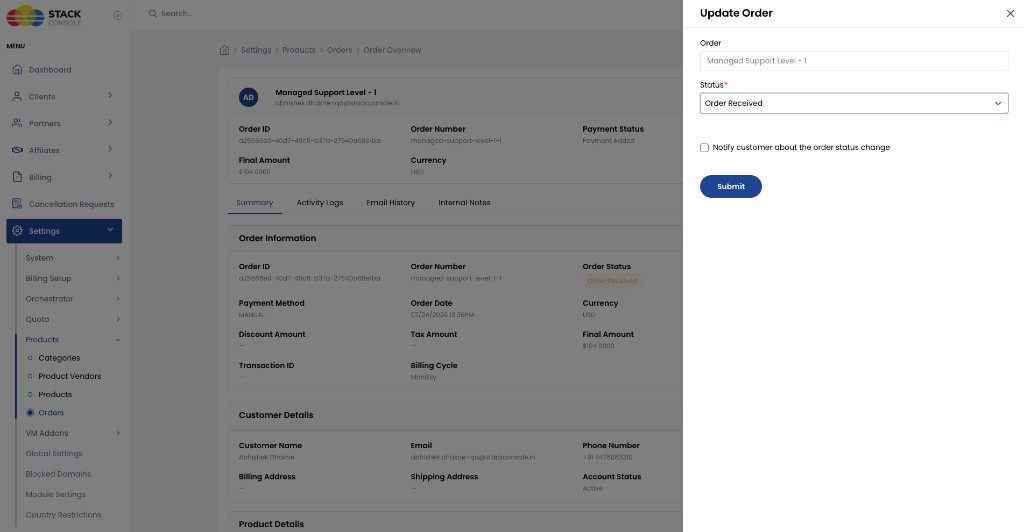
Select In Progress or Completed (from Order Received). Optionally enable Notify customer about the order status change, then submit.
Order status is for fulfilment tracking only. Billing does not wait for In Progress or Completed.
When the order is placed, billing starts immediately — even while status is still Order Received. Confirm product pricing and rules before the product is Active in the Store. See Product Billing and Billing behaviour.
Email notification
CMP emails administrators with order details when a customer places a new order.
From Order Overview (or the Orders row ⋯ menu), admins can also Send Email manually — for documentation, license keys, or status notes.
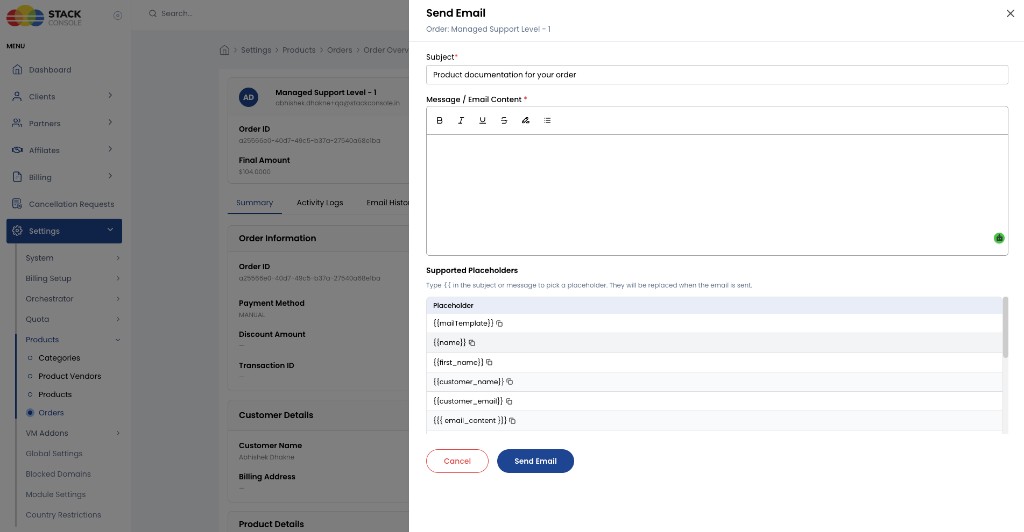
Send Email form
The dialog is titled Send Email and shows the related order (for example Order: Managed Support Level - 1).
Subject
Required. Email subject line (for example Product documentation for your order).
Message / Email Content
Required. Rich-text body of the email. Use the toolbar for bold, italic, underline, strikethrough, text colour, and lists.
Type {{ in the subject or message to insert a placeholder. Placeholders are replaced when the email is sent.
Supported placeholders
| Placeholder | Use |
|---|---|
{{mailTemplate}} | Mail template reference |
{{name}} | Name |
{{first_name}} | First name |
{{customer_name}} | Customer full name |
{{customer_email}} | Customer email |
{{{ email_content }}} | Email content block (triple braces) |
{{company_name}} | Company name |
{{order_id}} | Order ID |
{{order_status}} | Order status |
{{order_name}} | Order name |
{{order_description}} | Order description |
{{order_quantity}} | Order quantity |
{{product_name}} | Product name |
{{product_slug}} | Product slug |
{{product_category}} | Product category |
Use Cancel to close without sending, or Send Email to deliver the message.
There is still no full in-platform conversation for product orders. Use Send Email, external support tools, or email outside CMP for back-and-forth fulfilment. See Store & Products — communication note.
Billing behaviour (orders)
Billing for the product starts immediately when the order is placed. It is not tied to order status (Order Received / In Progress / Completed). No separate activation step is required for billing to begin.
See Billing behaviour for rules and examples.
Placing an order on behalf of a customer
Path: All Clients → select client → Client Details → Orders → Add Order
Use this especially when Hide from Store is enabled (product not in the marketplace). Admins are not limited by Store visibility — they can also place orders for products that are visible in the Store.
Examples: special licensing agreements, custom services for selected customers.