StackAI User Guide
A practical tutorial for managing your cloud with natural language.
StackAI is in beta. If something in this guide does not match your portal, your administrator may have customized branding, suggested prompts, or enabled tools.
StackAI is your cloud operations assistant inside the cloud console. You describe what you want in plain English — list VMs, check billing, take a snapshot — and StackAI carries out the work against your live account.
You do not need to learn API calls, menus, or command names. Type a request, confirm when asked, and StackAI does the rest.
1. What StackAI can do
StackAI talks to your cloud account and can:
| Area | Examples |
|---|---|
| Virtual machines | List, create, start, stop, reboot, reset, delete, change plan / OS / hostname |
| Storage | Block volumes, object storage, buckets (create, list, share, delete, resize) |
| Snapshots & backups | Manual snapshots, scheduled snapshots, on-demand backups, backup schedules, backup archives |
| Power schedules | Auto start / stop VMs at set times |
| Networking | Isolated networks, public IPs, firewall (inbound), egress (outbound), port forwarding |
| VPCs | Create / list / delete VPCs and subnets, ACL lists and rules |
| Billing | Balance, invoices, monthly usage, service costs, credit limit, active / inactive services |
| Cloud projects | List and create cloud (billing/org) projects |
| Regions | Show available regions |
StackAI works inside your logged-in account. You only see and change resources you already have permission to manage.
2. How to open StackAI
- Sign in to the cloud console (the same dashboard you use for instances, networks, and billing).
- In the left sidebar, under General, click StackAI.
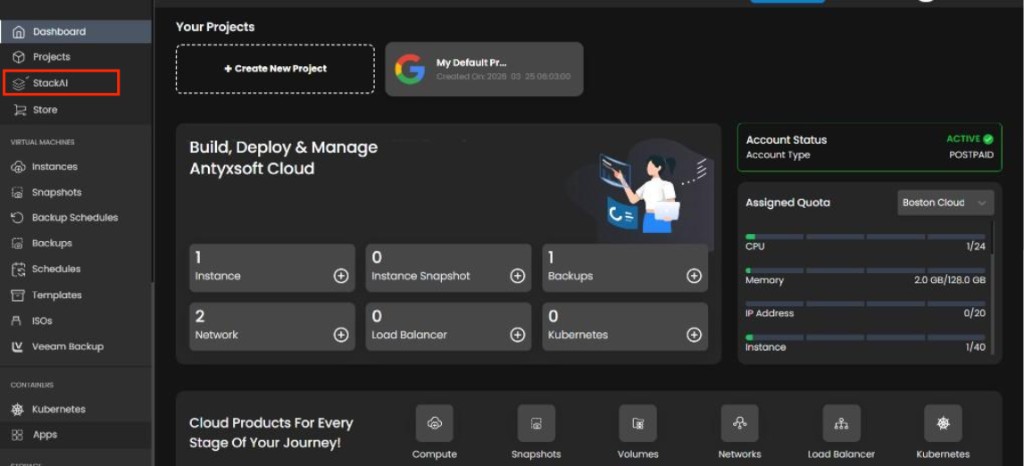
You stay signed in. StackAI uses your existing session — there is no separate login.
The console home still shows your projects, resource counts, and quotas. StackAI is the chat workspace for the same account.
3. Tour of the screen
When StackAI opens you see a home screen with a greeting, a chat box, and suggested prompts.
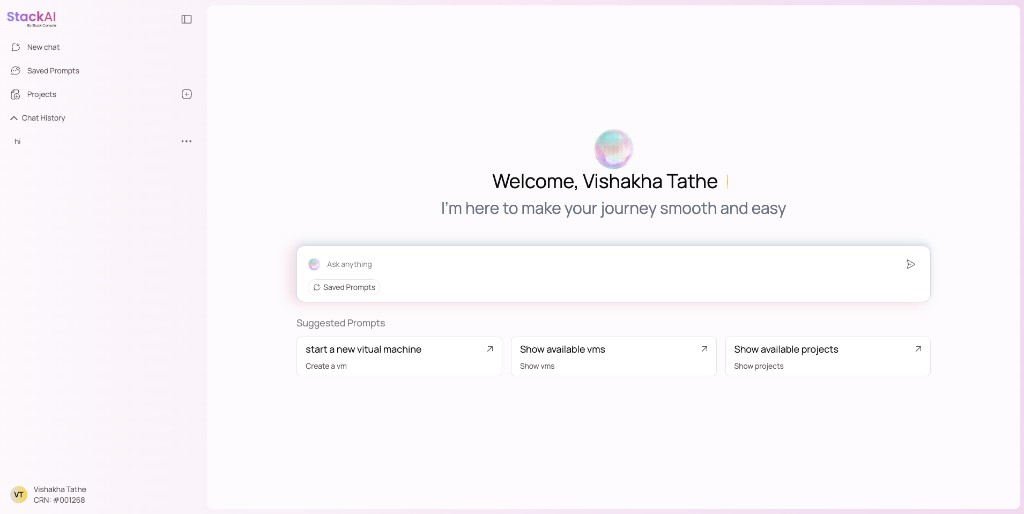
Left sidebar
| Item | What it does |
|---|---|
| New chat | Starts a fresh conversation. Use when you want a clean context. |
| Saved Prompts | Reusable phrases you (or your team) saved — one click to run them again. |
| Projects | Folders that group related chats (and related files / instructions) for ongoing work. |
| Chat History | Previous conversations. Click one to reopen it. |
| Profile | Your display name and customer reference (CRN) at the bottom of the sidebar. |
Center
- Greeting — StackAI addresses you by name.
- Ask anything — Type a request and press Enter or click the send (paper plane) icon.
- Saved Prompts (under the box) — Jump to your prompt library without leaving the home view.
- Suggested prompts — Starter tiles such as start a new virtual machine, Show available vms, Show available projects. Click a tile to send that request.
During a chat
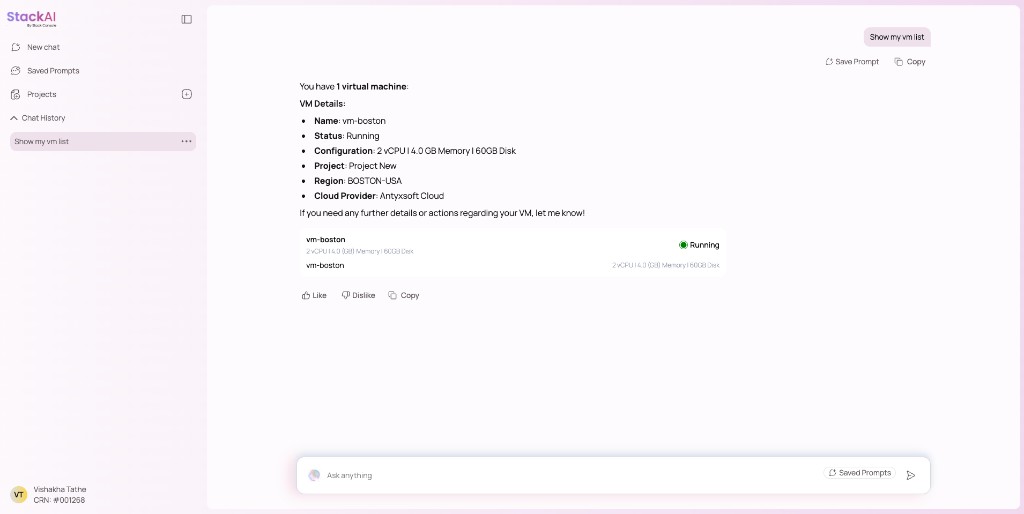
| Control | Purpose |
|---|---|
| Thought for …s | Shows that StackAI is working through the request. Expand for more detail. |
| Resource cards | Visual summary of a VM (or similar resource): name, status, CPU, memory, disk. |
| Like / Dislike | Feedback on the reply. |
| Copy | Copies the answer text. |
| Save Prompt | Saves the current request so you can reuse it later. |
4. Everyday workflow
This is the loop you will use for almost every task.
Open StackAI → Type (or click) a request → Answer any questions
→ Review the summary → Confirm (Yes / Proceed)
→ StackAI executes → Read the result
Step 1 — Ask in plain language
Examples:
Show my VMsCreate a VMWhat's my account balance?Take a snapshot of vm-lnxh8b
You do not need exact names. If something is missing (region, size, which VM), StackAI asks.
Step 2 — Answer numbered choices
When StackAI lists options, reply with the number or the name:
1. Ubuntu 22.04
2. Ubuntu 24.04
3. Windows Server 2022
Typing 1 selects Ubuntu 22.04.
Step 3 — Confirm changes
Creates, deletes, resizes, schedules, and similar actions show a preview first. Nothing is changed until you say yes, proceed, or go ahead.
Say no, cancel, or never mind to stop. You can also change a field (use 8 GB RAM instead) and StackAI shows an updated summary before executing.
Step 4 — Read the result
StackAI replies with a short summary and, when relevant, cards you can scan at a glance (status, specs, project, region).
Starting over: Click New chat if the conversation has drifted or you want an unrelated task with a clean slate.
5. Chat examples
Use these as templates. Swap in your own names, projects, and sizes.
Look up resources
| You type | What happens |
|---|---|
| Show available vms | Lists VMs with status, project, region, and size. |
| Show my projects | Lists cloud projects in the account. |
| Show networks | Lists isolated networks. |
| How many volumes do I have? | Lists block storage disks. |
| What's my account balance? | Shows current balance. |
| Show recent invoices | Lists latest invoices. |
Example — list VMs
You: Show available vms
StackAI: I found 1 virtual machine: Name: vm-lnxh8b · Status: Running · Project: Default · Region: Production · Configuration: 2 vCPU · 2.0 GB Memory · 50 GB Disk
A status card appears under the text so you can see the same VM at a glance.
Create a virtual machine
You: Create a VM
StackAI walks you through missing pieces one at a time: region, project, OS, CPU / memory / disk, network, public IP (yes / no), discount coupon (if any), then a confirmation summary.
You: Yes — StackAI creates the VM and reports the name and specs.
You can also be specific up front:
Create a VM in production with 2 CPU, 4 GB RAM, 50 GB disk,
Ubuntu 22.04, no public IP, on any existing network.
Power actions
| You type | What happens |
|---|---|
| Stop vm-lnxh8b | Preview, then stop after you confirm. |
| Start all VMs | Starts every VM you are allowed to manage. |
| Reboot vm-lnxh8b | Reboots that VM after confirmation. |
| Auto-shutdown vm-lnxh8b at midnight | Sets a power-management schedule (auto stop). |
Snapshots vs backups (use the right words)
| You type | Meaning |
|---|---|
| Take a snapshot of vm-lnxh8b | Manual instance snapshot of that VM. |
| Create a volume snapshot of … | Snapshot of a disk, not the full VM. |
| Backup my VM now | On-demand backup (say the word backup). |
| Schedule daily backup at 3 PM | Backup schedule / policy. |
| Pause VM schedule | Pauses the backup schedule (not power off). |
| Delete all snapshots | Deletes instance snapshots. |
| Delete all backups | Deletes backup files / archives. |
| Delete all scheduled backups | Deletes backup schedules, not the files. |
Networking
| You type | What happens |
|---|---|
| Create a network | Guided create for an isolated network. |
| Create a VPC with 2 subnets | Creates the VPC and both subnets together. |
| Acquire an IP for vm-lnxh8b | Gets a public IP (with billing preview). |
| Allow outbound HTTPS on my network | Adds an egress rule. |
| Open port 22 on this IP | Adds an inbound firewall rule. |
Inbound (firewall) and outbound (egress) are separate. Say inbound / firewall or outbound / egress so the right rule is created.
Billing
| You type | What happens |
|---|---|
| Show billing summary | High-level spend. |
| Show monthly usage | Usage by month. |
| What are my active services? | Running paid services. |
| Show service costs | Cost breakdown. |
Multi-step requests
Chain work in one sentence:
Create a VPC with 2 subnets and deploy 1 VM in each subnet.
Spin up a VM on net-1, allow outbound traffic only on port 443,
and auto-shutdown at midnight.
StackAI plans the steps, confirms each change, and carries names (VPC, subnet, VM) from one step to the next.
6. Chat history
Every conversation is saved under Chat History in the sidebar.
- Typical titles look like the request you typed: Create a vm, Show vms, delete all snapshots.
- Click a history item to reopen that chat.
- Use the ⋯ menu on an item to delete it.
- History is per user in this account — it is not a shared team inbox.
When to start a new chat: a new topic (billing after a long VM create), or after a cancelled / failed flow you do not want to continue.
7. Saved prompts
Saved prompts are reusable requests, not full conversations.
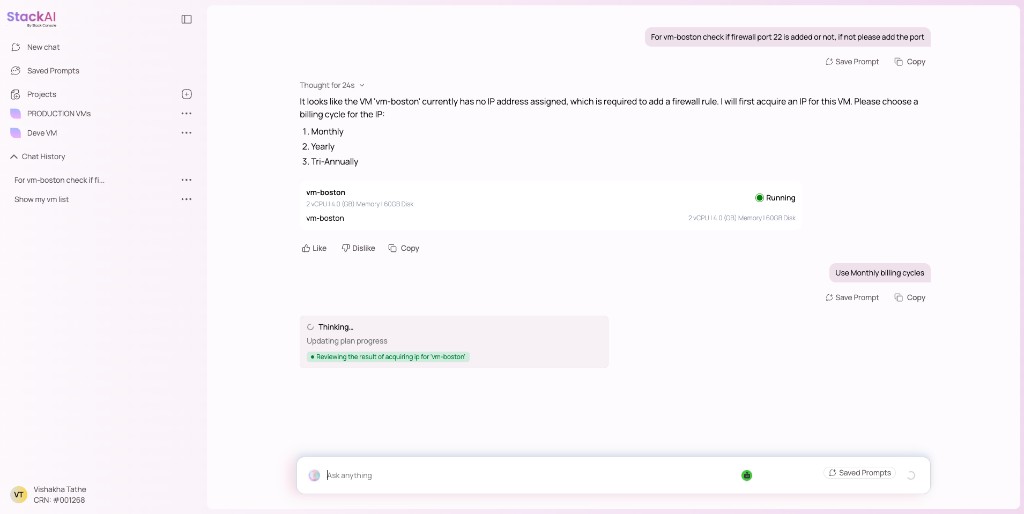
Why use them
If you often type the same thing (Show vms, Show billing summary, Create a VM in project Default), save it once and click it whenever you need it.
How to save
- Run a chat you like (or type the phrase).
- Click Save Prompt in the chat header.
- Give it a short title (for example ShowVMS) and an optional description.
How to run a saved prompt
- Open Saved Prompts in the sidebar, or click Saved Prompts under the Ask anything box.
- Optionally use Filter or the search box.
- Click the card (arrow icon) to send it.
Treat saved prompts as starters. After they run, you can still answer follow-up questions and confirmations as usual.
8. StackAI projects
StackAI Projects (sidebar) are folders for your chats. They are not the same as cloud console projects (Default, Production, and so on).
| Kind | Where | Purpose |
|---|---|---|
| StackAI project | StackAI sidebar → Projects | Group chats, files, and instructions for a piece of work (for example a migration). |
| Cloud project | Ask StackAI Show my projects / Create a project named … | Billing and resource container in the cloud account. VMs and networks live here. |
Create a StackAI project
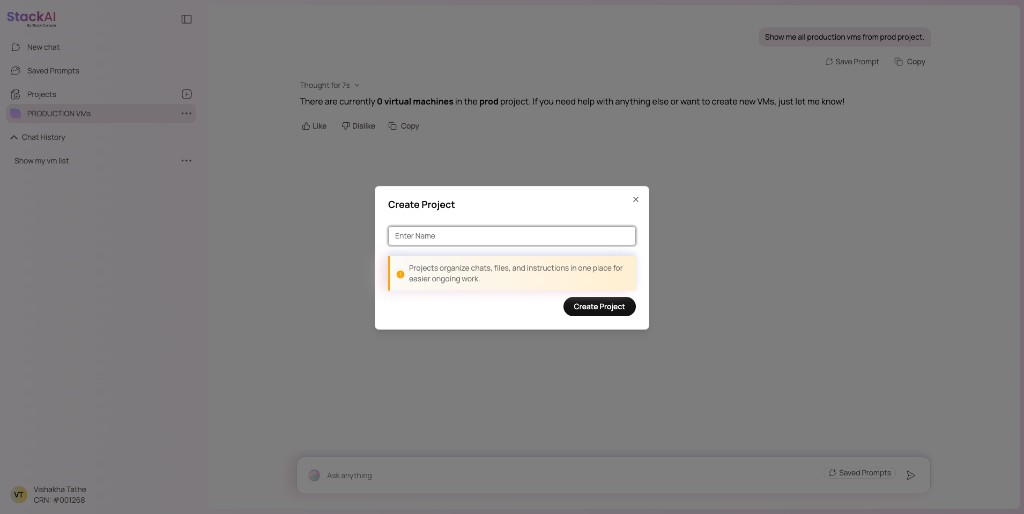
- In the sidebar, click + next to Projects.
- Enter a name (for example test1 or Q3 migration).
- Read the hint: Projects organize chats, files, and instructions in one place for easier ongoing work.
- Click Create Project.
Work inside a project
Select the project in the sidebar. The main pane shows that project's name, the Ask anything box, and suggested prompts. New chats from here stay with that project.
Use a StackAI project when work spans several conversations (build a VPC, deploy VMs, then lock down firewall rules). Use New chat on the home view for one-off questions.
9. Confirmation and safety
StackAI is built so destructive and billed actions cannot run by accident.
Preview first
For create, delete, resize, schedule, attach, share-public, and similar actions you will see a summary such as:
Here's the configuration for vm-lnxh8b — please confirm to proceed.
Or for deletes:
DANGER: You're about to DELETE 4 VM(s): …
Nothing is submitted until you confirm.
How to answer
| You say | Result |
|---|---|
| yes / proceed / go ahead | Execute the previewed action. |
| no / cancel / never mind / ignore | Stop. The action is not run. |
| use 8 GB instead (or any field change) | New preview. Still waits for confirmation. |
A numbered coupon list is not a confirm/cancel step. none, skip, or no there means do not apply a coupon — it does not cancel the create.
Permissions
If you are not allowed to perform an action, StackAI tells you to contact your administrator. It will not try a workaround.
Errors
If something fails (quota, name conflict, resource busy), StackAI reports it and does not retry on its own. Fix the cause (or pick another option) and ask again.
10. Full capability list
You never type these internal names. They are here so you know what you can ask for.
Virtual machines
| Ask for | Typical phrases |
|---|---|
| List VMs | show vms, list my servers |
| Suggest a size | suggest a VM for a small web app |
| Create | create a vm, deploy 3 VMs |
| Start / stop / reboot / reset | start vm-1, stop all VMs, reboot web-1 |
| Delete one or all | delete vm-1, delete all VMs |
| Change CPU/RAM | upgrade vm-1 to 8 CPU 16 GB |
| Reinstall OS | reinstall Ubuntu 24.04 on vm-1 |
| Change hostname | rename vm-1 to web-prod |
| Attach / change network | attach vm-1 to net-1 |
| Auto start/stop | auto-start at 8am and stop at 6pm |
| View / delete power schedules | show power schedule for vm-1 |
Block storage (volumes / disks)
| Ask for | Typical phrases |
|---|---|
| List volumes | how many volumes, list block storages |
| Create | add a 100 GB disk to vm-1 |
| Attach / detach / delete | detach volume vol-1, delete all block storages |
| Grow disk | expand disk on vm-1 to 200 GB |
Object storage and buckets
| Ask for | Typical phrases |
|---|---|
| List object stores | show object storage |
| Create / resize / cancel store | create object storage, resize stackai to 200 GB |
| List buckets | show buckets in stackai |
| Create bucket | create a bucket (wizard: name, versioning, object lock, policy, ACL) |
| Public / private | make bucket reports public |
| Delete bucket(s) | delete bucket reports, delete all buckets in stackai |
Snapshots, backups, and schedules
| Ask for | Typical phrases |
|---|---|
| VM instance snapshot | snapshot vm-1, delete all snapshots |
| Volume snapshot | volume snapshot of …, delete all volume snapshots |
| On-demand backup | backup my VM now |
| Backup schedule | daily backup at 3pm, pause vm schedule |
| Snapshot schedule | schedule daily snapshot at 3pm |
| Volume snapshot schedule | schedule daily block storage snapshot |
| Backup files / archives | delete all backups, show backup archives |
| List backup policies | show scheduled backups |
Networks, IPs, and rules
| Ask for | Typical phrases |
|---|---|
| List / create / delete isolated networks | show networks, create 2 networks, delete all networks |
| Public IPs | show IPs, acquire an IP, delete this IP |
| Inbound firewall | open port 443, delete firewall rule |
| Outbound egress | allow outbound HTTPS, delete egress rule |
| Port forwarding | add port forward 8080 to vm-1 |
VPCs
| Ask for | Typical phrases |
|---|---|
| List / create / delete | show VPCs, create a VPC with 2 subnets, delete VPC … |
| ACL lists and rules | create ACL list, add ACL rule, replace ACL list |
Isolated networks and VPCs are different. delete all networks does not delete VPCs, and delete VPC does not delete standalone isolated networks.
Billing
| Ask for | Typical phrases |
|---|---|
| Balance | account balance |
| Summary / usage / costs | billing summary, monthly usage, service costs |
| Credit limit | credit limit |
| Services | active services, inactive services, how many services |
| Invoices | recent invoices |
Cloud projects and regions
| Ask for | Typical phrases |
|---|---|
| List / create cloud projects | show projects, create projects alpha, beta |
| Regions | show regions |
11. What StackAI cannot do
StackAI will not invent a similar action. If there is no matching capability, it will say so and list what it can do.
Not supported today:
- Kubernetes clusters
- Managed databases (DBaaS)
- Load balancers
- Remote-access VPN / VPN users
- Connecting a VM or VPC to AWS, Azure, GCP, or other external clouds
Those products remain available in the main console where your provider offers them. Use the console menus for those, and StackAI for the capabilities in section 10.
12. Tips for better results
- Be specific when you know the details. Names, project, region, and sizes skip extra questions.
- Be vague when you do not. Create a VM is enough. StackAI will ask.
- Use numbers for lists. After
1. … 2. …, reply2. - Say backup vs snapshot vs schedule if you care which one runs (see section 5).
- Confirm only after you read the summary. The first request is not approval.
- Cancel with clear words. cancel, never mind, stop — do not leave a half-finished create hanging if you changed your mind.
- One topic per chat when possible. Use New chat or a StackAI Project for a new workstream.
- Save prompts for commands you run weekly.
- Bulk is allowed when you say so: delete all VMs, snapshot all VMs in project Default. Those still require confirmation.
- Relative dates are fine. tomorrow, next Friday, in 3 days — you do not need to convert them to a calendar date.
13. FAQ
Do I need a special account for StackAI?
No. Use the same login as the cloud console. StackAI appears under General in the sidebar.
Will StackAI delete resources if I only ask to list them?
No. Listing is read-only. Deletes and other changes always show a preview first.
Why did it ask me so many questions?
Required fields were missing (region, size, network, and so on). Answer them, or include them in the first message next time.
I typed “no” and it cancelled. I only meant “no public IP.”
During a confirmation summary, no means cancel. During field collection, no can be a real answer (for example public IP = no). If you cancelled by mistake, start the request again.
Can my teammate see my chats?
Chat history and saved prompts follow your user session in this deployment. Cloud resources you create are still visible to anyone with access to that cloud project in the console.
A suggested prompt failed.
Suggested tiles are shortcuts, not magic. If a create fails (quota, permission, naming), read the error, fix the constraint, and try again or open New chat.
StackAI vs the console dashboard?
The Customer Dashboard home is the visual home for counts and quotas. StackAI is the assistant for the same account — faster for multi-step work, bulk actions, and “do this in English.”
Quick start checklist
- Log in to the cloud console
- Open General → StackAI
- Click Show available vms (or type
show vms) - Try Save Prompt on a request you will reuse
- Create a StackAI Project if you have a multi-day task
- For any create/delete, read the summary, then type yes or cancel
If something in this guide does not match what you see, your administrator may have customized branding, suggested prompts, or enabled tools. Ask them which capabilities are turned on for your tenant.
Related
- StackAI overview
- StackAI Roadmap — what's live, in progress, and planned
- Customer Dashboard