Environment variables
During Marketplace App deployment, some application settings must be configured dynamically — for example username, password, database name, or site URL for a WordPress or PostgreSQL image.
CMP uses those variables in three places today:
- Startup script — substituted into UserData at deploy time
- Database — stored against the VM after deploy (sensitive values encrypted)
- Credentials email — rendered into
{{table}}(and related tags)
Showing the same details on the end-user VM details page is planned — see Future improvements.
Role in Marketplace Apps
Admins define environment variables on the Marketplace App in CMP. Each variable is a placeholder for a value the end user enters at deployment (or that the Marketplace script outputs and CMP persists).
- Admin defines variables (name, type, required) under Apps Marketplace → Environment Variables.
- Admin writes a startup script on the linked template that reads those placeholders and applies them inside the guest (configure the app, create DB users, and so on).
- Admin adds per-app email content / instructions on the Marketplace App (create or update) — see Application credentials email.
- On Create Instance, CMP renders input fields for those variables when any are defined (and can show environment variable instructions).
- At deploy time, CMP replaces placeholders with the user’s values (when variables exist) and sends the combined UserData / startup script to CloudStack.
- After deploy, CMP stores Marketplace variables when they exist, and always sends the credentials email using the configured template — variables are not required for the email to send.
It is the admin’s responsibility to:
- Prepare the image with the application installed
- Define the correct environment variables
- Write a startup script that safely consumes those values
- Maintain per-app email content and instructions (create / update on the Marketplace App)
- Keep script size within CloudStack and CMP limits — see Startup script size
Example
For a PostgreSQL Marketplace App, variables might include:
| Name | Type | Purpose |
|---|---|---|
| Database Name | text | Initial database name |
| Psql Username | text | DB user |
| PSQL Password | password | DB password (stored encrypted; masked in UI) |
| URL / URI | url | Connection or app URL the user must save |
The customer fills these on Create Instance; the startup script applies them inside the VM. The same rows appear in the credentials email {{table}}.
For WordPress, typical rows include site URL, admin username, and admin password — the values customers historically expected in email but only received as a generic VM-created message until this flow was enabled.
See the admin and customer screens on Configure in CMP.
Using variables in the startup script
On the linked template (Settings → Orchestrator → Templates), open Start up Script. CMP lists Placeholder buttons for the Marketplace App’s environment variables (for example PORT, HOST, ODOO_RC). Click a placeholder to insert it into the script.
In the script, use the placeholder form such as {{port}}. At deploy time CMP substitutes the value the customer entered for that variable.
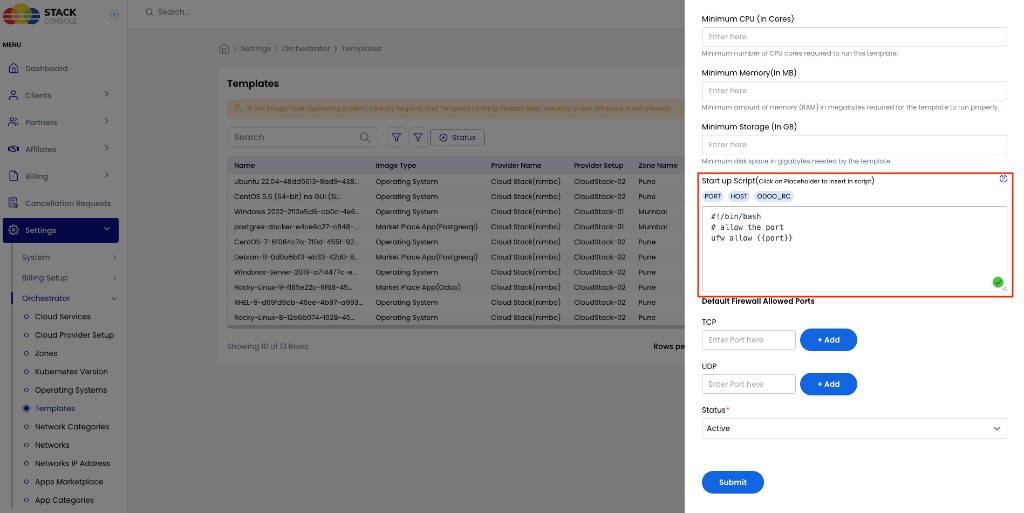
Example pattern:
#!/bin/bash
# allow the port
ufw allow {{port}}
Storage and email
| Concern | Behaviour |
|---|---|
| Persistence | After a Marketplace VM deploy, CMP stores Marketplace script / environment variables for that VM |
| Encryption | Sensitive data (for example password-type fields) is stored encrypted |
After a successful Marketplace deploy, CMP always sends Market Place Application Credentials using the configured template. If variables exist for the VM, CMP includes them (for example in {{table}}) together with per-app {{email_content}} | |
| Dynamic table | Use {{table}} in the email template to list variable names and values |
| VM details (planned) | End-user VM page will show Marketplace environment details — see Future improvements |
Full procedure: Application credentials email.