Configure Marketplace Apps in CMP
Path: Settings → Orchestrator → Apps Marketplace
Complete these steps after you have a prepared CloudStack template with the application installed and startup script / UserData support.
1. Create or edit the Marketplace App
Open Apps Marketplace and use + Add Marketplace App, or open an existing app’s Edit action.
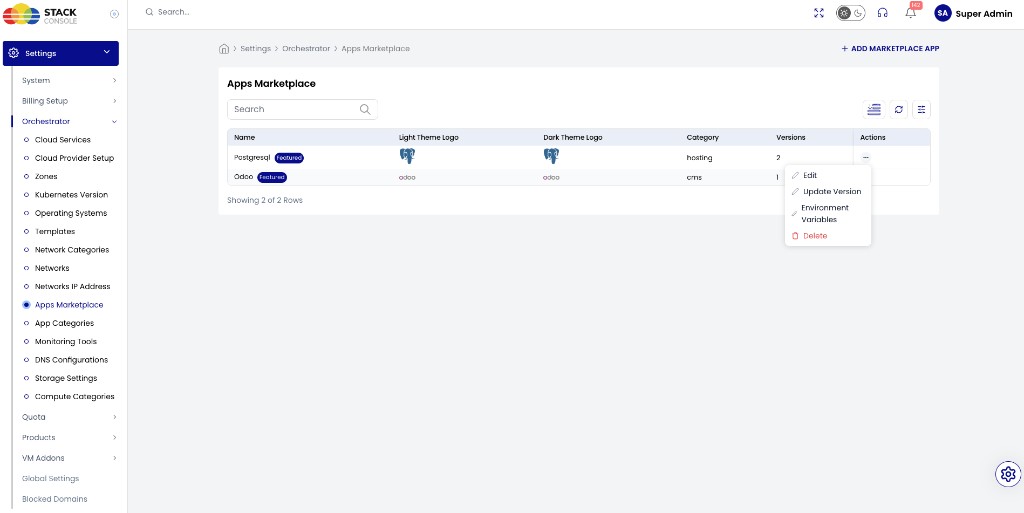
Form fields (Edit Marketplace App)
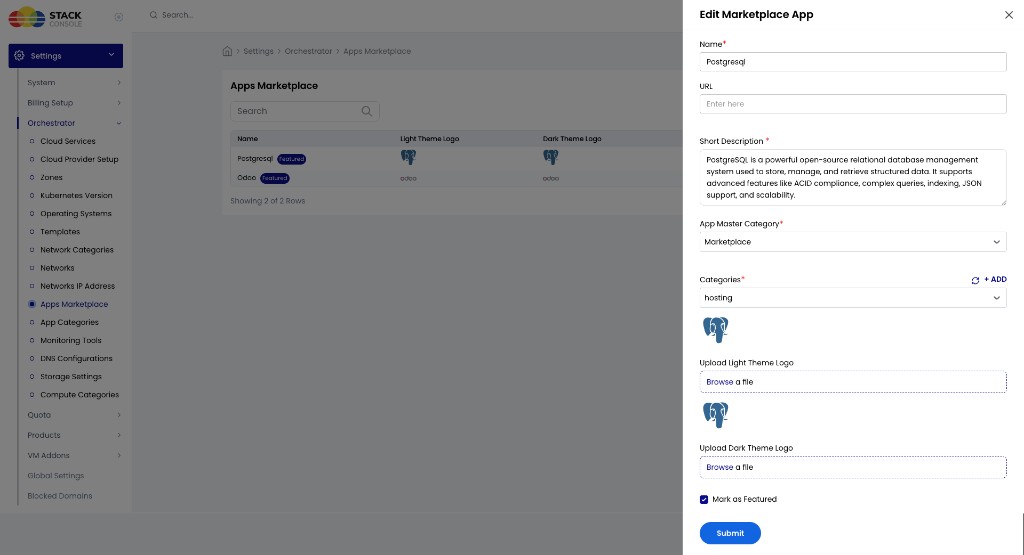
Name
Required. Display name (for example Postgresql, Odoo).
URL
Optional. Link to external product documentation or the vendor site. Useful for Application Information and Documentation.
Short Description
Required. Shown to customers when they select the app on Create Instance.
App Master Category
Required. Top-level grouping (for example Marketplace).
Categories
Required. Customer-facing category (for example hosting, cms). Use + Add to add more.
Upload Light Theme Logo / Upload Dark Theme Logo
Optional but recommended. Logos for light and dark portal themes.
Mark as Featured
Optional. Featured apps are highlighted in the Apps Marketplace list and customer UI.
Email content / instructions
Optional but recommended for credentials email — strongly recommended if the app has no environment variables. Per-app copy shown to the customer after deploy (via the credentials email and related UI). Content is specific to each Marketplace App — for example WordPress login steps vs database connection notes, or where an init script writes credentials on the guest.
Use create when you first add the app, and update later to revise instructions without recreating the app. This text is passed into the Market Place Application Credentials email as {{email_content}}. CMP always sends that email after a successful Marketplace deploy, whether or not environment variables exist.
If you add or rename environment variables, update the email content so customers know how to use the values they receive in {{table}}.
If you do not ask customers for inputs (init script sets up the app and stores credentials on the guest), put that location and access steps in this Marketplace App email content instead — see Application credentials email.
2. Manage versions
From the app row actions, open Update Version (or the versions screen for that app).
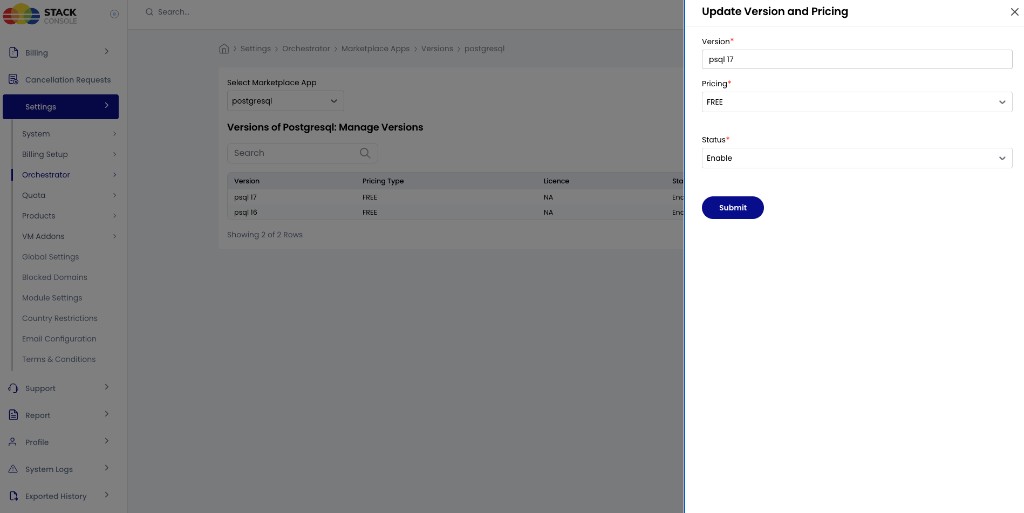
Typical fields:
| Field | Purpose |
|---|---|
| Version | Label shown to customers (for example psql 17, Odoo 18) |
| Pricing | For example FREE, or a licence / paid type when configured |
| Status | Enable / disable availability |
Add one version row per application release you sell. Each version is later linked from a CMP template.
3. Define environment variables
From the app row actions, open Environment Variables.
These are the deployment parameters customers fill in on Create Instance. Values are substituted into the admin startup script at deploy time, stored for the VM after deploy (sensitive values encrypted), and included in the credentials email via {{table}}. See Environment variables and Application credentials email.
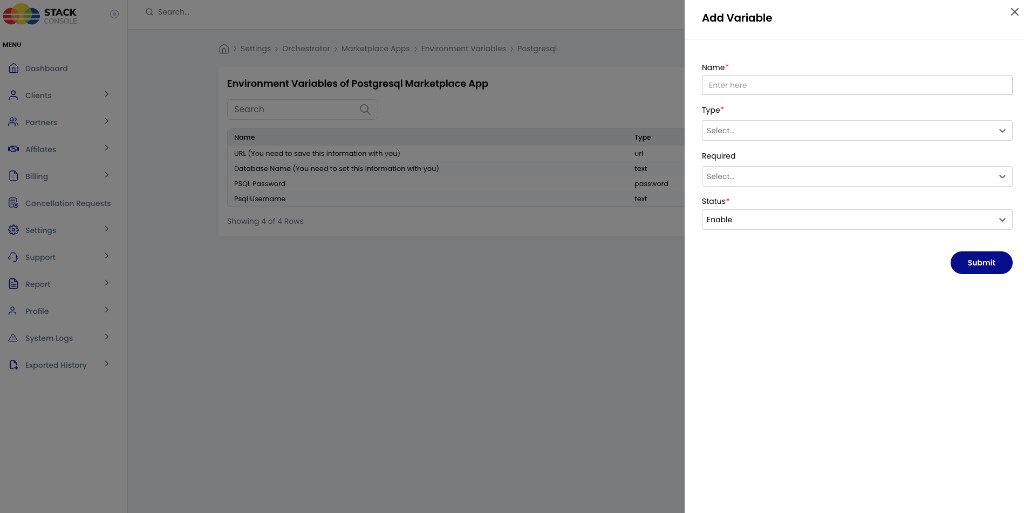
Add Variable fields
Name
Required. Label shown to the customer (for example PSQL Password, Database Name).
Type
Required. Input type — for example text, password, url. Use password for secrets so CMP can treat them as sensitive in storage and UI.
Required
Optional. Whether the customer must enter a value before deploy.
Status
Required. Enable to show the field on Create Instance.
4. Link templates
Map each CloudStack offering to a Marketplace App version under Settings → Orchestrator → Templates.
- Create or edit a template for the correct Cloud Provider Setup and zone.
- Set Image Type to Market Place App.
- Select OS / OS Version as usual.
- Set Select Market Place App and Select Market Place App Version.
- Configure User Config and the Start-up Script so placeholders match your environment variables.
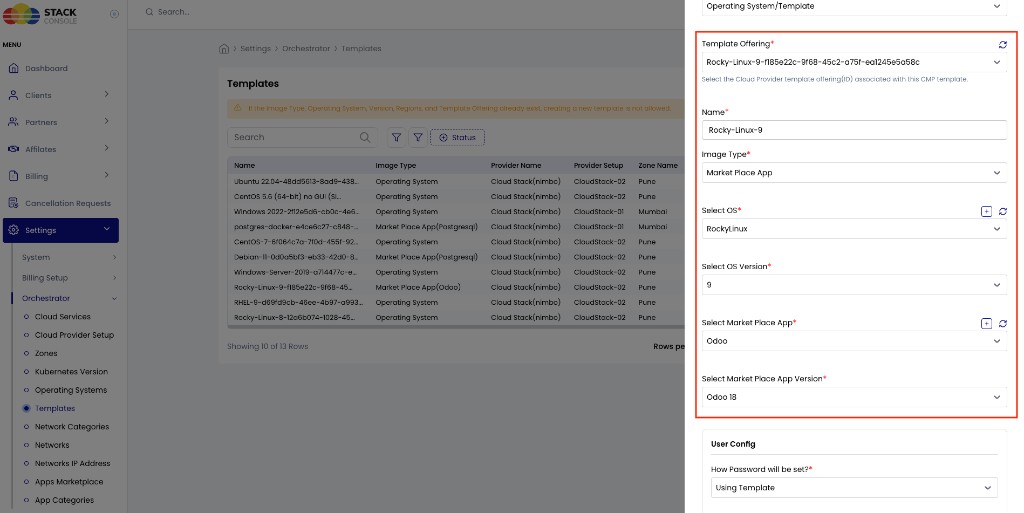
Use template Documentation Label and Documentation URL (and/or the app URL) so customers can open setup guides after deploy. See Configuring Templates in CMP.
Marketplace apps depend on UserData / startup scripts. Ensure VPC and network offerings include User Data — otherwise apps appear to deploy but scripts never run. See User Data — required for templates, Marketplace, and startup scripts.
5. Customer Create Instance view
When configuration is complete, customers use Create Instance → Choose Image → Marketplace Apps, select the app and version, then enter the environment variable values.
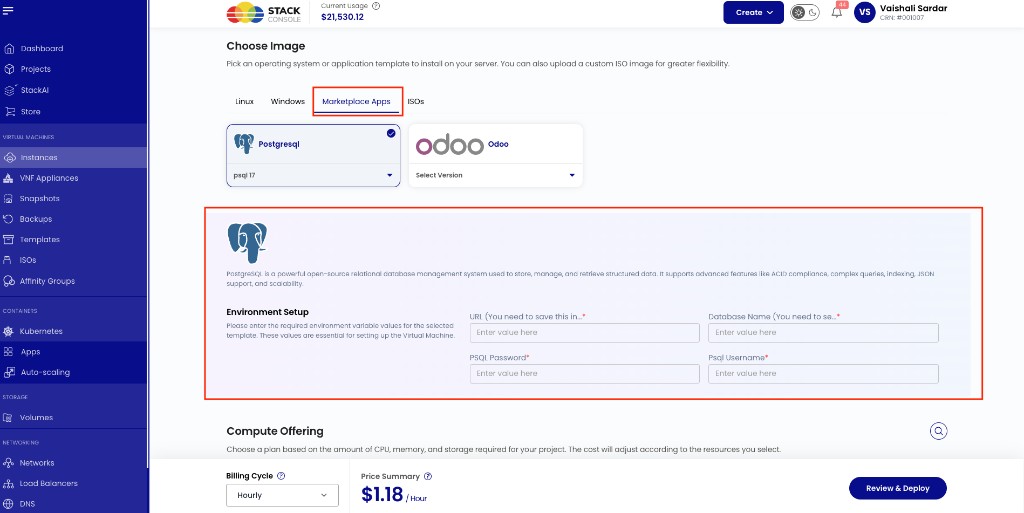
CMP substitutes those values into the admin startup script and deploys the VM with the pre-installed application image. After deploy, customers receive the Market Place Application Credentials email (when configured). Showing the same Marketplace details on the end-user VM details page is a planned improvement.