Application credentials email
When a customer deploys a VM from a Marketplace App, CMP can send an email with application credentials and environment details (for example WordPress admin URL, username, and password) — not only the generic “VM created successfully” message with OS, RAM, and storage.
Previously, Marketplace deploys often only sent the standard VM-created email. App-specific login details were not delivered to the customer unless they found them another way. This flow maps Marketplace environment / script output variables into a dedicated email template.
How it works
Admin: configure Marketplace App + email template (optional env vars + per-app email content)
        ↓
Customer: Create Instance → Marketplace App → deploy
          (enter env values only if the app defines variables)
        ↓
CMP: store Marketplace variables for the VM when any exist (sensitive values encrypted)
        ↓
Email: Market Place Application Credentials — always sent
        → use whatever the email template is set to
        → merge {{email_content}}, {{table}} (if variables exist), and other tags
        → send to customer
| Stage | What CMP does |
|---|---|
| Deploy | Runs the Marketplace startup script; collects environment / script output variables when the app defines them |
| Store | When variables exist, saves them for the VM; sensitive values are stored encrypted |
| Always sends the Market Place Application Credentials email after a successful Marketplace deploy, using the configured template — whether or not the VM has environment variables |
Whether environment variables exist for the VM does not control whether the credentials email is sent. CMP always sends Market Place Application Credentials after a successful Marketplace deploy, using whatever content and tags are set on the email template (and per-app {{email_content}}).
If the app has no variables, {{table}} may be empty — customers still receive the email with your static instructions and other tags.
Admin setup
Complete the usual Marketplace App setup first — see Configure in CMP. Then configure email content / instructions and the system email template.
1. Environment variables on the Marketplace App
Path: Settings → Orchestrator → Apps Marketplace → app actions → Environment Variables
Define variables when the customer (or startup script) must supply values for this app — for example WordPress site URL, admin user, and admin password. Those values are stored after deploy and can appear in the email {{table}}.
Environment variables are optional. If the app never asks the customer for inputs, skip this step and put credential / access instructions in per-app email content instead.
Each Marketplace App has its own variable set when used. See Environment variables.
2. Email content and instructions (per app)
Path: Settings → Orchestrator → Apps Marketplace → create or edit the app
Admins add environment variable email content and instructions on the Marketplace App. Content is different for each app (WordPress vs PostgreSQL vs Odoo, and so on).
Use create and update options on the Marketplace App so you can:
- Set instructions when the app is first created
- Revise email content and instructions later without recreating the app
That per-app copy is passed into the email as {{email_content}} (and related instruction display) together with any resolved variable values.
Some providers do not collect environment variables from the end customer. At provision time an init / startup script installs the application and writes credentials to a fixed location on the guest (or uses baked-in defaults).
In that case you can still use Marketplace Apps without defining customer-facing environment variables. Put the login path, credential file location, default ports, and how-to steps in the Marketplace App email content / instructions (and keep the Market Place Application Credentials template Active). CMP still always sends that email after deploy so the customer knows where to find credentials.
CMP does not invent WordPress (or other) credentials. You must:
- Define environment variables when the customer (or script) must supply values at deploy time — optional if credentials are only produced inside the guest
- Ensure the startup script produces or uses those values consistently when variables are used
- Write clear per-app email content / instructions (how to log in, where files live, and so on) — especially important when there are no customer input fields
- Keep the Market Place Application Credentials email template active and using the supported tags
3. Email template — Market Place Application Credentials
Path: Settings → System → Templates (Email Templates) → Market Place Application Credentials
A dedicated template sends Marketplace application credentials after a successful Marketplace deploy.
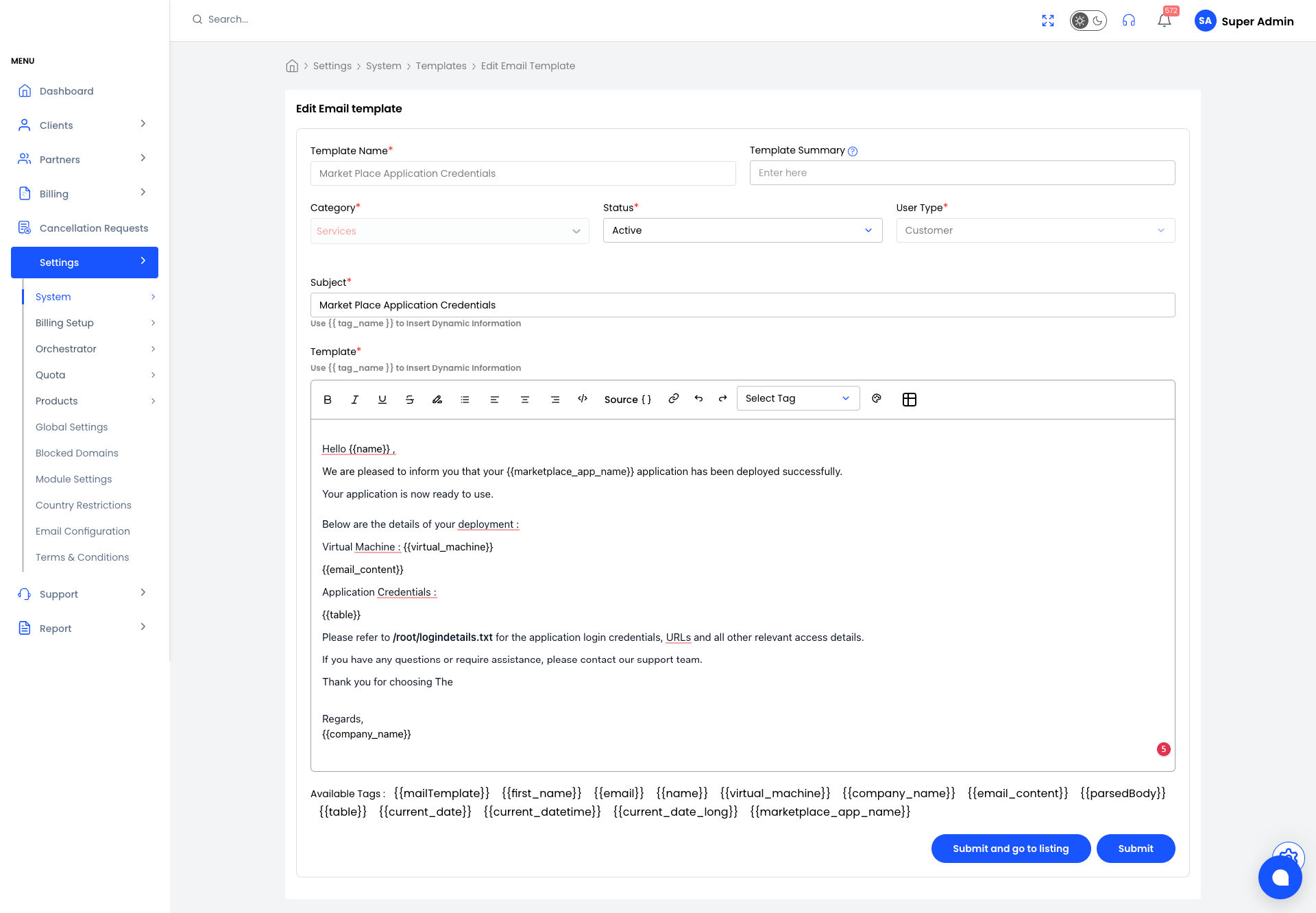
| Field | Typical value |
|---|---|
| Template Name | Market Place Application Credentials |
| Category | Services |
| Status | Active |
| User Type | Customer |
| Subject | Market Place Application Credentials (or your branding) |
Supported placeholders
Use the Available Tags list in the editor. Tags especially important for Marketplace credentials:
| Tag | Purpose |
|---|---|
{{table}} | Dynamically populates environment variable names and values for the deployed VM |
{{email_content}} | Per-app email content / instructions configured on that Marketplace App |
{{marketplace_app_name}} | Name of the Marketplace App (for example WordPress) |
{{virtual_machine}} | Deployed VM identifier / name |
{{name}} | Customer display name |
{{company_name}} | Provider / company name |
{{first_name}}, {{email}} | Customer contact fields |
{{current_date}}, {{current_datetime}}, {{current_date_long}} | Date stamps |
{{mailTemplate}}, {{parsedBody}} | Template / body helpers as listed in the editor |
Example body pattern (aligned with the stock template):
Hello {{name}},

We are pleased to inform you that your {{marketplace_app_name}} application has been deployed successfully.
Your application is now ready to use.

Below are the details of your deployment:
Virtual Machine: {{virtual_machine}}
{{email_content}}

Application Credentials:
{{table}}

Regards,
{{company_name}}
{{table}} when you have variablesInclude {{table}} where you want the dynamic environment variable list. If the Marketplace App has no environment variables, leave or omit the table section as needed and rely on {{email_content}} for static instructions (for example where credentials are stored on the guest).
What happens at VM creation
- Customer creates a VM from Create Instance → Marketplace Apps. If the app defines environment variables, they submit those values; if not, deploy continues without customer inputs.
- CMP deploys the VM and runs the Marketplace startup script (when configured).
- When Marketplace variables exist for that deploy, CMP stores them for the VM. Sensitive fields (passwords and similar) are stored encrypted.
- CMP always triggers the Market Place Application Credentials email after a successful Marketplace deploy — whether or not variables exist.
- CMP merges whatever is available into the configured template:
- Stored variable values →
{{table}}(empty / omitted content when there are no variables) - Per-app admin content →
{{email_content}} - Standard tags (
{{name}},{{marketplace_app_name}}, and so on)
- Stored variable values →
- The email is sent to the customer using the Active template as configured.
Future improvements
VM details / Overview (end user): Show all Marketplace App environment variable details on the customer VM details page after deploy — the same information sent in the credentials email — with sensitive values masked or shown securely when needed. Customers will then be able to recover credentials from the portal without relying only on email.
Admin checklist
| Step | Where | Done when |
|---|---|---|
| Marketplace App + version | Apps Marketplace | App is Active and version Enabled |
| Environment variables | App → Environment Variables | Defined when customers must enter values; optional if credentials are only set inside the guest via init script |
| Email content / instructions | App create / update | Per-app copy ready for {{email_content}} (required when you have no variables to list) |
| Startup script + placeholders | Templates (Image Type = Market Place App) | Script uses the same variables when applicable |
| Email template Active | Settings → System → Templates | Market Place Application Credentials Active — email is always sent; include {{table}} and/or {{email_content}} as needed |
| User Data on network | CloudStack offerings | Startup script can run |