Quota Reports and Usage Sync
Customers can review how much quota their account is using and sync usage when reported numbers do not match their live services.
Customer path: Profile → Account Limit → Quota → Quota Usages Report tab
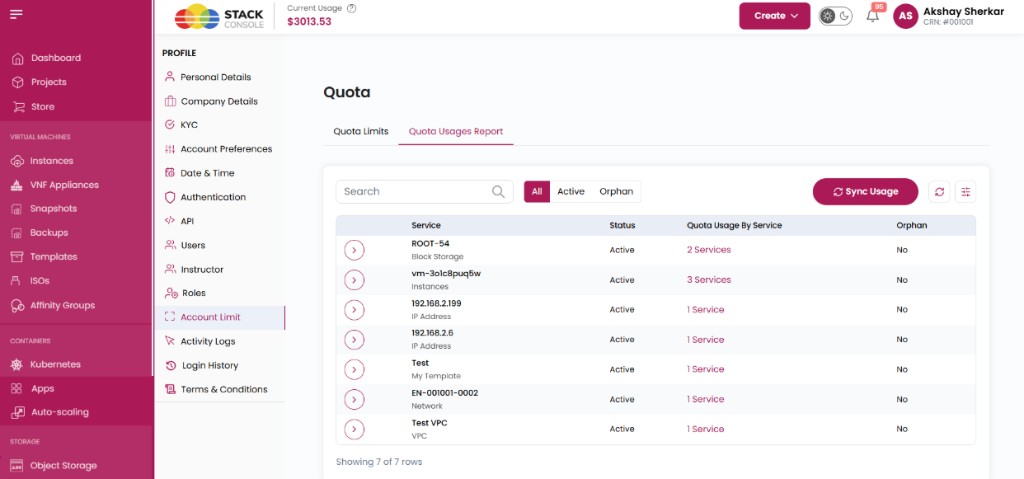
The Quota area has two tabs:
| Tab | Purpose |
|---|---|
| Quota Limits | Shows quota caps and limits assigned to the account |
| Quota Usages Report | Shows current quota usage per service, with filters and Sync Usage |
Quota reports
Quota reports show how much quota the account is using. Those numbers come from the account’s quota usage records in CMP.
Reports can look wrong or out of date when usage has not been refreshed — for example:
- After a plan change
- When a service is created or deleted
- When usage was not updated after an orchestrator or billing event
If a customer reports incorrect usage on Quota Limits or Quota Usages Report, ask them to run Sync Usage first (see below) before escalating.
Usage sync
Sync Usage updates quota usage to match the customer’s current services. Use it when:
- A quota report or usage view does not match live services (VMs, volumes, IPs, and other counted resources)
- Support asks the customer to sync usage
How to sync
- Open Profile → Account Limit → Quota.
- Select the Quota Usages Report tab.
- Choose a filter if needed (All, Active, or Orphan).
- Click Sync Usage.
After sync
- Incorrect or leftover usage is cleaned up.
- Missing usage is added where needed.
- Reports and usage screens show the corrected numbers.
- The customer sees: “Quota synchronised successfully.”
- Open the report or usage screen again to confirm the update.
When a customer says quota usage looks wrong, confirm they ran Sync Usage on Quota Usages Report and refreshed the tab. If numbers are still incorrect after sync, investigate admin-side quota and service state under Account-Level Quotas.
Orphan usage
If services are deleted but quota usage was not synced or updated, stale rows can remain on Quota Usages Report.
| Column / filter | Meaning |
|---|---|
| Orphan column | Indicates whether usage is tied to a service that no longer exists or is otherwise stale |
| Orphan filter | Shows rows where orphan usage may need cleanup |
Customers can use Sync Usage to refresh usage and clear orphan or leftover entries after deletions.
Report filters and columns
Filters (top of Quota Usages Report):
| Filter | Shows |
|---|---|
| All | All usage rows |
| Active | Usage tied to active services |
| Orphan | Usage that may be stale after deletions or missed updates |
Table columns (typical):
| Column | Description |
|---|---|
| Service | Resource name and type (for example block storage, instance, IP address) |
| Status | Service status (for example Active) |
| Quota Usage By Service | How many services contribute to this usage row |
| Orphan | Whether the row is flagged as orphan usage |
Related (admin)
- Global Resource Quotas — default limits for new accounts
- Account-Level Quotas — per-customer limits
- Project Quotas
- Quota Requests
- Customer Dashboard overview