Google reCAPTCHA v2 Checkbox setup
CMP supports Google reCAPTCHA v2 Checkbox to protect forms from spam and automated bot submissions.
Use reCAPTCHA v2 → "I'm not a robot" Checkbox only.
Do not use reCAPTCHA v3 or Invisible reCAPTCHA credentials with CMP.
The Site Key and Secret Key must belong to the same reCAPTCHA site configuration, and every application domain must be registered in the Google reCAPTCHA Admin Console.
Prerequisites
- A Google account
- Access to the Google reCAPTCHA Admin Console
- Admin access to CMP (Captcha Settings)
Step 1 — Create reCAPTCHA v2 Checkbox credentials
- Open the Google reCAPTCHA create page: https://www.google.com/recaptcha/admin/create
- Sign in with your Google account.
- Configure the site:
| Field | Value |
|---|---|
| Label | A name for this site (for example Stack Console) |
| reCAPTCHA type | Challenge (v2) |
| Subtype | "I'm not a robot" Checkbox |
| Domains | All application domains (for example example.com, and localhost if you test locally) |
img/screenshots/google-recaptcha-register-v2.png
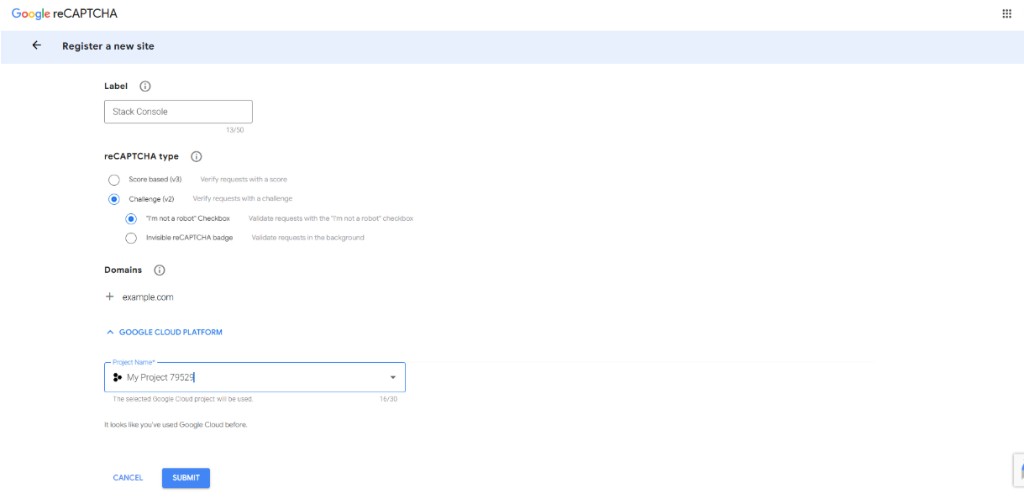
- Click Submit.
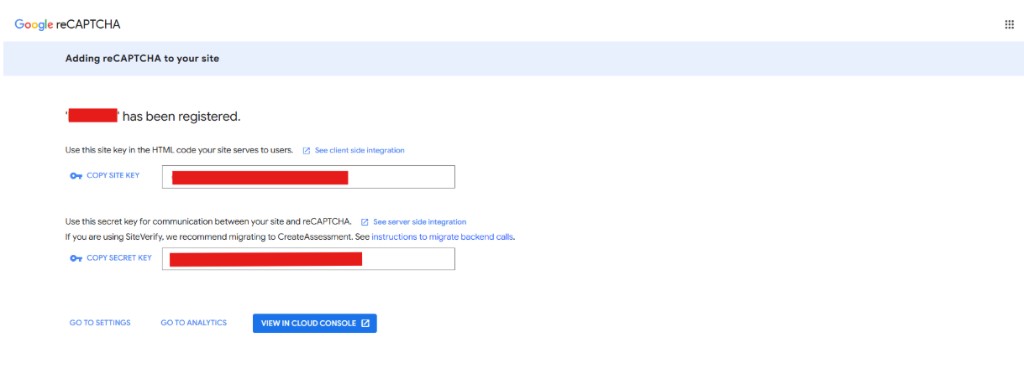
- Copy the generated Site Key and Secret Key.
img/screenshots/google-recaptcha-site-secret-keys.png
Step 2 — Configure CMP
- Log in to CMP as an administrator.
- Go to Settings → System → Captcha Settings.
- Open Add Setting (or edit an existing Google entry).
Form fields
Captcha Provider
Required. Select GOOGLE.
Site Key
Required. Paste the Site Key from the Google reCAPTCHA console.
Secret Key
Required. Paste the Secret Key from the same Google reCAPTCHA configuration.
Status
Required. Set to Active to enable this provider.
Mark as Default
Optional. Select to make Google reCAPTCHA the default CAPTCHA provider for protected forms.
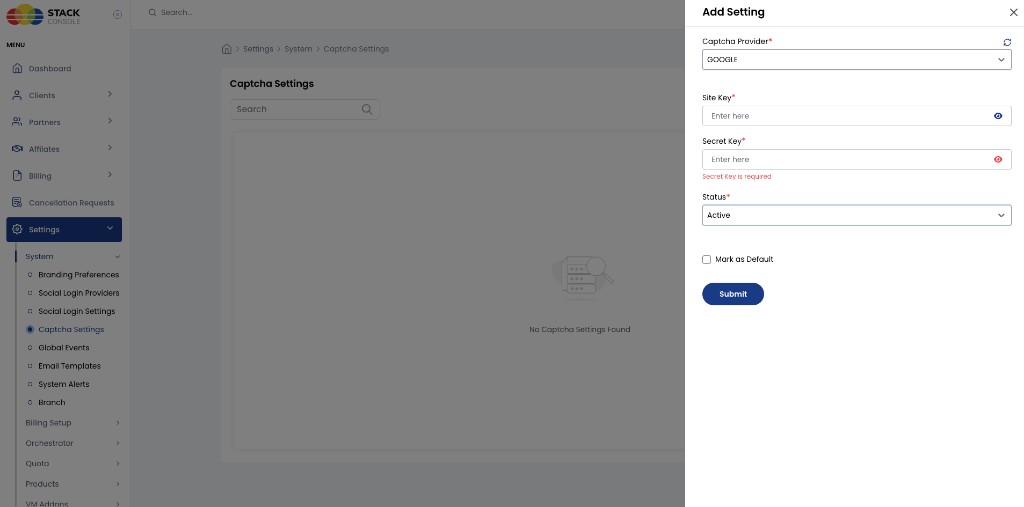
- Click Submit / Save to apply the changes.
Verification
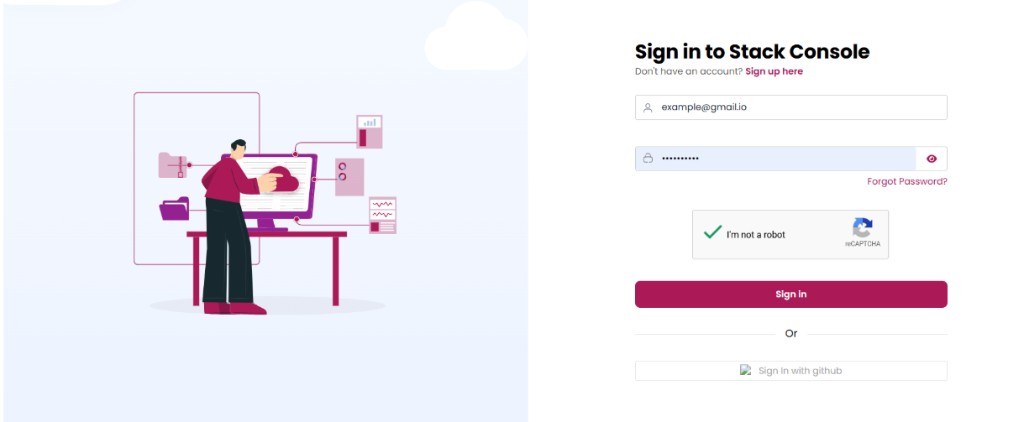
Open a page protected by reCAPTCHA (for example login or registration) and confirm that the "I'm not a robot" checkbox appears and validates successfully (green checkmark).
Common issues
| Issue | Resolution |
|---|---|
| Invalid site key | Verify the Site Key is correct and the domain is registered in Google reCAPTCHA. |
| Invalid secret key | Verify the Secret Key is correct and matches the same site as the Site Key. |
| Widget not displayed | Ensure you created reCAPTCHA v2 Checkbox credentials (not v3 or Invisible). |
| Domain mismatch | Add the application domain (and any aliases) in the Google reCAPTCHA Admin Console. |
Notes
- Only Google reCAPTCHA v2 checkbox is supported for the Google provider.
- Do not use reCAPTCHA v3 or Invisible reCAPTCHA credentials.
- Site Key and Secret Key must belong to the same reCAPTCHA configuration.
- Register all application domains used by the customer portal in the Google console.
CMP also supports Cloudflare as a CAPTCHA provider — see CAPTCHA overview.