Affiliate Registration
Prospective affiliates sign up through a public registration link. After they complete the flow, the request is sent to the admin for approval — the affiliate account is not active until an admin approves it.
- The Affiliate module must be enabled on your CMP deployment
- Share the registration URL only with partners you intend to onboard
Registration URL
Path: <BASE_URL>/affiliate/register
Example: https://portal.yourcompany.com/affiliate/register
Providers send this link to affiliates when the affiliate module is enabled.
Registration flow overview
| Step | Title | Purpose |
|---|---|---|
| Sign up | Initial form | Name, email, phone, password, accept Terms |
| 1 | Verify Email | OTP sent to registered email |
| 2 | Account Details | Billing address, currency, optional W8/W9 documents |
| 3 | Additional Questions | Promotion channels and partner fit |
| 4 | User Agreement | Commission terms, privacy, consent |
| 5 | Overview | Submission complete — pending admin approval |
Admin must approve the request before the affiliate can log in. Procedure: Manage Affiliates (Admin).
Full end-to-end flow: Affiliate Workflow.
Sign up (entry page)
Affiliates open the registration link and complete the initial form.
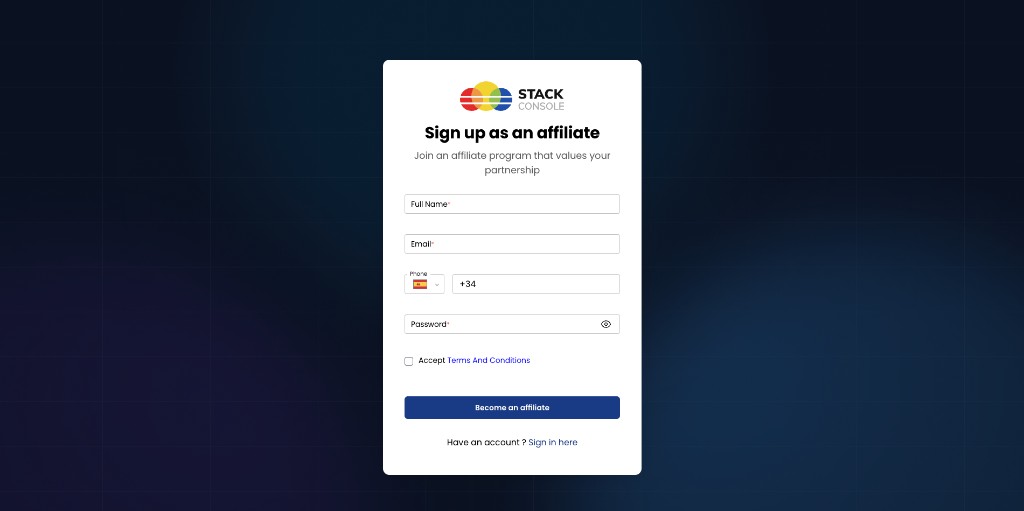
| Field | Required | Description |
|---|---|---|
| Full Name | Yes | Affiliate's full name |
| Yes | Used for OTP verification and account communication | |
| Phone | Yes | Contact phone with country code |
| Password | Yes | Account password |
| Accept Terms And Conditions | Yes | Must accept before continuing |
Click Become an affiliate to start the multi-step registration wizard.
Existing affiliates can use Sign in here to log in.
Step 1 — Verify Email
CMP sends a one-time password (OTP) to the registered email address.
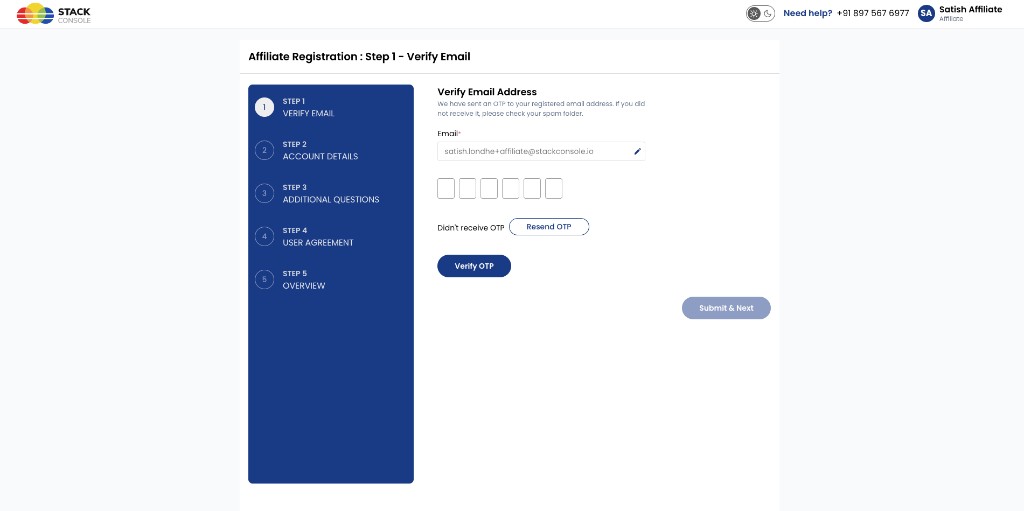
Required. Pre-filled from sign-up; editable if needed.
OTP
Required. Enter the 6-digit code from the email. If the email is not received, check spam or click Resend OTP.
Click Verify OTP, then Submit & Next to continue.
Step 2 — Account Details
Collect billing and tax details for the affiliate account.
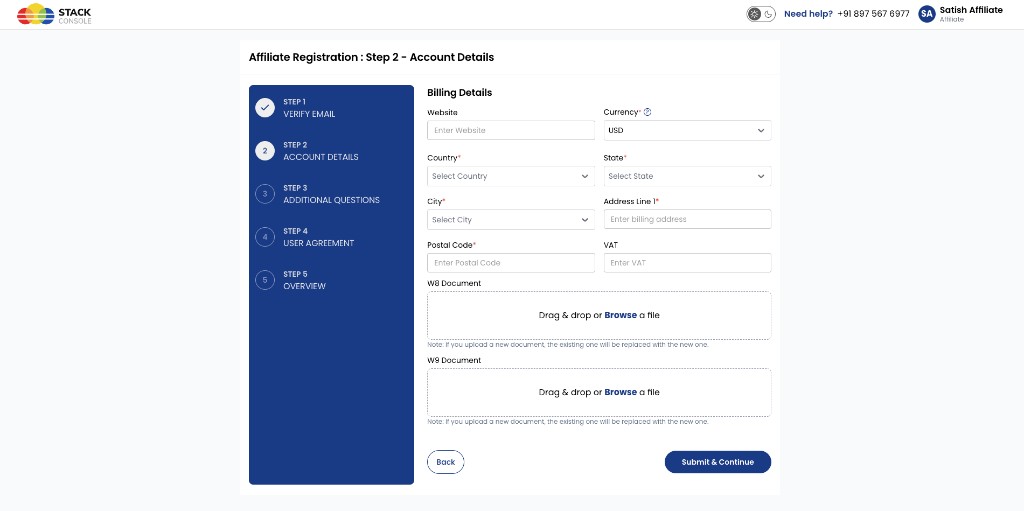
Billing details
| Field | Required | Description |
|---|---|---|
| Website | Optional | Affiliate or company website |
| Currency | Yes | Payout / account currency — for example, USD |
| Country | Yes | Billing country |
| State | Yes | Billing state or region |
| City | Yes | Billing city |
| Address Line 1 | Yes | Street address |
| Postal Code | Yes | ZIP or postal code |
| VAT | Optional | VAT number if applicable |
W8 / W9 documents (optional)
| Document | When to use |
|---|---|
| W8 Document | Optional — for non-US tax reporting where applicable |
| W9 Document | Optional — for US tax reporting where applicable |
Upload via Drag & drop or Browse. If a document was uploaded previously, uploading a new file replaces the existing one.
Use W8 or W9 only when required for your affiliate program and tax policy. If not applicable, leave both empty and continue.
Click Submit & Continue to proceed.
Step 3 — Additional Questions
Affiliates answer program-specific questions about how they will promote your brand.
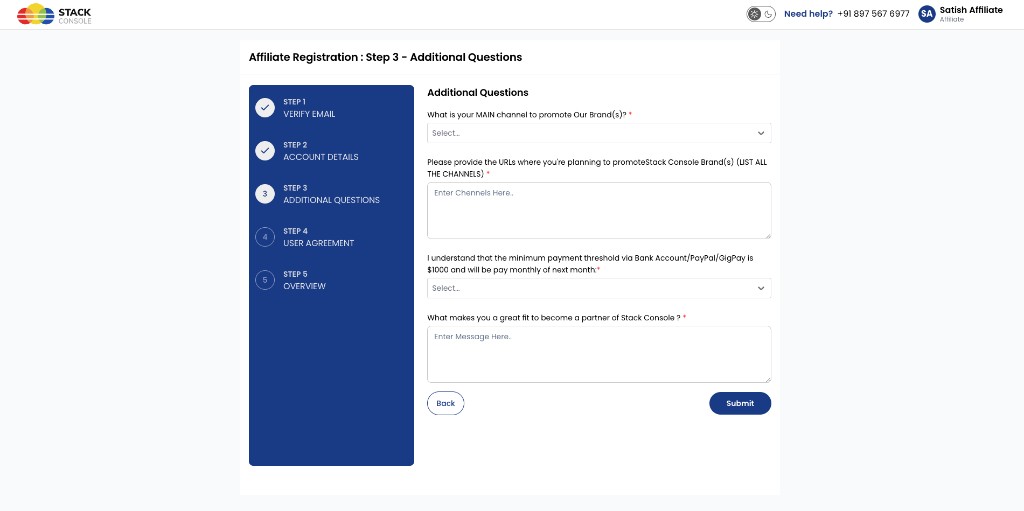
Typical fields (all required on the form):
| Field | Description |
|---|---|
| Main channel to promote brand(s) | Dropdown — primary promotion channel |
| URLs / channels for promotion | List all URLs and channels where the brand will be promoted |
| Minimum payment threshold acknowledgement | Confirm understanding of payout threshold and schedule |
| Why you are a good fit | Free-text message describing partnership fit |
Click Submit to continue.
Step 4 — User Agreement
Affiliates review commission terms and legal consents.
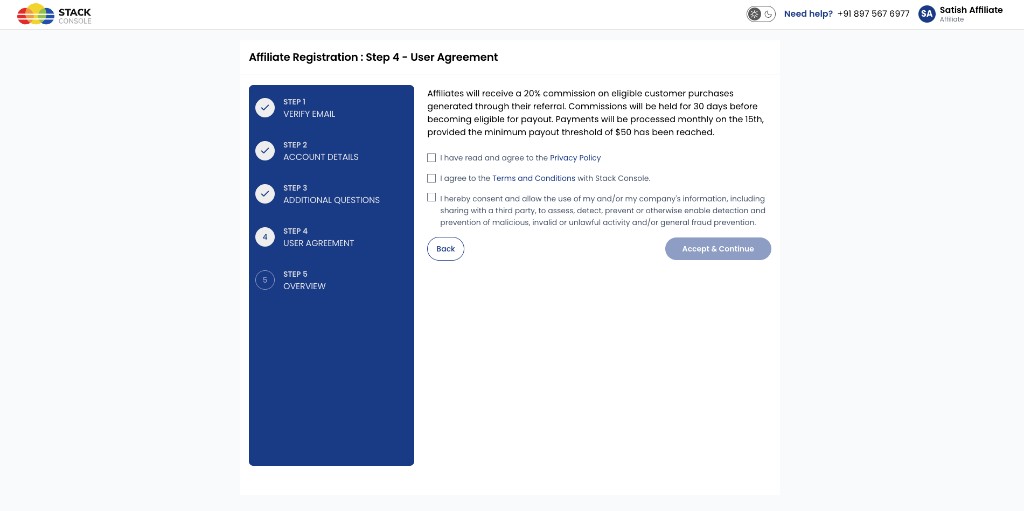
The page shows program terms — for example:
- Commission percentage on eligible referral purchases
- Commission hold period before payout eligibility
- Monthly payout schedule and minimum payout threshold
Required consents (checkboxes):
- Privacy Policy
- Terms and Conditions
- Consent for information use, including sharing with third parties for fraud prevention and compliance
Click Accept & Continue after all required boxes are checked.
Step 5 — Overview (registration complete)
Submission is sent to admin for approval.
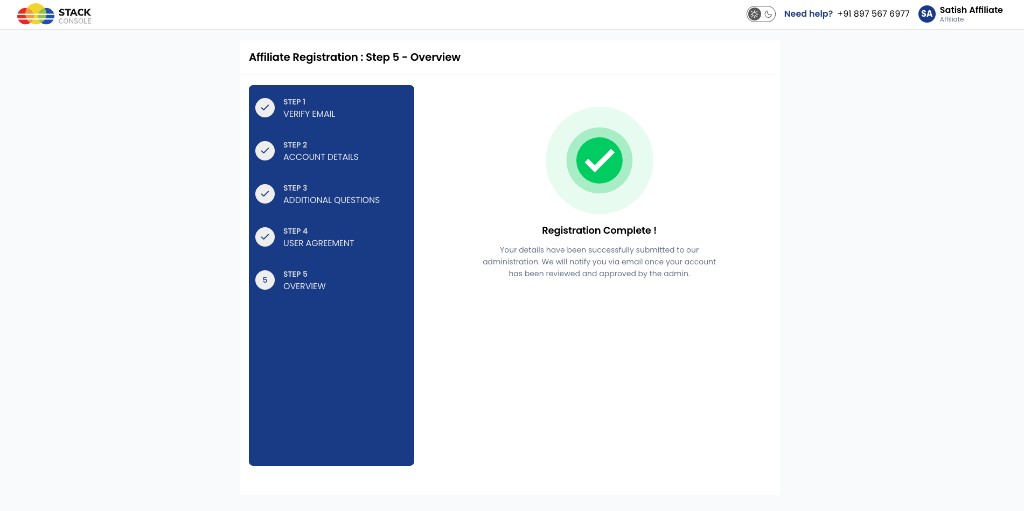
The affiliate sees Registration Complete! with a message that details were submitted and admin will review and approve the account. CMP sends an email when the account is approved.
Affiliate registration does not activate the account immediately. An admin must approve the request and assign an Affiliate Program before the affiliate can log in.
After approval, the affiliate logs in at <BASE_URL>/affiliate/login, configures payout settings, and shares their referral link — Affiliate Workflow.
After registration (affiliate perspective)
| Stage | What happens |
|---|---|
| Submitted | Registration request appears in admin queue (pending approval) |
| Under review | Admin evaluates the application |
| Approved | Affiliate receives email notification and can sign in |
| Rejected | Admin decision — affiliate is notified per your process |