Connecting CMP to Veeam
Connect CMP to Veeam Service Provider Console (VSPC) so Stack Console can create companies, assign quotas, and deliver credentials.
Complete Veeam Requirements first — VSPC 9.1, Company Administrator/Portal Administrator access, public API and portal URLs, Veeam Cloud Connect, and at least one Infrastructure Site visible to the API.
Submit the requirements from that page to the StackConsole team before CMP setup — role, VSPC API URL, VSPC web UI URL, and API key.
Admin setup workflow
| Step | Task |
|---|---|
| 1 | Complete Veeam Requirements and submit values to StackConsole |
| 2 | Cross-check VSPC — version 9.1, Cloud Connect, at least one Infrastructure Site |
| 3 | Generate REST API key (Portal Administrator) |
| 4 | Add Veeam Cloud Provider — Provider Setup through Success |
| 5 | Create Veeam packages |
| 6 | Define Custom Unit Pricing (optional) |
Without a public API URL, CMP cannot reliably call VSPC. Without a public VSPC web interface URL, customers cannot log in from outside the provider network after account creation. They are redirected to the Veeam dashboard to manage backup operations.
Generate a REST API key (VSPC 9.1)
- Log in to Veeam Service Provider Console with the Portal Administrator role
- Open Configuration (top right)
- In the left menu, select REST API Keys
- Click New → Simple Key (Recommended)
- Enter a description; enable Read-only access only if you intentionally need a read-only key (CMP integration needs write access for company and quota APIs — do not use read-only for the CMP integration key)
- Click Create
- Copy and save the private API key immediately — it is shown only at creation time
- Click OK
For more detail, see Configuring API Keys in the official Veeam Service Provider Console documentation.
Cross-check before connecting
Log in to the Veeam dashboard and confirm:
| Check | Requirement |
|---|---|
| VSPC version | Stack Console supports the latest Veeam Service Provider Console — currently 9.1 |
| Veeam Cloud Connect | Cloud Connect is configured in VSPC |
| Infrastructure Site | At least one Infrastructure Site exists, is online, and is returned by GET /api/v3/infrastructure/sites using your API credentials |
Each Infrastructure Site maps to a Zone (Location) in Stack Console. If the sites API returns an empty data array, fix VSPC Cloud Connect / site configuration and API permissions before continuing — see Veeam Cloud Connect and Infrastructure Sites.
Add Veeam Cloud Provider
CMP path: Settings → Orchestrator → Cloud Provider Setup → Add Cloud Provider (or open an existing setup → Configure)
Some older notes refer to Settings → Providers. In current CMP admin UI, Veeam is added under Settings → Orchestrator → Cloud Provider Setup.
Choose Provider Type: Veeam. The wizard has five steps:
- Provider Setup
- Provider Config
- Zone
- Storage Setting
- Success
Wizard Step 1 — Provider Setup
Provider Name
Required. Display name — for example Veeam Backup.
VSPC API URL
Required. Base API URL — for example https://vspc.example.com (include port if required, such as :1280).
Username
Required. API user (Company Administrator–capable account as required by your VSPC setup).
Password
Required. Password for the API user.
Default Reseller / Group
Optional. Default reseller or group in VSPC when applicable to your hierarchy.
API key
Required when your deployment uses REST API key auth. Paste the private Simple API key generated above. Store it securely; CMP uses it for company and quota API calls.
Always test the connection after Provider Setup. Fix URL reachability, credentials, API key, version (9.1), and Infrastructure Site visibility before continuing.
Wizard Step 2 — Provider Config
Additional configuration for how new Veeam tenant accounts are created and which services they can use.
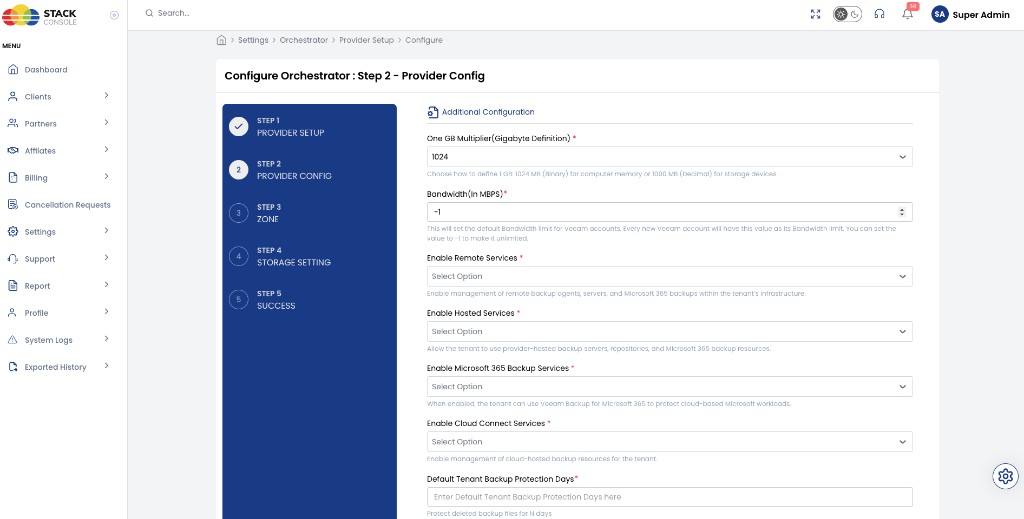
One GB Multiplier (Gigabyte Definition)
Required. How CMP defines 1 GB: 1024 MB (binary) or 1000 MB (decimal). Match this to how Veeam / your billing treats storage.
Bandwidth (In MBPS)
Required. Default bandwidth limit for every new Veeam account. Set -1 for unlimited.
Enable Remote Services
Required. Enable management of remote backup agents, servers, and Microsoft 365 backups within the tenant’s infrastructure.
Enable Hosted Services
Required. Allow the tenant to use provider-hosted backup servers, repositories, and Microsoft 365 backup resources.
Enable Microsoft 365 Backup Services
Required. When enabled, the tenant can use Veeam Backup for Microsoft 365 to protect cloud-based Microsoft workloads.
Enable Cloud Connect Services
Required. Enable management of cloud-hosted backup resources for the tenant.
Default Tenant Backup Protection Days
Required. Protect deleted backup files for N days.
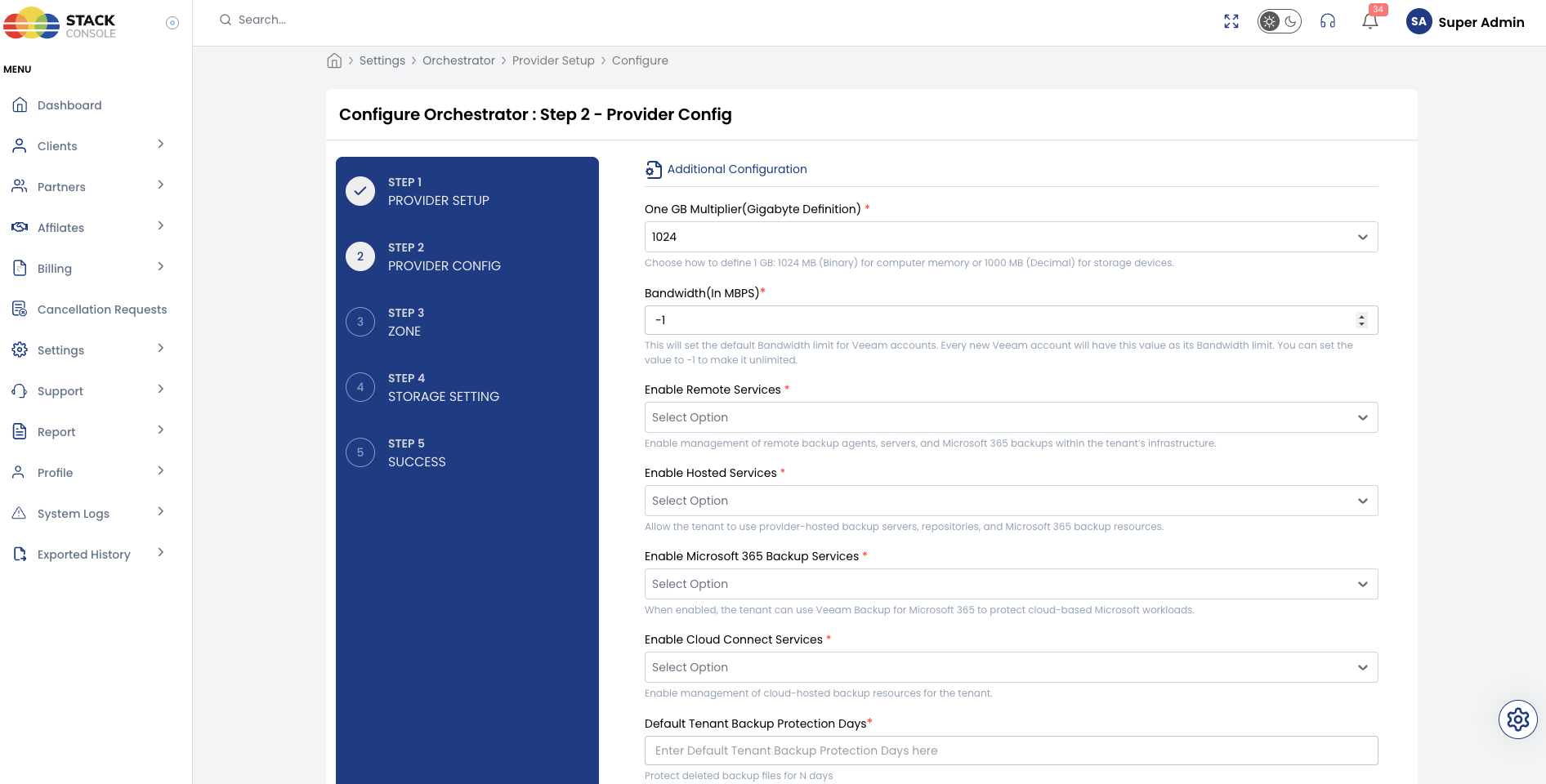
Click Submit & Continue to proceed to Zone.
Wizard Step 3 — Zone
Map each VSPC Infrastructure Site to a CMP Zone (Location) (same pattern as other orchestrators). Sites are discovered from GET /api/v3/infrastructure/sites — if none appear, complete Veeam Cloud Connect and Infrastructure Sites in VSPC first. Continue when the zone is Active.
Wizard Step 4 — Storage Setting
Configure storage category / settings required for packaging Veeam plans on the rate card, then continue.
Wizard Step 5 — Success
Confirm the provider setup is complete, then create Veeam packages and unit pricing.
Next steps
- Create Veeam packages and unit pricing
- Review Veeam Features for the customer experience