OpenStack Storage Settings
Storage settings map OpenStack Cinder volume types to CMP storage categories (e.g. SSD Storage (NVMe), SSD Storage (SSD), Standard HDD). This mapping allows customers to choose storage tiers when deploying virtual machines, purchasing additional block storage volumes, or provisioning Kubernetes clusters.
CMP uses storage settings for logical segregation, rate card package scoping, and quota enforcement. Packages that include storage — VM root disk (when override disk is enabled), Volume Packages, and Unit Pricing — are scoped per Storage Category.
CMP path: Settings → Orchestrator → Provider Setup → Configure → Step 5 — Storage Setting, or Settings → Orchestrator → Storage Settings
Before You Begin
Ensure the following prerequisites are met before adding storage settings:
- Connecting CMP to OpenStack is complete through Wizard Step 4 (Templates).
- Regions & Availability Zones are configured for the OpenStack instance.
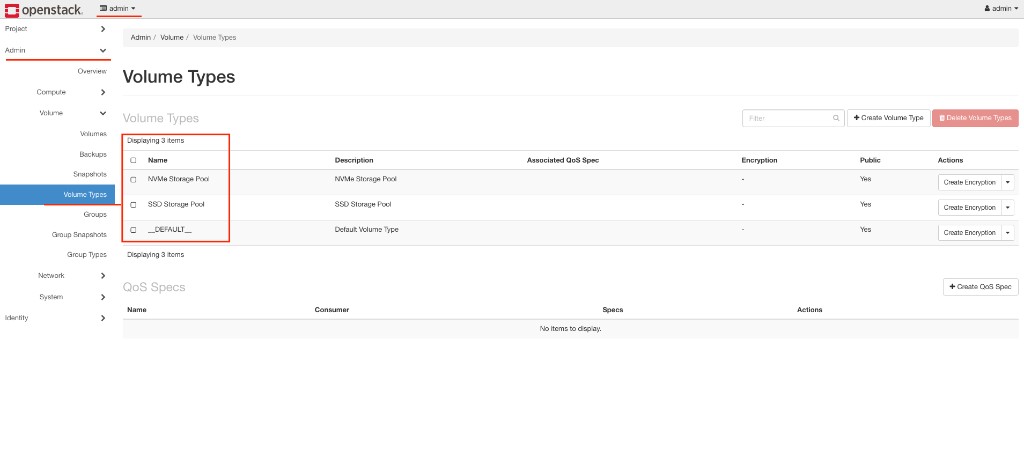
- Cinder volume types exist in OpenStack for each storage backend/tier you plan to sell (viewable in Horizon under Admin → Volume → Volume Types).
- Enable Override Disk Offering is set to Yes in Provider Config (recommended) so customers select root disk storage tiers separately at VM creation.
Keep Storage Settings in Sync with Cloud Services
Whenever you add, edit, or disable a storage setting, also update the corresponding services in Cloud Services and Cloud Provider Setup (Wizard Step 1).
CMP manages quotas individually for each storage type (for example, SSD Storage, NVMe Storage, HDD Storage). VM Packages and Volume Packages are strongly dependent on storage settings — if you disable a storage setting, associated packages are not shown to end customers for that tier.
| Action | Also update |
|---|---|
| Add a new storage tier | Enable the matching SSD / NVMe / HDD Storage service in Cloud Provider Setup Step 1; configure matching quota in Wizard Step 6 |
| Disable a storage setting (Status = Inactive) | Disable the corresponding storage service in Cloud Provider Setup if the tier should no longer be sold |
| Change zone or storage category | Verify VM Packages, Volume Packages, and Unit Pricing packages still map to the correct Storage Category |
Storage categories in CMP are logical labels for customers (e.g. SSD, NVMe, Gold). They must map correctly to OpenStack Cinder volume types.
An incorrect mapping can cause volume provisioning failures, storage placement on an unintended backend pool, or billing inconsistencies.
OpenStack Prerequisites (Cinder Volume Types)
In OpenStack, workload placement on specific storage backends is controlled at the volume type level. CMP resolves volume types at volume creation time — those volume types must target the correct Cinder backend drivers or storage pools.
In Horizon:
- Log in as an administrator.
- Navigate to Admin → Volume → Volume Types.
- Verify the target volume types exist (for example,
NVMe Storage Pool,SSD Storage Pool, or__DEFAULT__).
Configure Storage Settings in CMP
- In CMP, navigate to Settings → Orchestrator → Storage Settings (or Cloud Provider Setup Wizard Step 5 — Storage Setting).
- Click Add Setting.
- Fill in the form fields:
Cloud Provider
Required. Select OpenStack (e.g. OpenStack(alto)).
Cloud Provider Setup
Required. Select the OpenStack environment.
Zone
Required. Select the target OpenStack zone/region.
Storage Category
Required. Select the logical customer tier (e.g. SSD Storage (NVMe), SSD Storage (SSD), HDD).
Storage Policy / Volume Type
Required. Select or enter the matching OpenStack Cinder volume type name or ID.
Status
Required. Set to Active when ready to offer to customers.
- Click Save.
Relationship to Default Storage Policy
In Wizard Step 2 — Provider Config, CMP includes an Open Stack Default Storage Policy field:
- Single Default (Fallback): The setting on Provider Config provides a global fallback volume type if no per-category storage policy is configured.
- Multiple Tiers (Recommended): For production environments offering multiple storage tiers (SSD, NVMe, HDD), configure per-category mappings here in Storage Settings. CMP will prioritize the category-specific policy over the fallback default.
Related
- Connecting CMP to OpenStack — Step 2 default storage policy & Provider Config
- OpenStack Volume Packages — Cinder block-storage package management
- OpenStack Virtual Machine Packages — Override disk offering and flavor root disk 0
- OpenStack Volumes Snapshot
- OpenStack Quota Management
- Regions & Availability Zones
- Stoppable Services
- CloudStack Storage Settings — reference implementation