Configuring images in CMP
After a Glance image is ready in OpenStack, map it in CMP as a template entry so customers can select it when creating VMs. The CMP UI uses the same Add Template form as other orchestrators; most fields match Configuring Templates in CMP (CloudStack).
- Glance image exists and is bootable in OpenStack
- Image meets CMP-compatible image requirements
- Cloud Provider Setup and zone are configured in CMP
Manual configuration (no auto-sync)
Image / template inventory in CMP is not updated automatically when Glance changes. CMP has no self-service Sync for templates.
Any image created, modified, or removed in OpenStack must be re-configured manually in CMP under Settings → Orchestrator → Templates.
After Glance updates (new image ID, rename, delete), update or recreate the CMP template mapping. Do not assume CMP picks up changes by itself.
Initial setup (Wizard Step 4)
During first-time Cloud Provider setup, configure images in Wizard Step 4 — Template. See Connecting CMP to OpenStack.
Creating or editing a template (image)
- Log in to the CMP Admin Panel
- Go to Settings → Orchestrator → Templates (or Wizard Step 4)
- Click Add Template (or edit an existing row)
- Select Cloud Provider = OpenStack, the correct Cloud Provider Setup, and Zone
- Complete the fields below
- Set Status to Active and click Submit
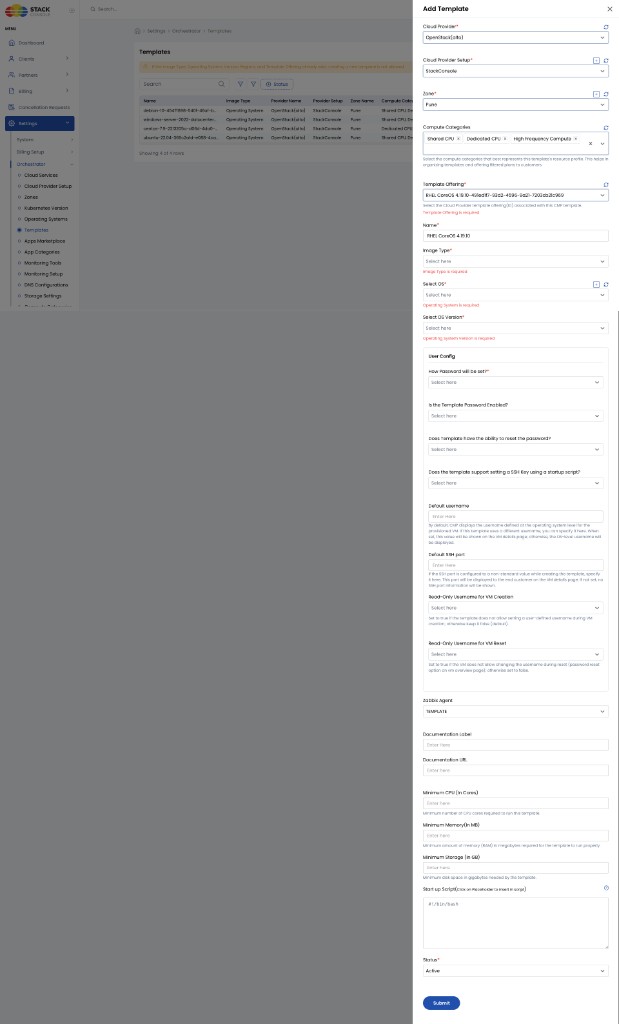
Form fields
Cloud Provider
Required. Select OpenStack (for example OpenStack (alto)).
Cloud Provider Setup
Required. The OpenStack setup from Connecting.
Zone
Required. CMP zone mapped in Regions & Availability Zones. Configure the same Glance image per zone where customers should use it.
Compute Categories
Optional. Multi-select categories (for example Shared CPU, Dedicated CPU, High Frequency Compute) that represent this image’s resource profile. Used to organize templates and filter plans for customers — same behaviour as CloudStack. Apply categories consistently with related VM packages.
Template Offering
Required. Select the OpenStack / Glance image (offering ID) associated with this CMP template. The dropdown lists images available for the selected setup and zone. Example: RHEL CoreOS 4.19.10-<uuid>.
The value is the cloud provider template/image offering ID. After recreating an image in Glance, the ID may change — remapping in CMP is required.
Name
Required. Admin display name (for example RHEL CoreOS 4.19.10). Customers primarily see Select OS / Select OS Version, not this field.
Image Type
Required. Classification of the image (same options as CloudStack — for example Operating System or Market Place App). For Marketplace Apps, see Link templates.
Select OS / Select OS Version
Required. OS family and version shown to customers. Add missing OS entries under Settings → Operating System if needed.
User Config
Same purpose as CloudStack — how CMP presents and manages login for VMs from this image.
How Password will be set?
Required. For OpenStack, typical options include Using Template and Using Startup Script (Linux). Match how the Glance image injects passwords (cloud-init / metadata). See CloudStack User Config for field meanings; choose the method your OpenStack image actually supports.
Is the Template Password Enabled?
Whether password-related fields appear on the VM form and whether CMP manages passwords for this image.
Does Template have the ability to reset the password?
Enable when password reset should be available on the VM details page after deploy.
Does the template support setting a SSH Key using a startup script?
Enable when the image supports SSH public key injection (cloud-init / startup script).
Default username
Optional. Override the OS-level default username shown on VM details. If empty, CMP uses the username from Settings → Operating System. Informational only — the user must exist inside the image.
Default SSH port
Optional. Non-standard SSH port to show on VM details. If empty, no SSH port is shown.
Read-Only Username for VM Creation
| Value | Behaviour |
|---|---|
| No (default) | Customer may set a username at VM create (if the flow allows) |
| Yes | Username fixed — customer cannot set a custom username at create |
Read-Only Username for VM Reset
| Value | Behaviour |
|---|---|
| No (default) | Username may change during password reset on VM overview |
| Yes | Username locked during reset |
Zabbix Agent
Deprecated. Leave at default (for example TEMPLATE). Do not configure Zabbix for new OpenStack images — Zabbix monitoring is not supported; use OPEN_STACK_METRIC at provider setup. See Monitoring Provider.
Documentation Label / Documentation URL
Optional. Custom docs link on the VM details page for end users.
Minimum CPU (In Cores) / Minimum Memory (In MB) / Minimum Storage (In GB)
Optional. Lowest package sizes CMP will offer for this image. During provisioning, CMP filters out packages below these floors.
| Field | Use |
|---|---|
| Minimum CPU | Lowest vCPU count |
| Minimum Memory | Lowest RAM in MB |
| Minimum Storage | Lowest root disk (GB) — set at least to the Glance image virtual size so undersized disks are hidden |
Same filtering behaviour as CloudStack minimum resources. Especially important when Enable Override Disk Offering is Yes — see Virtual Machine packages.
Start up Script
Optional. Guest initialization script (#!/bin/bash and placeholders). Used for Marketplace apps and advanced cloud-init style setup. Respect startup script size limits when used with Marketplace Apps.
Status
Required.
| Value | Behaviour |
|---|---|
| Active | Available in customer VM creation |
| Inactive | Configured in CMP but hidden from customers |
Validation checklist
- Glance image is bootable and mapped via Template Offering
- Correct Cloud Provider, Setup, and Zone
- Image Type, OS, and OS Version set
- User Config (password / SSH) matches the image
- Default username / SSH port set if non-standard
- Minimum CPU / memory / storage set when the image needs a floor
- Zabbix Agent left at default (deprecated)
- Status = Active