Preparing CMP-Compatible Templates
Before a template can be used for virtual machine provisioning through StackConsole CMP, it must be prepared and registered correctly at the CloudStack level. This page describes the recommended template requirements and best practices for Apache CloudStack.
These recommendations ensure that VM password management, SSH key injection, root disk scaling, startup scripts, and other CMP features work correctly.
For detailed template creation procedures, refer to the Apache CloudStack Template Guide.
Templates at the CloudStack level must be marked Public and Featured. Only templates with both flags set are available when templates are configured in CMP.
Template requirements
A template intended for use with CMP should satisfy the following requirements.
| Requirement | Required | Description |
|---|---|---|
| Password enabled | Yes | Required for CloudStack password management via UserData. |
| SSH enabled | Yes | Required for SSH key injection and secure access. |
| Startup script enabled | Yes | Required for UserData and initialization scripts at first boot. |
| Scalable root disk | Yes | Allows the root disk to grow to the customer-selected package size; package must be ≥ template virtual size. |
| Public & Featured | Yes | Required before the template can be configured in CMP. |
| Known minimum size | Yes | Register with a clear minimum/default size; set CMP Minimum Storage to match so small packages are hidden. |
Enable password support
Templates (or ISOs) used for VM provisioning must be registered as Password Enabled in CloudStack.
When the template is password-enabled:
- CloudStack automatically generates the VM password during deployment
- CMP does not send a password through the
deployVirtualMachineAPI — the CloudStack API does not accept a password parameter - The generated password is returned by CloudStack in the deployment response (
passwordandpasswordenabled) - CMP stores the password against the VM record and displays it in the user interface
Password must meet CloudStack validation rules (minimum 8 characters where applicable).
Reference: CloudStack password-enabled templates
Use password-enabled templates if you want CMP to manage VM passwords and support password reset operations.
Password workflow
- Register the template in CloudStack with Password Enabled selected.
- Re-configure the template manually in CMP (during Cloud Provider setup, or from Settings → Orchestrator → Templates after setup — CMP has no self-service Sync option).
- Deploy a VM using the template.
- CloudStack generates the password.
- CMP retrieves and stores the generated password automatically.
Configure SSH access
Templates should have the SSH service installed and enabled.
Verify that the guest operating system allows SSH authentication by reviewing the SSH daemon configuration, typically at /etc/ssh/sshd_config. Review the following settings according to your operating system security policy:
PasswordAuthenticationPermitRootLogin
Example configuration:
PasswordAuthentication yes
PermitRootLogin yes
Or use a default non-root user instead of direct root login — see Configure a default operating system user.
CMP supports SSH key injection during VM deployment. The template must be prepared to accept SSH keys through the startup process.
Enable startup script support
Templates should support startup scripts (UserData) so that CMP can initialize the virtual machine during first boot.
Startup scripts are used for features such as:
- SSH key injection
- User account initialization
- Marketplace application deployment
- Environment variable configuration
- Guest customization
CMP Marketplace apps rely on startup scripts (UserData) to configure software at first boot. If the template does not support startup scripts, Marketplace deployments in CMP will not work as intended.
See Marketplace Apps for app setup, environment variables, credentials email, and limits.
Enable startup script / UserData support when registering the template in CloudStack.
Configure a scalable root disk
Templates should be created with a minimum required root disk size, but the root disk must remain scalable at provisioning time so customers can select larger storage packages.
For example, a template may be created with a default / virtual root size of 10 GB or 15 GB, while the customer may later select a package with a root disk of 60 GB, 120 GB, or 500 GB.
CloudStack rule: root disk must be ≥ template size
When CloudStack deploys a VM, any root disk size override (for example from a CMP volume / storage package) must be greater than or equal to the template’s virtual size. CloudStack rejects smaller sizes.
If the selected root disk is smaller than the template, CloudStack returns an error such as:
Request failed. (431)
Unsupported: rootdisksize override (10 GB) is smaller than template size (12.24 GB)
img/screenshots/acs-rootdisksize-smaller-than-template-error.png
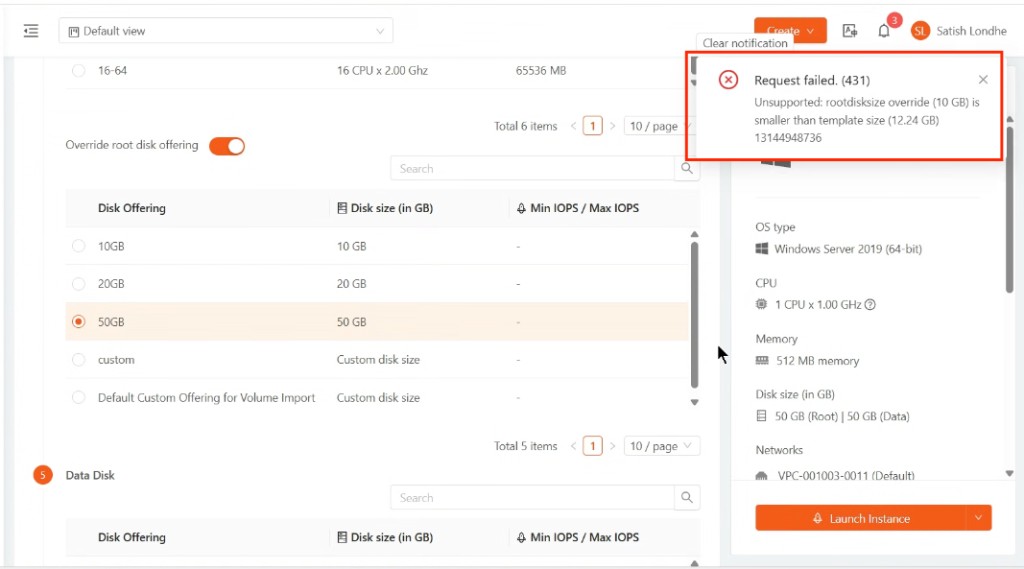
This is CloudStack behaviour (see Root Resize Support and the Templates admin guide): the deploy-time root disk cannot shrink the cloned template image.
Admin checklist (template + packages)
| Step | What to do |
|---|---|
| Create the template | Register it with a clear minimum / virtual size (for example 10–20 GB for a thin Linux image). Keep the disk scalable, not fixed forever at that size. |
| Create storage / volume packages | Every root-disk package you sell for that zone must be greater than or equal to each template’s size you expose. Prefer packages that start above the largest template you offer (for example if templates are ~12 GB, do not sell a 10 GB root package for those templates). |
| Configure the template in CMP | Set Minimum Storage (In GB) to at least the template’s CloudStack size so CMP hides smaller storage packages during VM create — see Minimum resource requirements. |
If the template does not support root disk scaling, the deployed VM may not match the storage capacity defined by the selected package.
Undersized root packages are a common cause of failed launches. After registering templates, compare CloudStack template size (virtual size) with every Volumes / root disk package for that zone, then set CMP Minimum Storage on each template that needs a floor.
Configure a default operating system user
CMP supports configuring a default operating system username for each OS type.
Although root is commonly used during testing, many cloud providers disable direct root login and instead create a default operating system user.
| Operating System | Recommended Default User |
|---|---|
| Ubuntu | ubuntu |
| CentOS | centos |
| Debian | debian |
| Rocky Linux | rocky |
| AlmaLinux | almalinux |
Set the username at the operating system level in CMP. It is recommended to use the same default username across all versions of the same operating system family.
L2 network limitations
Apache CloudStack L2 networks do not support UserData services. Since password-enabled templates depend on UserData, they cannot be deployed on L2 networks.
If you need to deploy VMs on an L2 network, use a template that is not password-enabled.
Attempting to deploy a password-enabled template on an L2 network may result in an error similar to:
Unable to deploy VM as template "ubuntu-test" is password enabled,
but there is no support for UserData service in the default network.
A full CloudStack error may also include the template ID and network UUID:
Unable to deploy VM as template Template {"format":"OVA","id":219,"name":"ubuntu-test",...}
is password enabled, but there is no support for UserData service in the default network TestL2Network/1450b1fc-5984-42d9-93cc-d3aef8047ced
Best practices
- Enable Password Enabled when registering the template in CloudStack
- Ensure the template supports SSH key injection and UserData
- Enable startup script execution
- Create templates with scalable root disks (not fixed size)
- Keep all sold root-disk packages ≥ each exposed template’s CloudStack size; set CMP Minimum Storage to filter smaller packages
- Configure a consistent default username for each operating system family
- Mark CloudStack templates as Public and Featured
- Validate template functionality before making it available to customers
- Do not use password-enabled templates for L2 network deployments
Validation checklist
- Template is password-enabled in CloudStack
- SSH is enabled with correct
sshd_configsettings - Startup script is enabled
- Root disk is scalable (not fixed size)
- Root-disk packages in the zone are ≥ this template’s size; CMP Minimum Storage is set when needed
- Template is marked Public and Featured in CloudStack
- Default user is configured (if not using root)
- Template is not password-enabled if used with L2 networks
Related
Reference
- Apache CloudStack Templates — Admin Guide
- Password-enabled templates
- Root Resize Support (CloudStack wiki) — root disk at deploy must be ≥ template size