VM Autoscale Packages
VM Autoscale packages define an optional charge for the Auto Scaling engine itself. They are separate from billing for VMs, load balancers, IP addresses, and other resources, which use their own packages.
Create one package per Cloud Provider + Setup + Zone where you want to offer or bill for VM Autoscale.
Ensure the following are already configured:
- Cloud Provider Setup is connected, with VM Autoscale enabled in Wizard Step 1
- Zones are mapped in CMP
- Customers can create templates from VMs / snapshots when required — see Template packages (autoscale groups typically need a customer-owned template)
CMP path: Settings → Billing Setup → Rate Cards → Default → Packages → VM Autoscale
Customer portal flows for autoscale groups: Autoscaling features. This page covers admin package / pricing setup only.
How VM Autoscale package pricing works
The VM Autoscale package price is an optional engine fee for the Auto Scaling service.
| Charged by | Package |
|---|---|
| Auto Scaling engine (optional) | VM Autoscale package (this page) |
| Scaled VMs | Virtual Machine packages |
| Load balancers used with the group | Load Balancer packages |
| Public IPs | IP Address packages |
| Other resources | Their respective packages |
If you do not want to charge for the Auto Scaling engine, leave pricing empty or set all values to 0, and still create an Active package if customers need the feature available in that zone.
Configure VM Autoscale packages in CMP
- Open Settings → Billing Setup → Rate Cards → Default → Packages → VM Autoscale
- Click Add Package (form title: Create VM Autoscale Package)
- Complete each field below in the order shown on the form
- Set Status to Active and save
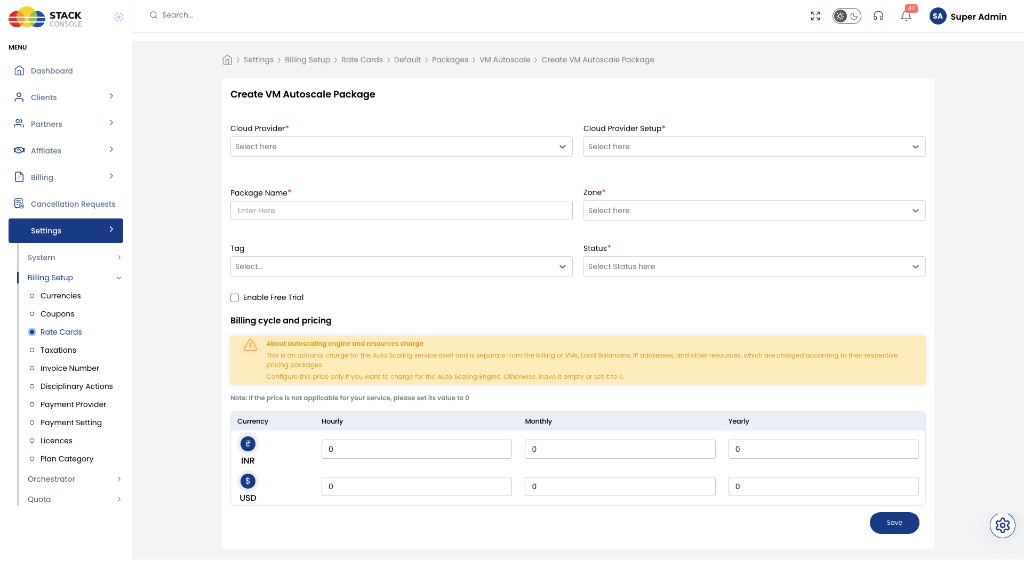
Each field below matches the Create VM Autoscale Package form.
Cloud Provider
Required. Select the orchestrator type — for example, CloudStack (Nimbo).
Cloud Provider Setup
Required. Select the CloudStack instance this package belongs to — for example, CloudStack-01.
Package Name
Required. Display name for the Auto Scaling engine package — for example, VM Autoscale or Autoscale Engine.
Zone
Required. Select the CMP zone where this package applies. Create a separate package entry for each zone where VM Autoscale is offered.
Tag
Optional. Assign a tag for filtering or promotional labelling in the customer portal — for example, Recommended.
Tags are CMP-level labels used for representation only. They do not map to CloudStack host or storage tags.
Status
Required. Controls package visibility.
| Status | Behaviour |
|---|---|
| Active | Package is available for VM Autoscale in this zone (and engine pricing applies if set) |
| Inactive | Hidden — use while configuring pricing or testing |
Enable Free Trial is not applicable for VM Autoscale packages. It will be removed from this form in the UI soon. Do not rely on it for autoscale engine billing.
Billing cycle and pricing
Optional for the engine fee. Set the price for each billing cycle and currency CMP supports — typically Hourly, Monthly, and Yearly.
This is an optional charge for the Auto Scaling service itself and is separate from the billing of VMs, Load Balancers, IP addresses, and other resources, which are charged according to their respective pricing packages.
Configure this price only if you want to charge for the Auto Scaling Engine. Otherwise, leave it empty or set it to 0.
If the price is not applicable for your service, set its value to 0.
Example pricing grid:
| Currency | Hourly | Monthly | Yearly |
|---|---|---|---|
| INR (₹) | 0 | 0 | 0 |
| USD ($) | 0 | 0 | 0 |
If you charge for the engine, define the monthly price first, then derive hourly using Monthly ÷ (30.5 × 24). See Pricing Formulas.
End-to-end example
Goal: Offer VM Autoscale in zone SC-SIM-ZONE-1 with no separate engine fee (VMs and other resources bill normally).
CMP
- Enable VM Autoscale in Cloud Provider Setup (Wizard Step 1)
- Open Packages → VM Autoscale → Add Package
- Set Cloud Provider CloudStack (Nimbo), Cloud Provider Setup
CloudStack-01, Package NameVM Autoscale, ZoneSC-SIM-ZONE-1 - Leave billing prices at
0(or empty) if the engine is free - Set Status to Active and Save
Customers create autoscale groups in the customer portal; scaled VMs still use VM packages.
Validation checklist
Before marking a VM Autoscale package Active, verify:
- VM Autoscale is enabled in Cloud Provider Setup (Wizard Step 1)
- Zone is mapped and Active
- Engine pricing is intentional —
0/ empty if free, or priced if you bill for the engine - Related VM, Load Balancer, and IP Address packages exist for resources the group will use
- Template / snapshot workflow is ready if customers must create templates for autoscale — see Template
- Global quotas allow sufficient VM Autoscale count per account