ISO Packages & Billing
ISO packages define how CMP bills customers for customer-owned ISO images stored in CloudStack Secondary Storage. Customers use these ISOs to boot virtual machines from custom install media or diagnostics rather than pre-built templates.
The ISO service is disabled by default in CMP. To offer ISO management and billing to customers, contact the StackConsole team to enable the feature on your platform before configuring packages or global settings.
Free trials are not applicable to ISO packages. The Create ISO Package form does not include Enable Free Trial. ISO storage is billed hourly from the moment an ISO is registered (subject to the free ISO allowance global setting).
Ensure the following are already configured:
- ISO service has been enabled by the StackConsole team on your CMP instance
- Cloud Provider Setup is connected, with ISO enabled in Wizard Step 1
- ISO Prerequisites & Architecture are completed (SSVM reachability for URL uploads, or secure SSVM HTTPS reverse proxy for local uploads)
- Zones are mapped in CMP
- You understand hourly per-GB billing — ISOs use the same continuous hourly rate model as Custom Template and Volumes Snapshot packages
CMP path: Settings → Billing Setup → Rate Cards → Default → Packages → ISO
Default behaviour
By default, the ISO service is not available to end customers. Most cloud providers start by offering VM provisioning through admin OS templates.
When enabled:
- Customers can register ISO images either from an external HTTP/HTTPS URL or from their local machine (when local upload is enabled).
- ISO storage is tracked in gigabytes (GB) and billed continuously on an hourly per-GB basis until the ISO is deleted.
ISO upload from local setting
By default, CMP does not allow customers to create ISOs from local file uploads.
| Setting | Default | Description |
|---|---|---|
iso_upload_from_local | false | Enable or disable creating ISO images via direct browser-to-SSVM upload |
Set iso_upload_from_local to true in Admin Panel → Global Settings only after confirming your SSVM HTTPS endpoint is properly exposed as described in ISO Prerequisites.
How ISO billing works
When a customer registers and stores an ISO image in CMP:
- CMP tracks the ISO size in GB.
- It retrieves the price per GB per hour from the active ISO package in that zone.
- It bills continuously on an hourly basis until the customer deletes the ISO image.
Billing formula
ISO cost per hour = ISO size (in GB) × price per GB per hour
Example: A 5 GB ISO at ₹1.00/GB/hour costs ₹5.00/hour for as long as the ISO is stored.
See Snapshot / Template / ISO pricing formulas for the general rate calculation.
ISO images always use hourly billing only (ISO service type). The package form shows Billing cycle and pricing with an Hourly (per GB) rate — monthly, quarterly, and yearly fixed cycles are not supported. See Billing Cycles.
Why only hourly per-GB pricing?
ISO file sizes vary significantly from one customer upload to another (ranging from a few hundred megabytes to tens of gigabytes) and cannot be sold as predefined fixed-capacity plans. CMP meters the exact current size × hourly rate per GB, matching the model used for Custom Templates and Volume Snapshots.
Free ISO allowance
CMP supports granting a configurable number of free ISO images per customer account through Global Settings.
In Admin Panel → Global Settings, locate the free_iso setting:
| Value | Behaviour |
|---|---|
false | Free ISOs are disabled — all ISO images are billed according to the rate card package |
Greater than 0 (e.g. 1 or 2) | That many ISO images are free per account — pricing displays as $0.00 until the free allowance is exhausted |
Set free_iso to false if you want all registered ISOs to be billed immediately.
Global settings summary
| Setting | Default | Description |
|---|---|---|
free_iso | false | Number of free ISO images per account. Set to false to disable. When greater than 0, that many ISOs show $0.00 pricing |
iso_upload_from_local | false | Enable or disable creating ISO images from a local file upload |
Configure ISO packages in CMP
Create an ISO package for each Cloud Provider + Setup + Zone where customer ISO storage should be monetized.
- Navigate to Settings → Billing Setup → Rate Cards → Default → Packages → ISO.
- Click Add Package (form title: Create ISO Package).
- Complete each field below in the order shown on the form.
- Set Status to Active and click Save.
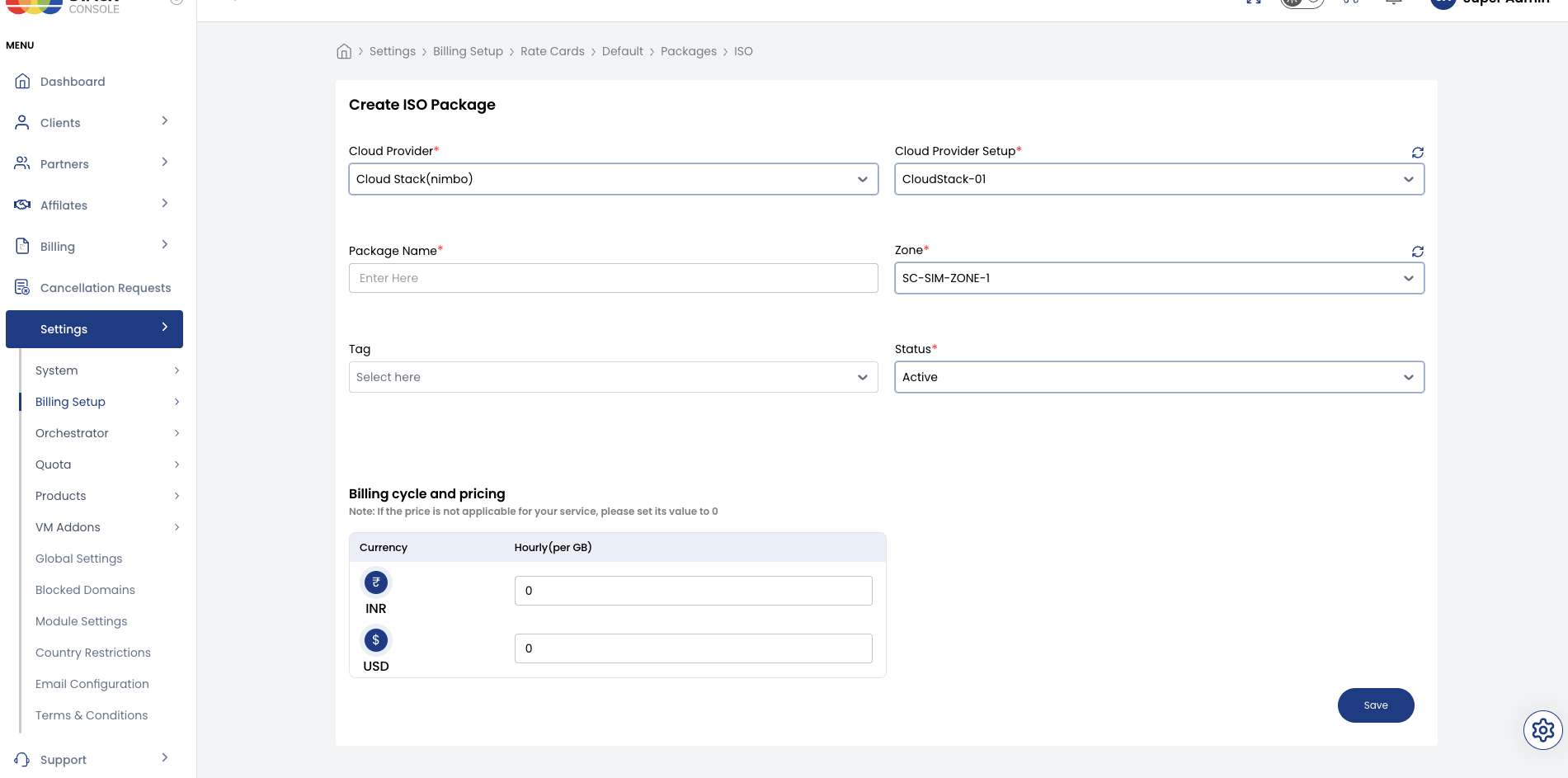
Form fields reference
Cloud Provider
Required. Select the orchestrator type — for example, CloudStack (Nimbo).
Cloud Provider Setup
Required. Select the CloudStack instance this package belongs to — for example, CloudStack-01.
Package Name
Required. Display name for the ISO service — for example, ISO Storage or Custom ISO.
Zone
Required. Select the CMP zone where this ISO pricing applies — for example, SC-SIM-ZONE-1.
Tag
Optional. Assign a tag for filtering or promotional labelling in the customer portal.
Tags are CMP-level labels used for presentation and portal filtering only. They do not map to CloudStack tags.
Status
Required. Controls package visibility and billing activation.
| Status | Behaviour |
|---|---|
| Active | ISO pricing actively applies when customers register ISO images in this zone |
| Inactive | Hidden and inactive — use while configuring pricing or testing |
Billing cycle and pricing
Required. Enter the Hourly (per GB) rate for each currency CMP supports.
CMP multiplies this rate by the customer's ISO size to calculate the hourly charge. Only the hourly per-GB cycle is available.
If a price is not applicable for a specific currency, set its value to 0.
End-to-end configuration example
Goal: Offer ISO storage in zone SC-SIM-ZONE-1 at ₹1.00/GB/hour with 1 free ISO per account.
Step 1: Prerequisites & enablement
- Contact the StackConsole team to enable the ISO module on your platform.
- Ensure SSVM connectivity or HTTPS reverse proxy is ready as documented in ISO Prerequisites.
- In Settings → Orchestrator → Cloud Provider Setup, ensure ISO is enabled in Wizard Step 1.
Step 2: Configure CMP global settings
- In Admin Panel → Global Settings, set
free_isoto1. - Set
iso_upload_from_localtotrueif allowing local machine uploads.
Step 3: Create the ISO package
- Open Settings → Billing Setup → Rate Cards → Default → Packages → ISO → Add Package.
- Set Cloud Provider to CloudStack (Nimbo).
- Set Cloud Provider Setup to
CloudStack-01. - Set Package Name to
ISO Storage. - Set Zone to
SC-SIM-ZONE-1. - Enter Hourly (per GB) rate — for example,
₹1.00INR. - Set Status to Active and click Save.
Result: A customer storing a 4 GB ISO is charged 4 × 1 = ₹4.00/hour after their first free ISO allowance is used.
Customer portal view
When the ISO service is active:
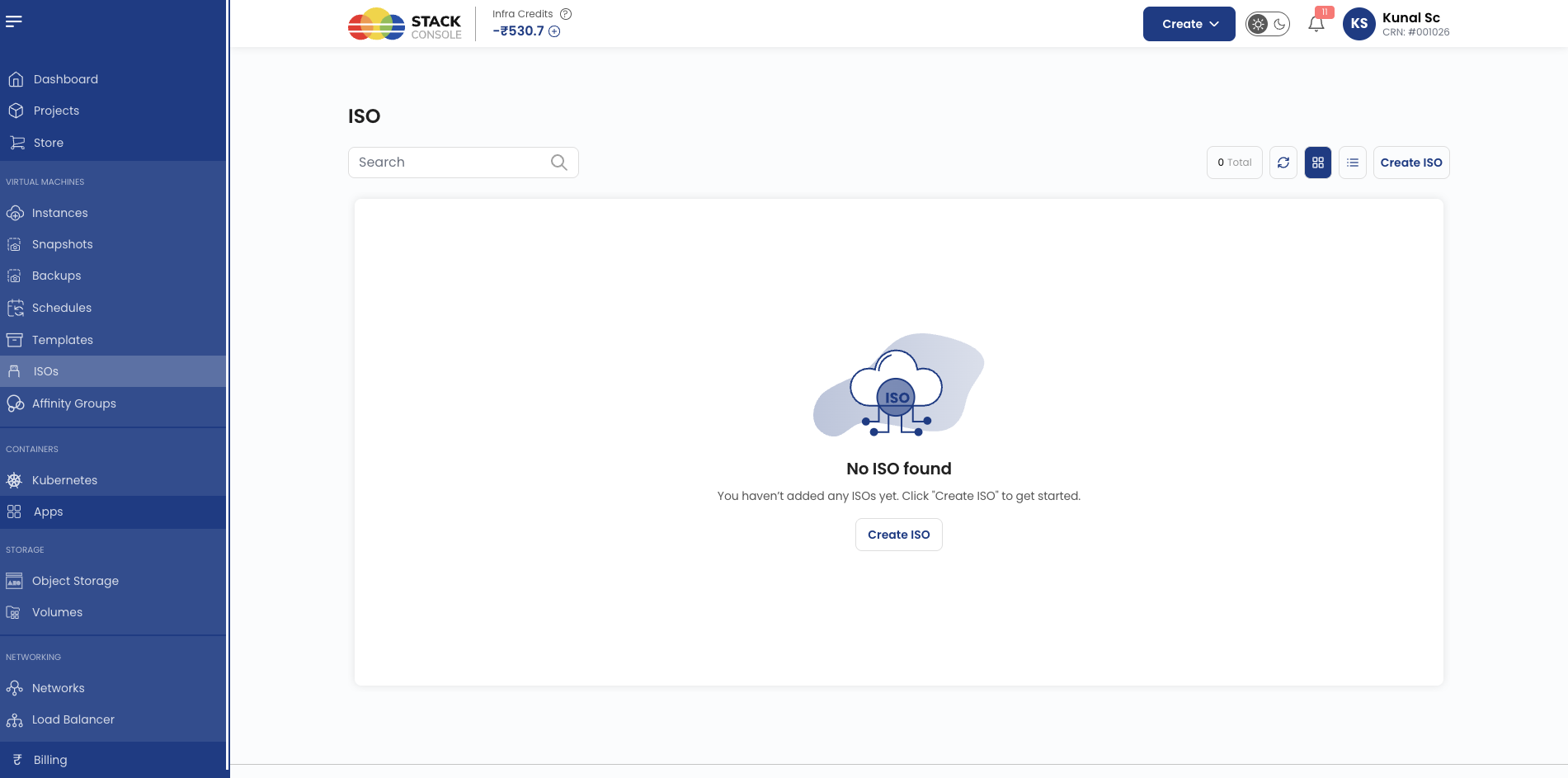
- Customers manage their uploaded images under the ISO section in the customer portal.
- Registered ISOs can be selected as the boot device during VM creation or attached dynamically to running instances.
- Pricing is clearly displayed based on current ISO size and the zone's hourly per-GB rate.
- The From Local upload tab appears only when
iso_upload_from_localis set totrue.
Validation checklist
Before marking an ISO package Active, verify:
- ISO service has been unlocked by the StackConsole team
- ISO service is enabled in Cloud Provider Setup (Wizard Step 1)
- SSVM HTTPS upload endpoint is configured and reachable if
iso_upload_from_localistrue -
free_isoandiso_upload_from_localglobal settings reflect your business policy - Hourly (per GB) pricing is configured for all active currencies
- Global quotas allow a sufficient ISO limit per account