Object Storage Packages
Object Storage packages define the CEPH plans customers purchase in CMP — storage capacity, bucket limits, zone, storage category, and pricing.
Each package is unique per Cloud Provider + Setup + Zone + Storage Category. Configure CEPH Cloud Provider Setup (including zone and storage settings) before creating packages.
Ensure the following are already configured:
- Connecting CMP to CEPH is complete, with Object Storage enabled in Provider Setup
- At least one zone is mapped and Active
- At least one storage setting exists for the storage category you will sell (for example, SSD Storage)
- You know the capacity and bucket limits for each plan you want to offer
CMP path: Settings → Billing Setup → Rate Cards → Default → Packages → Object Storage
How object storage packages work
CMP sells CEPH object storage as rate-card packages. Package selection is compulsory when a customer creates object storage.
On CEPH, creating object storage creates a user. Package fields become the limits and parameters for that user:
Select package (compulsory)
        │
        ▼
Object Storage package (CMP)  →  CEPH user + S3 credentials
                              →  Storage (In GB), Bucket Limit, zone, category applied
| Package field | Effect at provisioning |
|---|---|
| Storage (In GB) | Maximum storage capacity for that object storage (CEPH user) |
| Bucket Limit | Maximum number of buckets for that object storage |
| Zone | CEPH / CMP region where storage is provisioned |
| Storage Category | Logical tier (for example, SSD Storage) from Storage Settings |
A customer can create multiple object storages; each one requires a package selection and creates a separate CEPH user with its own limits.
After creation, CMP and end users access buckets via the S3 endpoint (S3 CLI, S3 browser, or CMP UI) — see Object Storage features.
Configure Object Storage packages in CMP
- Open Settings → Billing Setup → Rate Cards → Default → Packages → Object Storage
- Click Add Package (or open an existing package to edit — form title: Edit Package)
- Complete each field below in the order shown on the form
- Set Status to Active and save (Create or Update)
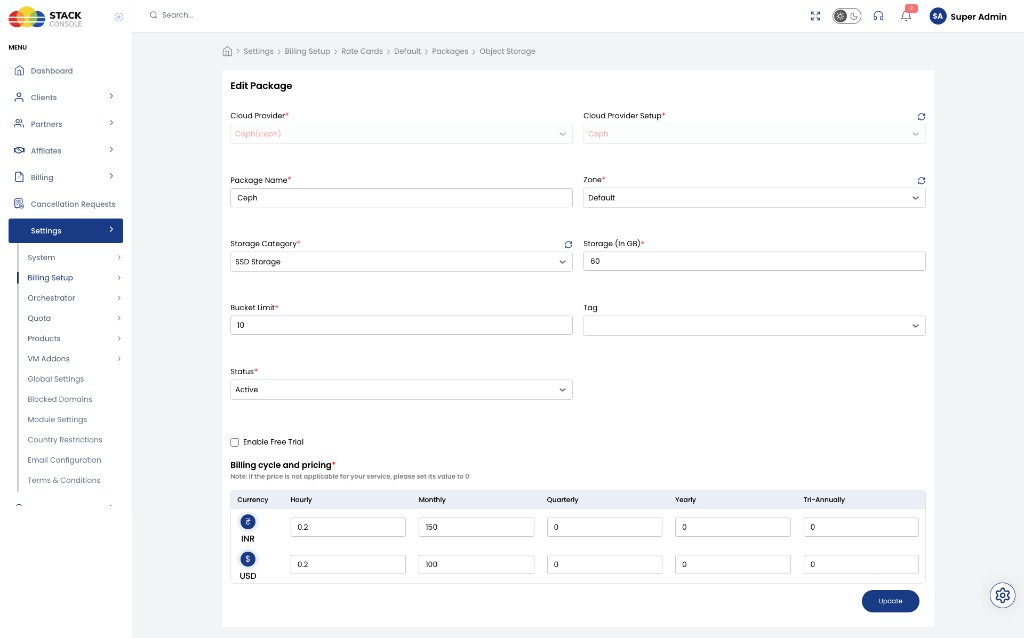
Each field below matches the Create / Edit Package form for Object Storage.
Cloud Provider
Required. Select Ceph(ceph).
Cloud Provider Setup
Required. Select the CEPH Cloud Provider Setup this package belongs to — for example, Ceph.
Package Name
Required. Display name for the plan — for example, Ceph or Object Storage 60 GB. Customers see this name when creating or resizing object storage.
Zone
Required. Select the CMP zone where this package is sold — for example, Default.
Create a separate package entry for each zone even when capacity and pricing are the same.
Storage Category
Required. Select the storage category from Storage Settings — for example, SSD Storage.
Packages are unique per Cloud Provider + Setup + Zone + Storage Category. Use the refresh control next to the field if a newly added storage setting does not appear yet.
CEPH supports multiple storage classes (SSD, HDD, and similar), but CMP does not yet map packages to CEPH storage classes. Storage settings exist in the setup workflow for that future capability — see Wizard Step 4 — Storage Setting.
Storage (In GB)
Required. Storage quota — maximum storage capacity allocated to the object storage service — for example, 100, 500, or 60 (GB).
This value is the plan allocation for that object storage service. CMP has no separate CEPH storage quota — capacity is controlled only by this package field.
Bucket Limit
Required. Bucket limit quota — maximum number of buckets the customer can create for that object storage service — for example, 50, 100, or 10.
CMP has no separate CEPH bucket quota — the bucket count is controlled only by this package field.
Tag
Optional. Assign a tag such as Free Trial for filtering or promotional labelling in the customer portal.
Status
Required. Controls package visibility.
| Status | Behaviour |
|---|---|
| Active | Package is available for customers to purchase (subject to zone and category) |
| Inactive | Package is hidden from customers — use while configuring pricing or testing |
Enable Free Trial
Optional. When checked, the package can be offered as a free trial according to your CMP free-trial rules.
Billing cycle and pricing
Required. Set the price for each billing cycle and currency CMP supports.
CMP displays a pricing grid for the currencies enabled at application level. Enter values for the cycles you offer.
If the price is not applicable for your service, set its value to 0.
Example (INR and USD rows):
| Currency | Hourly | Monthly | Quarterly | Yearly | Tri-Annually |
|---|---|---|---|---|---|
| INR (₹) | 0.2 | 150 | 0 | 0 | 0 |
| USD ($) | 0.2 | 100 | 0 | 0 | 0 |
Define the monthly price first, then derive hourly using Monthly ÷ (30.5 × 24). See Pricing Formulas for conversion formulas.
End-to-end mapping example
Goal: Sell a 60 GB object storage plan with 10 buckets in zone Default on SSD Storage.
CEPH / CMP setup
- Complete Connecting CMP to CEPH with Object Storage enabled
- Map zone
Defaultand add storage setting SSD Storage
CMP package
- Open Settings → Billing Setup → Rate Cards → Default → Packages → Object Storage
- Create or edit package — for example, name
Ceph - Set Cloud Provider
Ceph(ceph), Cloud Provider SetupCeph, ZoneDefault - Set Storage Category
SSD Storage, Storage (In GB)60, Bucket Limit10 - Set Status
Active, enter billing prices, then Update / save
Customers can then create object storage from that plan — see Object Storage.
Validation checklist
Before marking an Object Storage package Active, verify:
- CEPH Provider Setup is Active and Object Storage is enabled
- Zone exists and is Active for this setup
- Storage setting exists for the selected Storage Category and zone
- Storage (In GB) and Bucket Limit match the plan you intend to sell
- Pricing is configured for each supported currency and billing cycle (unused cycles set to
0)