Connecting CMP to CEPH
This guide walks through connecting CMP to a CEPH cluster for object storage — Dashboard API credentials, S3 endpoints, zone mapping, and storage settings.
CEPH is independent of compute orchestrators (CloudStack, VMware, and others). You can run it alongside any compute setup so customers can provision buckets, credentials, and object storage plans through CMP.
- CEPH Dashboard API and S3 endpoint are reachable from the CMP VM — see CEPH Requirements
- At least one CEPH zone is configured and bound to the S3 endpoint
- You have an Admin-level CEPH Dashboard username and password
- CMP is installed and you are logged in as Super Admin
Overview
CMP connects to CEPH in two ways. The Dashboard API is used only to create object storage (which on CEPH means creating a user). After that, day-to-day bucket and object operations go through the S3 endpoint.
Create object storage (CMP)
        │
        ▼
CMP  ──── Dashboard API (username / password) ────▶  CEPH Dashboard
        │                                     creates CEPH user
        │                                     (+ S3 access/secret keys)
        ▼
After creation — buckets, objects, usage
CMP / end user  ──── S3 Endpoint ────▶  CEPH RGW
How object storage maps to CEPH
| In CMP | On CEPH |
|---|---|
| Create Object Storage | Create a user |
| Multiple object storages for one customer | Multiple CEPH users |
| Selected package | Capacity, bucket limit, and related plan parameters applied for that user |
When a customer creates object storage, they must select a package. Number of buckets, storage capacity, and other plan parameters are set at this level from the Object Storage package.
After creation — S3 access
After object storage is created:
- CMP talks directly to the S3 endpoint for bucket and object operations (not the Dashboard API)
- The end user can take the generated Access Key / Secret Key and access buckets with S3 CLI, an S3 browser, or any S3-compatible SDK
See Object Storage features and Buckets & Objects for the customer flow.
Admin setup overview
Complete these steps in order before customers can create object storage.
| Step | Task | Documentation |
|---|---|---|
| 1 | Cloud Services — enable Object Storage for CEPH | Step 1 — Cloud Services |
| 2 | Cloud Provider Setup — CEPH credentials and Object Storage service | Wizard Step 1 — Provider Setup |
| 3 | Provider Configuration — S3 endpoints and GB multiplier | Wizard Step 2 — Provider Config |
| 4 | Region mapping — map CEPH region to CMP zone | Wizard Step 3 — Zone |
| 5 | Storage settings — storage categories for packages | Wizard Step 4 — Storage Setting |
| 6 | Rate card plans — storage pricing, quotas, billing | Rate card configuration → Object Storage Packages |
CMP path: Settings → Orchestrator → Cloud Provider Setup → Add Cloud Provider (or open an existing setup → Configure)
The Cloud Provider wizard covers Steps 2–5 above. Step 1 (Cloud Services) and Step 6 (rate cards) are configured separately.
Step 1 — Cloud Services
Configure the CEPH Object Storage service so CMP can provision and manage object storage.
Path: Settings → Orchestrator → Cloud Services
Enable Object Storage for the CEPH cloud provider. This must stay aligned with Object Storage selected in Cloud Provider Setup (Wizard Step 1).
If you add or change storage settings or disable object storage tiers later, confirm Object Storage remains enabled in both Cloud Services and Cloud Provider Setup.
Cloud Provider wizard
The wizard has five steps (Admin setup Steps 2–5):
- Provider Setup
- Provider Config
- Zone
- Storage Setting
- Success
Wizard Step 1 — Provider Setup
This step establishes the CEPH Dashboard API connection. CMP uses these credentials only to create object storage (create CEPH users). After creation, bucket and object traffic uses the S3 endpoint from Step 2.
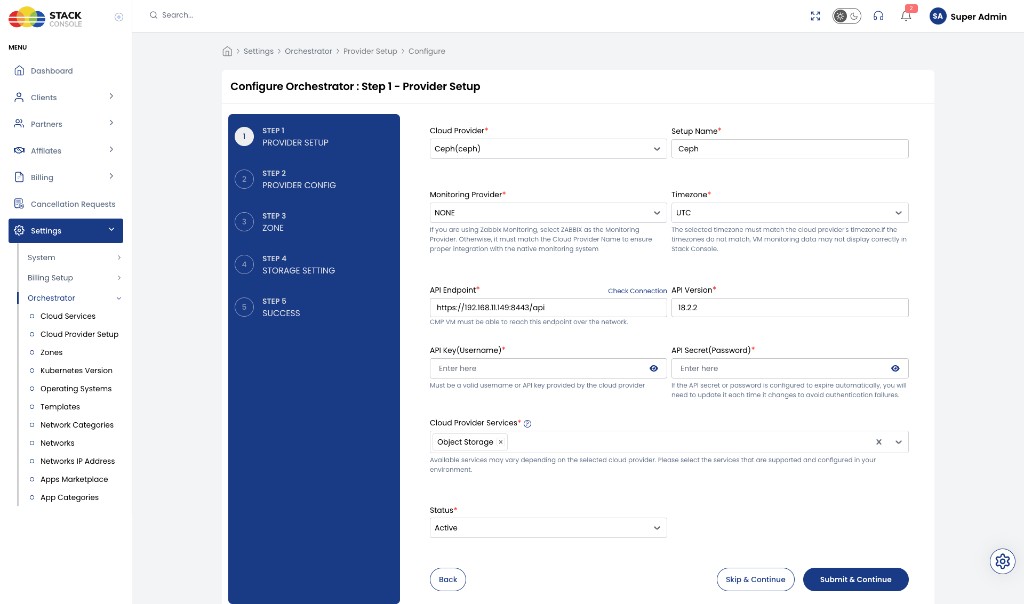
Configure the fields below in the order they appear on the form, then click Submit & Continue.
Cloud Provider
Required. Select Ceph(ceph) from the dropdown.
Setup Name
Required. A unique name for this CEPH connection in CMP — for example, Ceph. Used to distinguish multiple setups.
Monitoring Provider
Required. For CEPH object storage, select NONE.
Timezone
Required. Select the timezone that matches the CEPH environment — for example, UTC.
API Endpoint
Required. CEPH Dashboard API base URL — for example, https://192.168.11.149:8443/api or https://ceph.yourcompany.com:8443/api.
CMP VM must be able to reach this endpoint over the network. Use Check Connection to verify reachability before continuing.
API Version
Required. CEPH version running on your cluster — for example, 18.2.2.
API Key (Username)
Required. CEPH Dashboard access key / username used for the Dashboard API — enter the Admin-level CEPH credential here. In the UI this may appear as API Key (Ceph Access Key).
API Secret (Password)
Required. CEPH Dashboard secret key / password paired with the key above. In the UI this may appear as API Secret (Ceph Secret Key).
If the password is configured to expire automatically, you will need to update it in CMP each time it changes to avoid authentication failures.
Cloud Provider Services
Required. Select Object Storage.
Available services may vary depending on the selected cloud provider. Please select the services that are supported and configured in your environment.
Status
Required. Set to Active to enable this provider, or Inactive to save configuration without making it live.
Click Submit & Continue (or Skip & Continue only if you intentionally defer saving this step).
Wizard Step 2 — Provider Config
Configure S3-compatible endpoints and how CMP defines one gigabyte for billing and usage.
After object storage (CEPH user) creation, CMP and end users use these endpoints for all bucket and object access — including S3 CLI and S3 browsers.
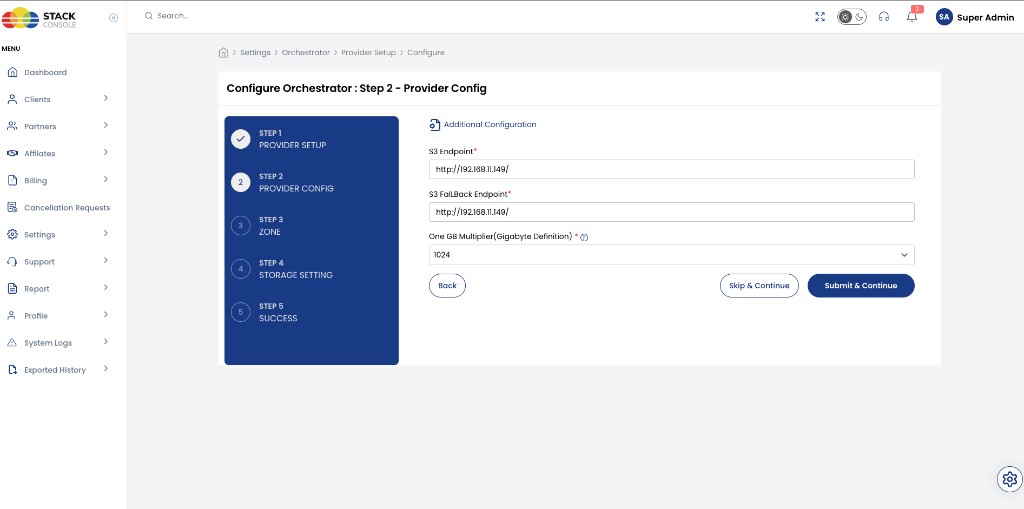
S3 Endpoint
Required. Primary CEPH RGW / S3 endpoint URL — for example, https://s3.yourcompany.com/ or http://192.168.11.149/.
This is the endpoint customers and S3 clients use for bucket and object operations. It should be publicly accessible — see CEPH Requirements.
S3 FallBack Endpoint
Required. Secondary or fallback S3 endpoint. Use the same value as the primary endpoint if you do not run a separate fallback URL.
One GB Multiplier (Gigabyte Definition)
Required. How CMP calculates 1 GB for object storage:
| Value | Meaning |
|---|---|
| 1024 | Binary (1 GB = 1024 MB) — typical default |
| 1000 | Decimal (1 GB = 1000 MB) |
Match this to how your CEPH / billing policy defines a gigabyte. Inconsistency between CMP and CEPH reporting causes usage and invoice mismatches.
Click Submit & Continue.
Wizard Step 3 — Zone
Map CEPH regions/zones to CMP zones so object storage is provisioned in the correct location.
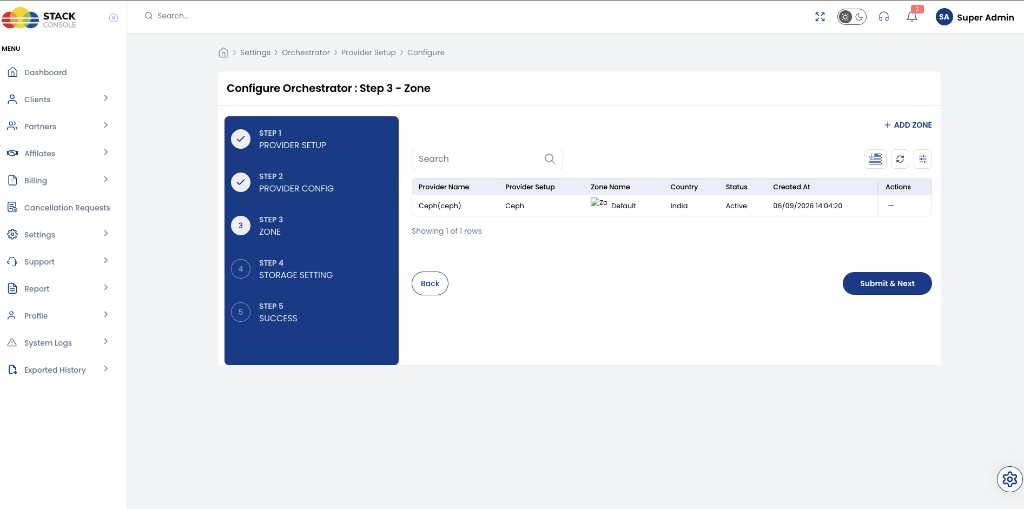
- Click + ADD ZONE
- Map the CEPH zone (region) to a CMP zone entry — set Zone Name, Country, and Status as required
- Ensure at least one zone is Active
- Click Submit & Next
Zone mapping ensures object storage resources are provisioned in the correct CEPH region when customers request storage through CMP. Configure CEPH zones in the cluster first — see CEPH setup checkpoints.
You can also manage zones later under Settings → Orchestrator → Zones.
Wizard Step 4 — Storage Setting
Define storage categories (tiers) used for object storage packages and customer selection — for example, SSD Storage.
CEPH supports multiple different storages as storage classes (for example, SSD, HDD, and similar). As of now, CMP does not support CEPH storage class selection. That capability is on the roadmap — storage settings are included in this workflow so the setup is ready when class-based storage becomes available.
Until then, configure at least one storage setting so Object Storage packages can be created and sold.
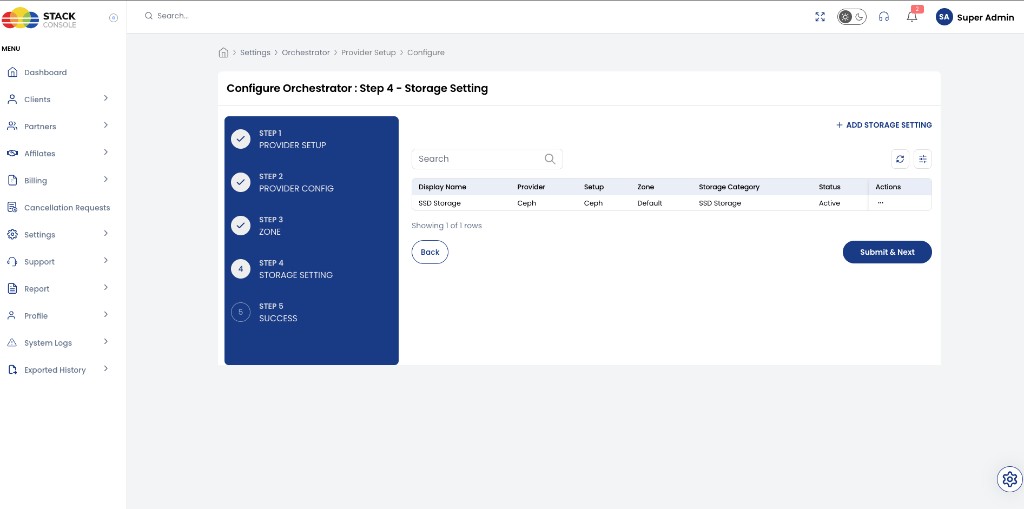
- Click + ADD STORAGE SETTING
- Configure display name, provider setup, zone, storage category, and status
- Set Status to Active for tiers you sell
- Click Submit & Next
| Column | Meaning |
|---|---|
| Display Name | Label shown in CMP (for example, SSD Storage) |
| Provider | Ceph |
| Setup | Your Cloud Provider Setup name |
| Zone | Mapped CMP zone (for example, Default) |
| Storage Category | Logical tier used for packaging |
| Status | Active or Inactive |
When you add, edit, or disable a storage setting, confirm Object Storage remains enabled in Provider Setup (Step 1) and that rate-card / package mappings still point at the correct storage category.
You can also manage storage settings later under Settings → Orchestrator → Storage Settings.
Wizard Step 5 — Success
Confirm the setup completed successfully. The CEPH provider is ready for rate cards and customer object storage.
Rate card configuration
After the wizard (Admin setup Step 6), create Object Storage packages through CMP rate card management.
Plans and pricing include:
| Area | Configured in packages |
|---|---|
| Storage pricing | Hourly, monthly, and other billing cycles per currency |
| Plan allocation | Storage (In GB) — maximum capacity per object storage service |
| Billing mapping | Rate card → package → customer object storage service |
| Storage quota | Storage (In GB) — for example 100 GB, 500 GB |
| Bucket limit quota | Bucket Limit — for example 50 buckets, 100 buckets |
CMP does not have separate CEPH quota management — Storage (In GB) and Bucket Limit on the package are the only capacity and bucket caps.
Object Storage packages
Configure capacity, bucket limits, zone, storage category, and pricing under Settings → Billing Setup → Rate Cards → Default → Packages → Object Storage.