Object Storage
Customers create and manage Impossible Cloud-backed object storage services in CMP.
Each object storage service maps to one Impossible Cloud storage account (partner-managed IAM user) with its own S3 credentials. A customer can create multiple object storage services.
- Impossible Cloud Cloud Provider Setup is complete
- Object Storage packages are configured — package selection is compulsory
- Customer account is active with a package available for their zone
Create Object Storage
Customer path: Storage → Object Storage → Create
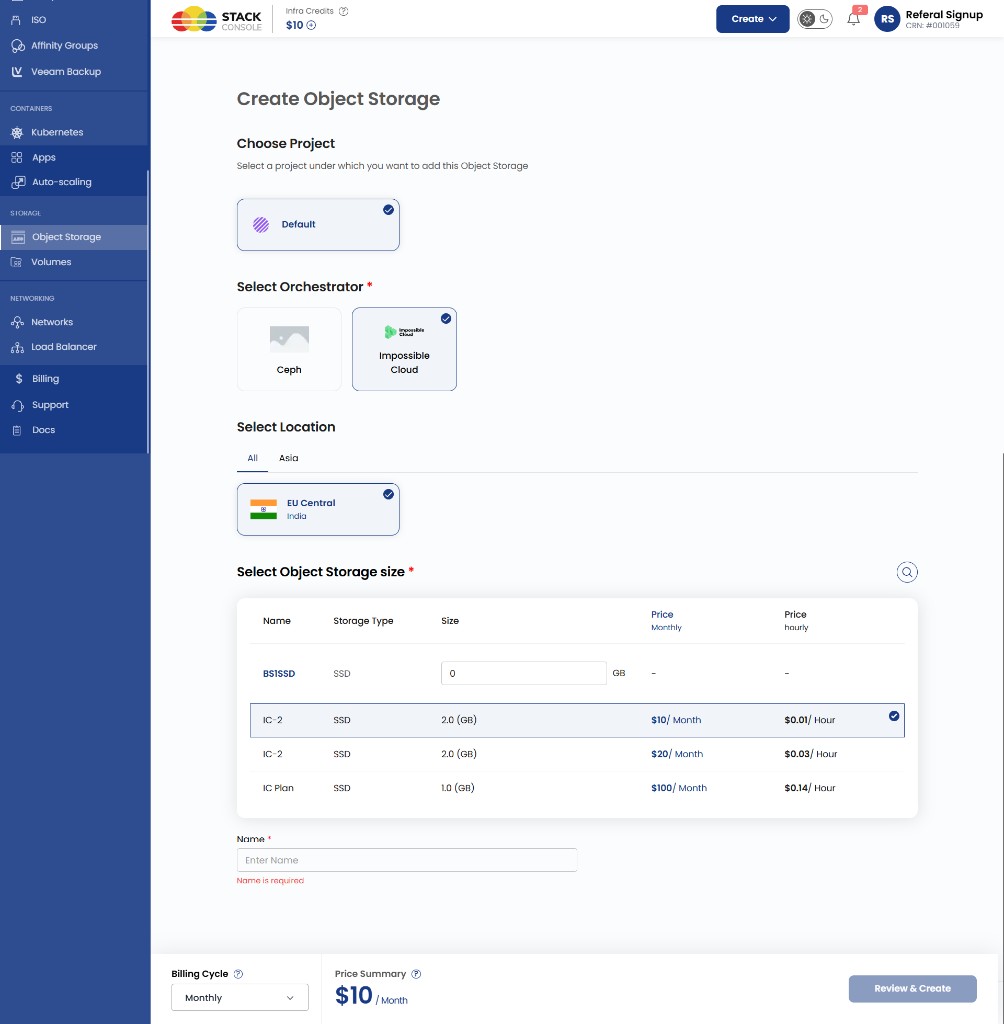
Object Storage in CMP = a new storage account (IAM user) on Impossible Cloud.
CMP uses the Partner API to create the account and generate S3 credentials. Storage accounts are API-only — there is no customer login to the Impossible Cloud storage console through this integration.
Package selection is compulsory. CMP applies Storage (In GB), zone, and storage category from the selected Object Storage package.
Create form fields
Choose Project
Required. Project for this service — for example, Default.
Select Orchestrator
Required. Select Impossible Cloud when multiple object storage providers are enabled.
Select Location
Required. Zone / region — for example, EU Central India. Tabs filter by geography.
Select Object Storage size
Required. Choose a package from the table (name, storage type, size, monthly / hourly price).
Example:
| Name | Storage type | Size | Price Monthly | Price Hourly |
|---|---|---|---|---|
| IC-2 | SSD | 2.0 GB | $10 / Month | $0.01 / Hour |
Name
Required. Service display name.
Billing Cycle
Required. For example, Monthly or Hourly. Price summary updates from the package.
Click Review & Create.
Provisioning flow
When the customer completes Review & Create, CMP:
- Creates a storage account on Impossible Cloud (Partner API)
- Generates S3 credentials (access key and secret key)
- Assigns the region from the selected package zone
- Activates the service with package storage quota
Object Storage Overview
The overview for an active service shows usage, buckets, and service metadata.
Customer path: Storage → Object Storage → select a service (for example, imp-obj-stg-01)
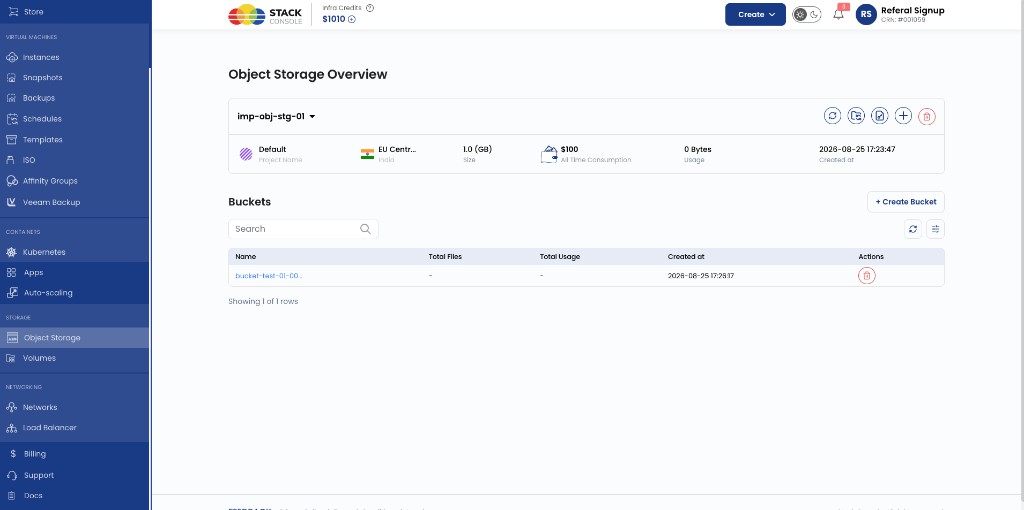
Typical fields on the overview card and bucket list:
| Area | Details |
|---|---|
| Project Name | Cloud project — for example, Default |
| Location | Mapped zone / region — for example, EU Central (India) |
| Size | Plan capacity from package — for example, 1.0 (GB) |
| All Time Consumption | Billing consumption for the service |
| Usage | Storage consumed (synced at CMP level) |
| Created at | Service creation timestamp |
| Bucket count | Maximum 100 buckets per service (provider limit) |
| S3 access | Open S3 Object Credentials from the overview actions |
Action icons on the overview typically include Refresh, layout/view controls, Details, S3 credentials, Add, and Delete (subject to retention and account state).
Under Buckets, customers use + Create Bucket, search, and the per-bucket actions. Per-bucket Total Files and Total Usage may show - until CMP sync completes — Impossible Cloud does not expose the same bucket metadata APIs as CEPH.
S3 Object Credentials
S3 credentials let customers use AWS CLI, SDKs, backup tools, and S3 browsers.
Customer path: Storage → Object Storage → open a service → S3 Object Storage Credentials (key icon on the overview)
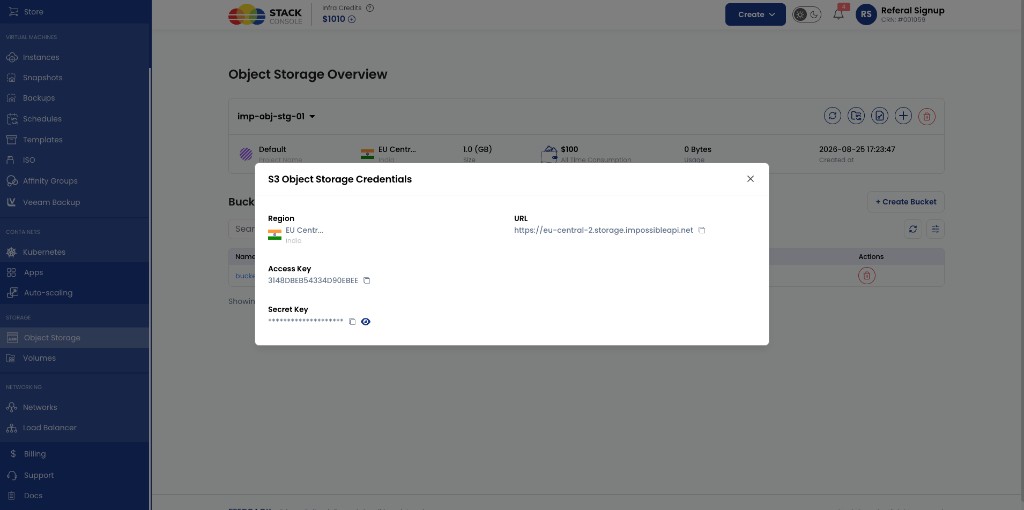
The modal shows:
| Item | Field | Description |
|---|---|---|
| Region | Flag + zone label | Mapped location — for example, EU Central / India |
| URL | S3 endpoint | Regional endpoint — for example, https://eu-central-2.storage.impossibleapi.net (copy icon) |
| Access Key | Access key ID | Public identifier — for example, 3I48DBEB54334D90EBEE (copy icon) |
| Secret Key | Secret key | Private value — masked by default; use the eye icon to reveal, copy icon to copy |
Use the URL, Access Key, and Secret Key with any S3-compatible client pointed at the regional endpoint. Treat the secret like a password.
Copy credentials immediately after creation if your deployment shows them in a time-limited window.
Resize Storage
Users can upgrade storage plans when a larger Object Storage package is available.
Customer path: Storage → Object Storage → open a service → Resize
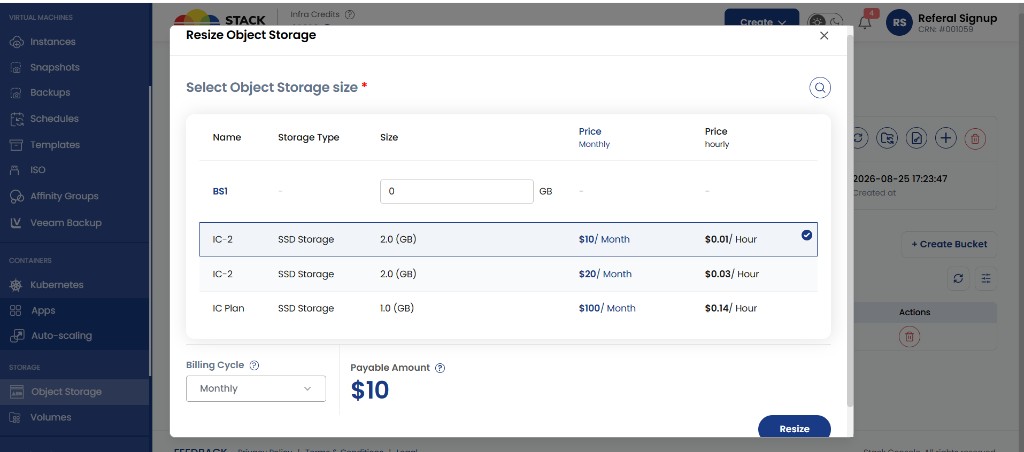
- Select Object Storage size from the package table (name, storage type, size, monthly / hourly price)
- Choose Billing Cycle — for example, Monthly
- Review Payable Amount
- Click Resize
Supported actions:
- Increase storage allocation — select a larger package
- Update plan configuration — new storage quota from package
- Modify billing plan — change billing cycle; review payable amount before confirm
Resize is limited by available packages. Maximum buckets remain capped at 100 per service regardless of plan size.
Limits
| Limit | Source |
|---|---|
| Storage capacity | Object Storage package — Storage (In GB) |
| Bucket count | 100 per object storage service — fixed Impossible Cloud limit |
| Account deletion | 30-day read-only grace period — cannot delete immediately |
CMP does not provide separate Impossible Cloud quota screens — capacity comes from the package; bucket count is enforced by the provider.