Create template from VM root volume
Customers can create a My Template from an existing virtual machine’s root volume. This is the main way to build a golden image for Autoscaling and for repeatable app deployments.
To create a template from the root volume, the VM must be powered off. Creating a template from a running root disk is not supported in this flow.
Customer path: open the VM (Virtual Machines → Instances → select instance) → use the Create Template action on the VM overview → complete Create New Template.
Templates created with this form appear on Virtual Machines → Templates. See Templates.
Steps
- Prepare the VM (install apps, agents, startup scripts) and verify it boots correctly
- Power off the VM
- On the VM overview, click the Create Template action (template / package icon)
- Complete the Create New Template form and click Create Template
- Wait until the template shows as downloaded on Virtual Machines → Templates
img/screenshots/cmp-create-template-from-vm.png
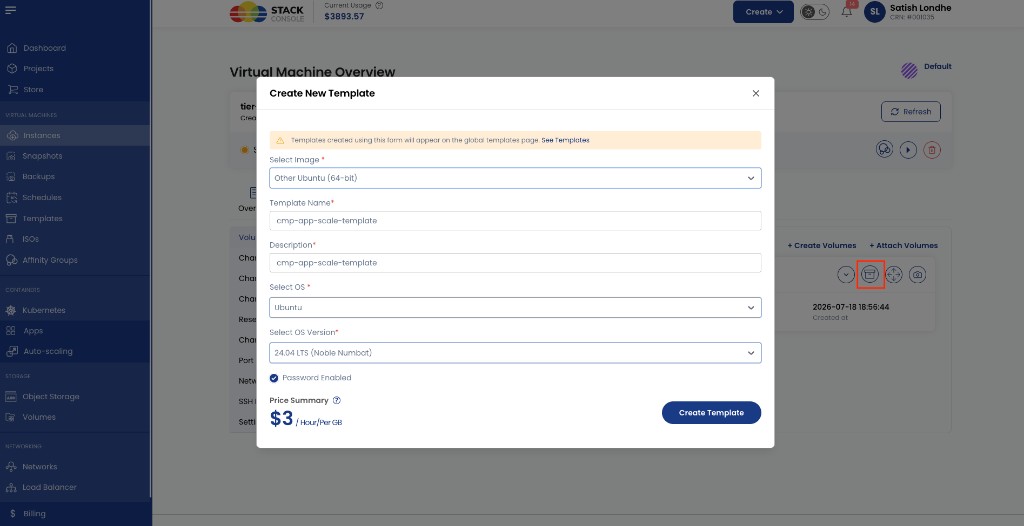
Create New Template form
Configure the fields below in the order they appear on the form.
Templates created using this form will appear on the global templates page. See Templates.
Select Image
Required. Select the root volume / disk image to register as a template — for example, Other Ubuntu (64-bit).
Template Name
Required. Display name for the My Template — for example, cmp-app-scale-template.
Use a clear name when the template will be used for Autoscaling.
Description
Required. Short description — for example, cmp-app-scale-template.
Select OS
Required. Operating system family — for example, Ubuntu.
Select OS Version
Required. OS version — for example, 24.04 LTS (Noble Numbat).
Password Enabled
Optional. When checked, the template is registered as password-enabled (CloudStack password / UserData behaviour applies at deploy time).
Password-enabled templates rely on UserData. L2 networks in CloudStack do not support UserData, so password-enabled templates cannot be deployed on L2. See Preparing CMP-Compatible Templates.
Price Summary
Read-only. Shows the Custom Template package rate for storing this template — for example, $3 / Hour / Per GB.
Billing continues hourly while the template is retained. See Custom Template packages.
Click Create Template to register the My Template from the powered-off VM root volume.
After creation
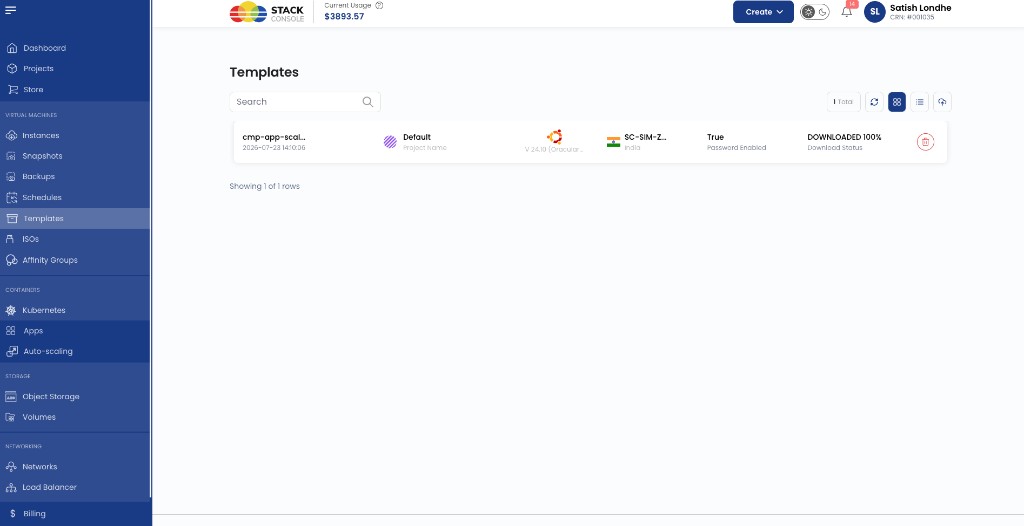
The new template appears under Virtual Machines → Templates with status such as Downloaded when ready.
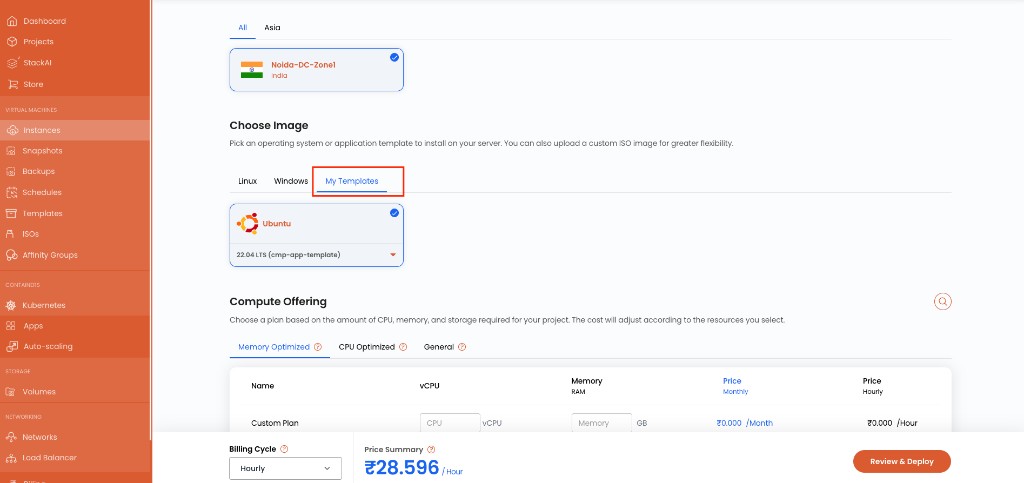
Use on Create Instance — My Templates
Once the template is available (downloaded), it is shown on the Create Instance page under Choose Image → My Templates, so customers can provision a new VM from that golden image.
Customer path: Virtual Machines → Instances → Create (or Create → Instance) → select zone → Choose Image → My Templates → select the template → choose compute offering → Review & Deploy.
Also use this template when configuring Autoscaling (VM profile / golden image).