Sync Resources — Import Existing Virtual Machines (CloudStack)
The Import Virtual Machine feature lets administrators onboard existing virtual machines from Apache CloudStack into Stack Console (CMP).
Use it to:
- Manage existing CloudStack resources from CMP
- Enable billing and visibility for VMs created outside CMP
- Synchronize infrastructure that bypassed CMP provisioning
CMP retrieves VM data from CloudStack and creates corresponding resources such as compute, storage, networks, and snapshots.
This page is in progress. Import / sync has many additional edge cases (multi-orchestrator behaviour, advanced mapping, post-import controls, and screenshots). Treat this as the current CloudStack baseline; more detail will be added as documentation is completed.
Use cases
| Scenario | What to do |
|---|---|
| Customers already have VMs on CloudStack and you want to manage them from CMP | Create the CMP customer first, map/sync the account, then Import VM |
| Resources were created directly on CloudStack for a customer already in CMP | Sync the account (if needed), then import the VMs and associated services |
Import does not automatically create a customer in CMP.
- Create the corresponding customer account in CMP
- Sync / map that CMP account with the orchestrator customer account
- Then import VMs and associated services
Restrictions (general)
- Only the VM and its associated services can be synced (for example block storage, networks, snapshots)
- Once the CMP account is synced with the orchestrator-level customer account, that mapping cannot be changed later
CloudStack prerequisites
Certain predefined or hierarchical configurations must be in place before CloudStack customer import.
Domain access
CMP can access only the CloudStack domain linked to the Cloud Provider Setup (the CMP parent / DomainAdmin domain).
- CMP can sync customer resources only from that associated domain
- Resources outside this domain are not visible and cannot be imported
It is the administrator’s responsibility to migrate CloudStack customers who must be imported into CMP into that specific domain.
Import and account sync only work when CloudStack follows this exact structure. Wrong hierarchy is a common cause of failed imports and broken mapping.
CMP-linked parent domain
  └── Customer domain (one per customer)
        └── One account
              └── One user (same name as the account)
| Level | Requirement |
|---|---|
| Customer | Separate domain per customer |
| Under that domain | Exactly one account |
| Under that account | Exactly one user whose username matches the account name |
Restriction — account name = user name: In CloudStack, the account name and the user name under that account must be the same. CMP auto-detects the user from the selected account during import, or expects the username to match the account name. If they differ, import / sync can fail or the user may not be resolved.
Do not put multiple customer accounts under one domain, or multiple users under one account, for customers you plan to sync into CMP. Fix the hierarchy (and matching account/user names) in CloudStack before mapping accounts or importing VMs.
Project mapping
CMP has project-mapping options with CloudStack (Project Setting in Provider Config — for example Under Project). See Connecting CMP to CloudStack — Provider Config.
If mapping is set to Under Project:
- The CMP project and the CloudStack project must be correctly mapped
- Import fails if mapping is incorrect or missing
Limitations / restrictions (CloudStack)
Scope of synchronization
Only the VM and associated services are synced:
- Block storage
- Networks
- Snapshots
External or unsupported configurations are not managed by CMP.
Account mapping
- The CMP account must be mapped with the CloudStack account before import
- Mapping is mandatory
- Once mapped, it cannot be changed
Domain restriction
CMP fetches only accounts, users, and VMs within the configured domain. Outside that domain: not visible, not importable.
VMs must be in the target customer account
CMP Import lists only VMs that exist in the specific CloudStack account mapped to the CMP customer.
If VMs were created under another account — for example the admin account / domain — they will not appear in Import for that customer. The provider must move those VMs into the target customer account in CloudStack before importing.
See Migrate a VM to the target account (CloudStack).
Domain hierarchy
Must follow the Required CloudStack hierarchy warning above: separate customer domain → one account → one user, with account name = user name.
Project mapping
If Project Mapping = Under Project, CloudStack project ↔ CMP project mapping is required or import fails.
Migrate a VM to the target account (CloudStack)
Do this in the CloudStack UI, not in CMP.
- Open the instance in CloudStack
- Stop the VM (the assign-account action is available when the instance is stopped)
- Choose Assign Instance to another Account (or equivalent Change Account action)
- Fill in the destination account details and submit
- Return to CMP and run Import VM for the mapped customer — the VM should now appear
CMP shows only VMs inside the mapped customer account. VMs that remain under admin (or any other account) stay invisible in Import until you migrate them.
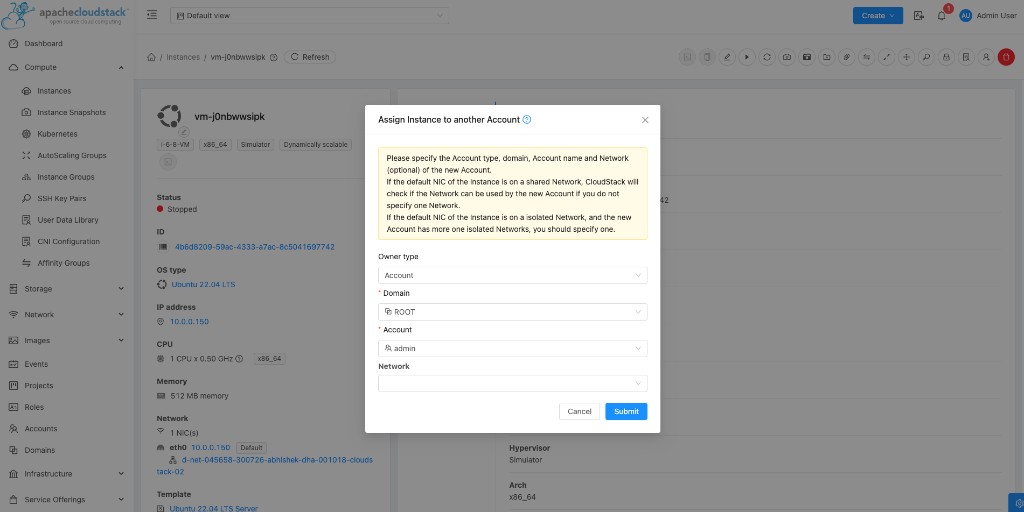
Assign Instance to another Account — fields
CloudStack prompts you to specify the account type, domain, account name, and optionally a network for the new account.
- If the default NIC is on a shared network and you leave Network empty, CloudStack checks whether that network can be used by the new account.
- If the default NIC is on an isolated network and the new account has more than one isolated network, you should specify which network to use.
Owner type
Required. Destination ownership type (typically Account).
Domain
Required. Destination CloudStack domain for the target customer (for example the customer domain under the CMP-linked parent domain).
Account
Required. Destination CloudStack account name that is (or will be) mapped to the CMP customer. This must be the account under which you want the VM to appear in Import.
Network
Optional. Destination network. Required in practice when the VM is on an isolated network and the target account has more than one isolated network.
FAQ
I already have customers and VMs on CloudStack. Will import create the customer in CMP?
No. Import does not create the customer.
- Create the customer account in CMP
- Sync / map it with the CloudStack customer account
- Import VMs and associated services
VMs are under the admin account / domain and do not appear in Import. Why?
CMP Import lists only VMs in the specific account mapped to that CMP customer. VMs under admin (or any other account) are not shown.
Migrate those VMs to the target customer account in CloudStack first — see Migrate a VM to the target account (CloudStack) — then import again.
Summary
CloudStack Import VM onboards existing infrastructure into CMP for management and billing. It requires:
- Correct domain hierarchy and domain membership
- Correct account (and project, when Under Project) mapping
- VMs residing in the target customer account (migrate from admin / other accounts in CloudStack if needed)
- Template assignment when CloudStack cannot resolve one
Once imported, resources become visible and billable in CMP. Some provisioning-level controls may remain more limited than for VMs created directly in CMP — more detail will be documented as this page expands.