Remote Access VPN — Workflow
End-to-end setup for personal PC → private VM using Remote Access VPN. The same model applies to VPC and Isolated networks — enable VPN on the Source NAT public IP, create a VPN User, configure an L2TP/IPsec client.
Overview: Remote Access VPN.
Steps below list the CMP customer path first, then CloudStack where admins troubleshoot the same objects.
Admin prerequisites (CMP)
Before customers can use Remote Access VPN:
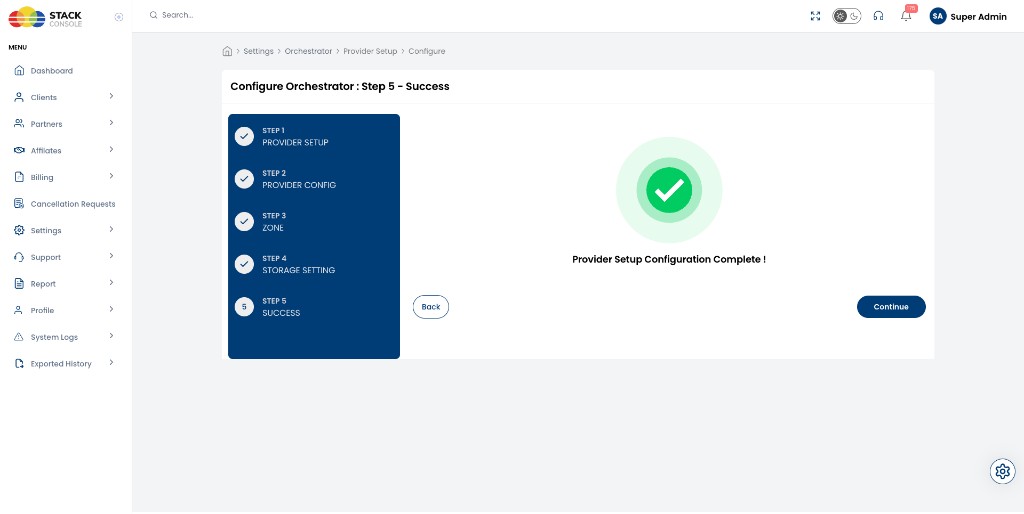
- Complete CloudStack Provider Setup in CMP — Connecting CMP to CloudStack
- Sync or configure network offerings with Remote Access VPN / VPN — Network packages (Isolated) or Virtual Router/VPC packages (VPC)
- CloudStack operator only (not in CMP): configure VPN global settings on the CloudStack management server — Limitations — CloudStack global settings
Common steps (VPC and Isolated)
These steps are the same after the guest network exists and a VM is running.
Find Source NAT public IP
CMP path: Networking → Networks → Public IP Address → row with Source NAT
CloudStack path: Open the VPC or Isolated guest network → Public IP Addresses → Source NAT IP
Note the public IP address — this is the VPN server address for the client.
Enable Remote Access VPN
CMP path: Open the Source NAT public IP → enable Remote Access VPN / VPN
CloudStack path: Open the Source NAT IP → VPN tab → Enable remote access VPN
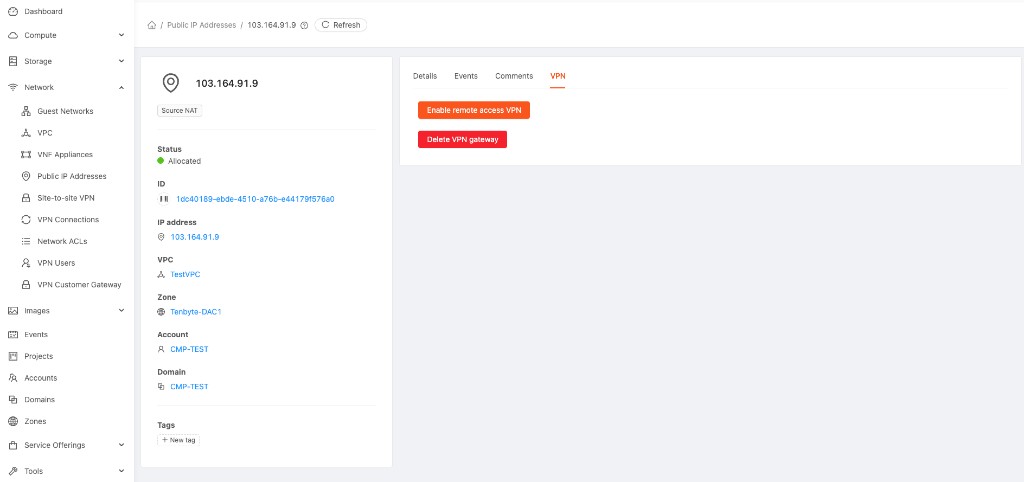
CloudStack displays the IPsec pre-shared key (PSK). Save it for the VPN client.
| Result | Detail |
|---|---|
| VPN | Enabled |
| IPsec PSK | Copy from UI |
Network → Site-to-site VPN → VPN Gateway is for Site-to-Site VPN only. Remote Access uses Source NAT IP → Enable VPN.
Create VPN User
CMP path: Networking → Networks → VPN Users → Add User
CloudStack path: Network → VPN Users → Add VPN User
See VPN Users for field rules and screenshots.
Configure VPN client
| Setting | Value |
|---|---|
| Server | Source NAT public IP |
| VPN type | L2TP/IPsec with pre-shared key |
| Pre-shared key | IPsec PSK from Enable VPN |
| Username / password | VPN User |
Route only the guest/VPC CIDR through the VPN — not all internet traffic.
Connect and test
- Connect the VPN client from a machine outside the target VPC or Isolated network
- Confirm a route to the guest CIDR
- Test
ping/ssh/ RDP to the VM private IP
VPC workflow
Step 1 — Create VPC
CMP path: Networking → Networks → VPC Network → create VPC
| Setting | Example |
|---|---|
| VPC name | TestVPC |
| VPC CIDR | 10.10.0.0/16 |
Requires a VPC offering with VPN enabled — Virtual Router/VPC packages.
Step 2 — Create tier and VM
Create a tier (for example 10.10.1.0/24) and deploy a VM with a private IP (for example 10.10.1.10).
Step 3 — Enable VPN and VPN User
Follow Common steps above.
Do not test Remote Access VPN from a VM inside the same VPC.
Step 4 — Firewall / ACL
If traffic fails after VPN connects, adjust Network ACL on the VPC tier — VPC Network.
Isolated network workflow
Remote Access VPN on an Isolated network uses the same Source NAT IP → Enable VPN model as VPC. CloudStack documents this for guest isolated networks when the network offering includes Remote Access VPN.
Step 1 — Create Isolated network
CMP path: Networking → Networks → Public Network (Isolated) → create network
Requires an Isolated network offering with Remote Access VPN and NATTED mode — Network packages. ROUTED isolated offerings do not support VPN.
See Isolated Network.
Step 2 — Deploy VM
Create a VM on the Isolated network. The first public IP on the network is typically the Source NAT IP (port forwarding only on that IP — see Isolated Network — Source NAT).
Step 3 — Enable VPN and VPN User
Follow Common steps above on the Isolated network Source NAT public IP.
The VPN client must be outside the Isolated network where VPN is enabled — not on a VM in that same network.
Step 4 — Firewall
If traffic fails, check the Isolated network firewall rules on the virtual router — Isolated Network.
CloudStack reference — VPC only
CloudStack documents VPC Remote Access VPN under VPC → Configure → Public IP Addresses → Source NAT → Enable VPN, then add VPN users on the VPN tab of that IP. Same PSK and L2TP/IPsec client profile as the common steps above.
Reference: CloudStack — Configuring Remote Access VPN in VPC.