Manage Backups
The Backups screen lists VM backup copies created from a backup schedule — either by the timer or by manual trigger (Run now).
In CMP there is no separate “manual backup” product. A backup with Type: Manual is the same VM backup as Type: Schedule — the difference is how it was started:
| Type | Meaning |
|---|---|
| Schedule | Backup ran automatically on the schedule interval |
| Manual | Backup was triggered on demand — for example Run now on a schedule, or Take One Immediate when the schedule was created |
Both appear on Backups, bill the same VM Backup package, and use the same CloudStack backup path.
| Screen | Contains |
|---|---|
| Schedules → Instances Backup Schedules | Policies that create backups on a timer |
| Backups (this page) | The backup objects themselves |
| Snapshots | Volume/instance snapshots — including those from snapshot schedules, not VM Backup |
Global backup list
Virtual Machines → Backups
img/screenshots/cmp-backups-global-list.png
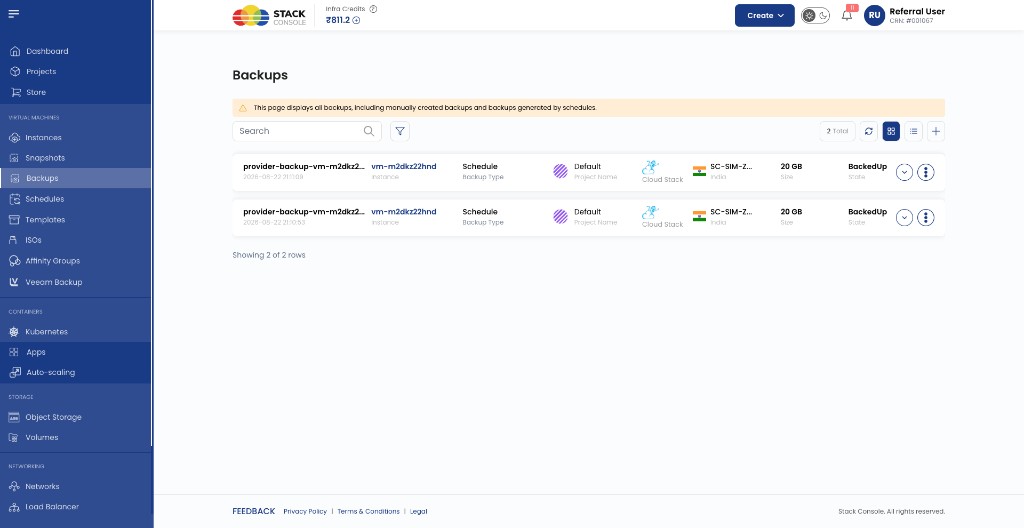
The info banner states: This page displays all backups, including manually created backups and backups generated by schedules.
| Column | Description |
|---|---|
| Name | Backup identifier and timestamp |
| Instance | Source VM |
| Type | Manual (on-demand trigger) or Schedule (automatic run) — see Manual vs Schedule |
| Project Name | CMP project |
| Platform | Orchestrator (CloudStack) |
| Location | Zone / region |
| Size | Backup size used for billing |
| State | For example BackedUp |
To create backups, use a backup schedule — recurring runs fill Type: Schedule; Run now fills Type: Manual.
Manual vs Schedule
All VM backups go through a backup schedule (policy tied to a VM). CMP only changes the trigger:
Backup schedule (policy on a VM)
        |
   +----+----+
   |         |
   v         v
Timer        Run now / Take One Immediate
(automatic)  (manual trigger)
   |         |
   v         v
Type:        Type:
Schedule     Manual
Trigger a manual backup (Run now)
- Open Virtual Machines → Schedules → Instances Backup Schedules (or the VM Schedules tab).
- Select the schedule for the VM.
- Click Run now (lightning icon) on the list row or in Scheduler Overview.
- Confirm in the dialog — CMP runs the schedule immediately and creates a new backup. Future timed runs continue unchanged.
img/screenshots/cmp-scheduler-run-now-confirm.png
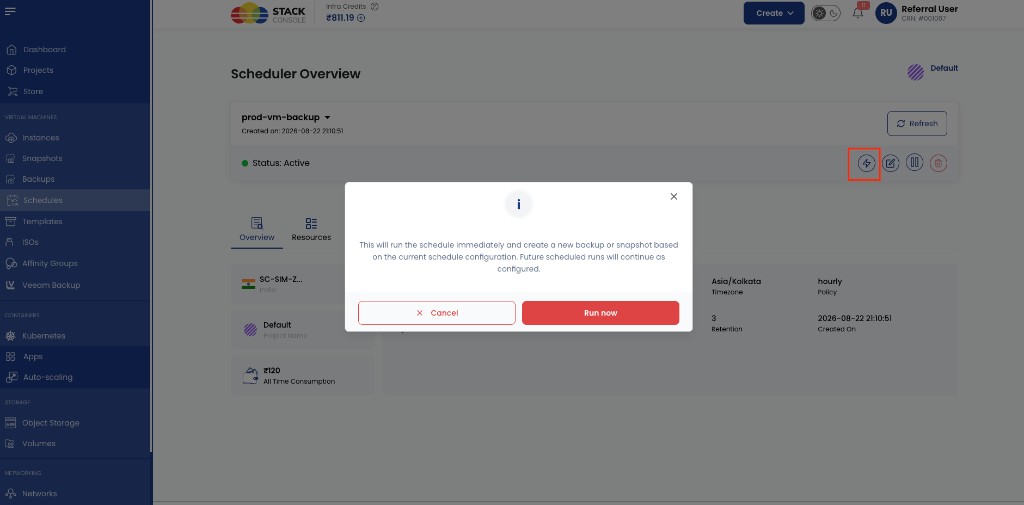
The backup appears on Backups with Type: Manual.
When creating a schedule, Take One Immediate runs one backup at save time. That copy also appears as Type: Manual (or per CMP labelling for immediate runs).
VM-specific backup list
Virtual Machines → Instances → [VM] → Backups
img/screenshots/cmp-vm-backups-tab.png
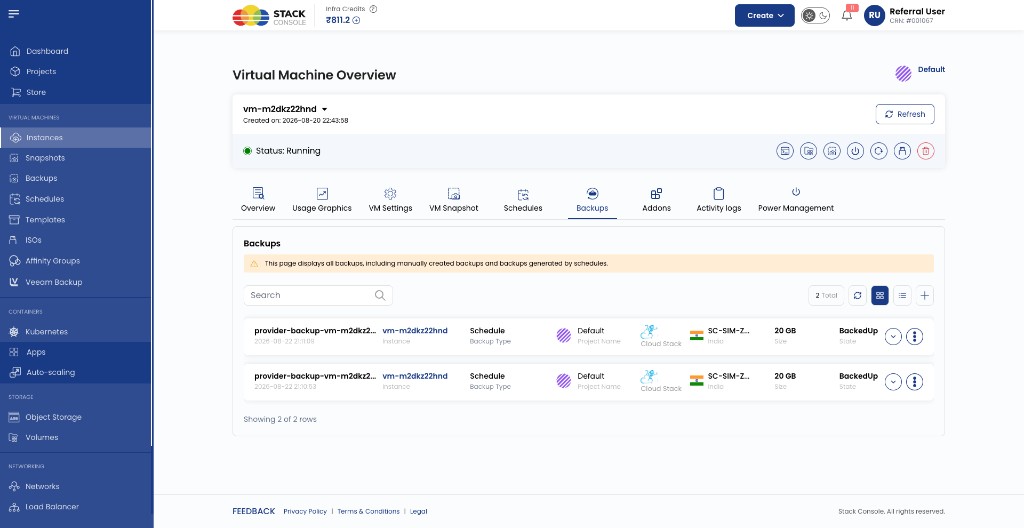
Same columns and banner as the global list, filtered to one instance. The Schedules tab on the same VM shows policies that feed this list.
Restore backup
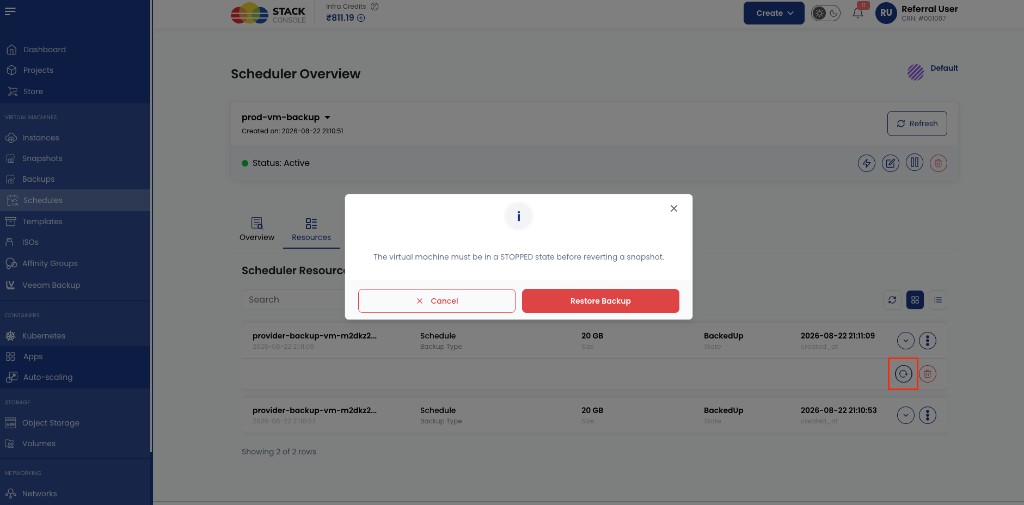
Restore replaces the VM with the state captured in a chosen backup. The VM must be stopped before restore completes.
CMP shows: The virtual machine must be in a STOPPED state before reverting a snapshot.
Stop the instance (Virtual Machines → Instances → [VM] → Stop) before confirming Restore Backup. If the VM is still running, cancel, stop the VM, then retry.
From Scheduler Overview (Resources tab)
- Open Virtual Machines → Schedules → Instances Backup Schedules.
- Open the schedule for the VM (for example
prod-vm-backup). - Go to the Resources tab — lists every backup copy from this schedule.
- Click Restore (circular arrow) on the backup row to restore.
- Confirm Restore Backup in the dialog (after the VM is stopped).
img/screenshots/cmp-restore-backup-confirm.png
From the Backups list
The same restore action is available from:
- Virtual Machines → Backups — global list
- Virtual Machines → Instances → [VM] → Backups — VM tab
Use the row action menu or restore icon on the backup you want, then confirm Restore Backup with the VM stopped.
On Automated Volume Snapshot as Backup, restore uses CloudStack snapshot revert semantics — CMP may label the dialog with snapshot even though the object is listed under Backups. Behaviour matches your CloudStack snapshot/backup configuration.
Delete a backup
Remove unwanted backup copies from Backups or the schedule Resources tab via the row delete action. Deleting a backup stops billing for that copy; it does not remove the schedule.
Billing
Each backup row represents a billable VM Backup resource for as long as it is retained. See VM Backup packages.