Object Storage
Customers create and manage CEPH-backed object storage services in CMP.
On CEPH, creating object storage means creating a user. Each object storage service in CMP maps to one CEPH user with its own S3 credentials. A customer can create multiple object storages — CMP creates a separate CEPH user for each.
- CEPH Cloud Provider Setup is complete (including zone and storage settings)
- Object Storage packages are configured — package selection is compulsory at create time
- The customer account is active and an Object Storage package is available for their zone
Create Object Storage
End users create object storage from the customer portal.
Customer path: Storage → Object Storage → Create (or Create → Object Storage)
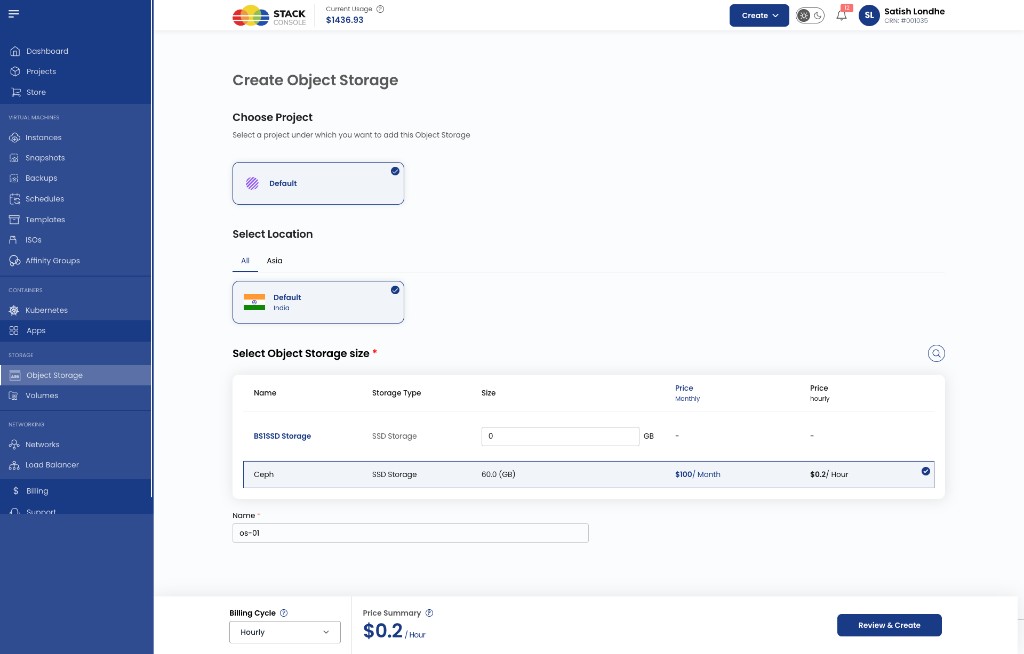
Object Storage in CMP = a new user on CEPH.
When the customer completes Review & Create, CMP uses the Dashboard API to create a CEPH user for that service and generates S3 credentials. Each additional object storage the customer creates is another CEPH user.
| In CMP | On CEPH |
|---|---|
| Create Object Storage | Create a new user |
| Multiple Object Storage services | Multiple CEPH users |
Package selection is compulsory. At create time, CMP applies plan parameters from the selected Object Storage package — including storage capacity, bucket limit, zone, and storage category.
Create Object Storage form (end user)
Complete the fields below in the order shown on the form, then choose a billing cycle and click Review & Create.
Choose Project
Required. Select the project this object storage belongs to — for example, Default.
Select Location
Required. Select the zone / location where object storage is provisioned — for example, Default India. Location tabs (for example, All, Asia) filter available zones.
Only packages configured for the selected zone appear in the size list.
Select Object Storage size
Required. Select an Object Storage package. The table shows package name, storage type (category), size, and monthly / hourly price.
Example from the form:
| Name | Storage type | Size | Price Monthly | Price Hourly |
|---|---|---|---|---|
| Ceph | SSD Storage | 60.0 GB | $100 / Month | $0.2 / Hour |
Custom size rows (when enabled for your rate card) may also appear for storage categories such as SSD Storage.
Name
Required. Display name for this object storage service — for example, os-01.
Billing Cycle
Required. Select the billing cycle for this service — for example, Hourly. The price summary updates from the selected package and cycle.
Click Review & Create to provision.
Provisioning flow
When the customer completes Review & Create, CMP:
- Creates an object storage user on CEPH (via Dashboard API)
- Generates S3 credentials for that user
- Assigns the mapped region / zone from the selected package
- Activates the service with package storage quota and bucket limit
Object Storage Overview
The overview for an active object storage service shows:
| Area | Details |
|---|---|
| Storage usage | Consumed storage for the service |
| Bucket count | Number of buckets (within the package Bucket Limit) |
| Region details | Mapped CEPH / CMP zone |
| S3 access information | Endpoint URL, region, and link to S3 access keys |
| Service status | Active / provisioning state for the object storage service |
| Buckets list | Buckets under this service |
From overview, customers continue to bucket and object operations or open S3 Object Storage Credentials for external tool access.
S3 access key management
S3 access keys let customers connect external tools (AWS CLI, SDKs, backup apps, S3 browsers, and similar) to their object storage.
Customer path: Storage → Object Storage → open a service → S3 Object Storage Credentials (or Access Keys)
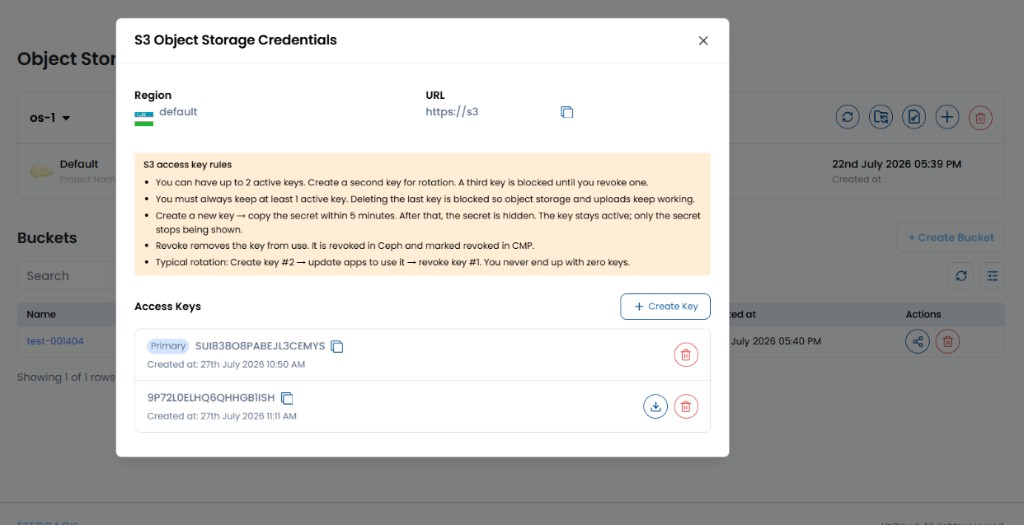
Each key has:
| Item | Field | Description |
|---|---|---|
| Access Key | api_key | Public identifier — always visible in the key list |
| Secret Key | api_secret | Private, password-like value — only shown for 5 minutes after creation |
Treat the secret like a password. Anyone with both keys can access that object storage.
The modal also shows Region and URL (S3 endpoint) with a copy control for connecting clients.
Limits
| Rule | Behaviour |
|---|---|
| Maximum active keys | 2 per object storage service |
| Minimum active keys | At least 1 must remain active |
| Create when at limit | Blocked until one key is revoked |
Create a key
- Open S3 Object Storage Credentials / Access Keys
- Click Create Key (or + Create Key)
- Copy the Access Key and Secret Key immediately
The secret is shown for 5 minutes after creation. After that, it is hidden and cannot be viewed again in the UI.
Store the secret in a password manager or export / download the key file before the 5-minute window expires.
View keys
- The list of active keys and their Access Key IDs is always visible
- The Secret Key is only visible during the 5-minute window after creation
- One key is treated as the primary key used by the platform for uploads
Export a key
Customers can export a key as a TXT file only while the secret is still visible (within 5 minutes of creation). After that window, export is blocked.
Revoke a key
- Open Access Keys
- Choose the key → Revoke (trash icon)
- Confirm
Revoking immediately disables that key for external tools. Revocation removes the key from both CEPH and CMP. You cannot revoke the last remaining key.
Key rotation (recommended)
- Create a second key
- Update applications to use the new key
- Revoke the old key
This avoids downtime while rotating credentials.
After creation — S3 communication
After object storage is created, CMP does not use the Dashboard API for day-to-day bucket and file work. CMP communicates directly with the S3 endpoint configured in Provider Config.
End users can also use S3 access keys and access the same buckets outside CMP using:
- S3 CLI (for example, AWS CLI configured for a custom endpoint)
- Any S3-compatible browser or desktop client
- S3 SDKs in applications
Resize Storage
Users can resize or upgrade storage plans from the object storage overview when a larger Object Storage package is available.
Customer path: Storage → Object Storage → open a service → Resize (or resize action on overview)
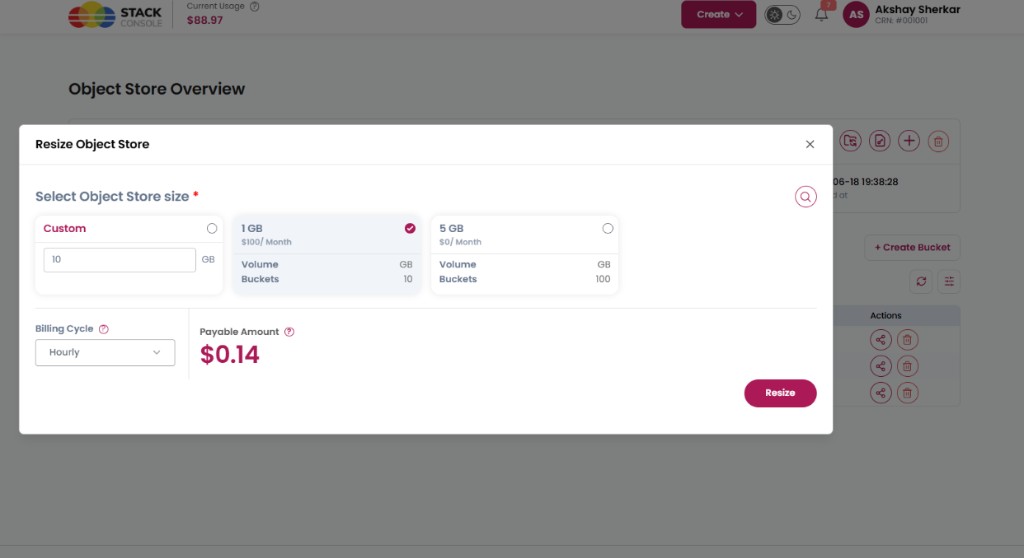
Supported actions:
- Increase storage allocation — select a larger plan or custom size (when enabled)
- Update plan configuration — change package tier (storage and bucket limits follow the new package)
- Modify billing plan — choose billing cycle; Payable Amount updates before confirm
Complete Select Object Storage size, Billing Cycle, review Payable Amount, then click Resize.
Resize is limited by available Object Storage packages. Capacity and bucket count come from the selected package (Storage (In GB) and Bucket Limit) — CMP has no separate CEPH quota management.
Limits (package level only)
CMP does not provide separate quota management for CEPH (no CEPH-specific global / account quota screens like compute orchestrators).
Storage capacity and number of buckets are set only on the Object Storage package:
| Package field | Limit |
|---|---|
| Storage (In GB) | Maximum storage for that object storage service |
| Bucket Limit | Maximum number of buckets for that object storage service |
Configure these under Object Storage Packages.
Background sync and performance
CMP syncs object storage, bucket, and file usage in the background to keep API responses responsive. Usage shown in the UI may briefly lag real CEPH consumption during large uploads or deletes.