Buckets & Objects
After an object storage service is active, customers create buckets and manage objects (files) through CMP and S3-compatible APIs.
Customer path: Storage → Object Storage → open an object storage service → Buckets
Bucket and file traffic uses the S3 endpoint after the CEPH user is created — see After creation — S3 communication.
Create bucket
- Open the object storage service
- Under Buckets, click + Create Bucket
- Complete the form and click Create
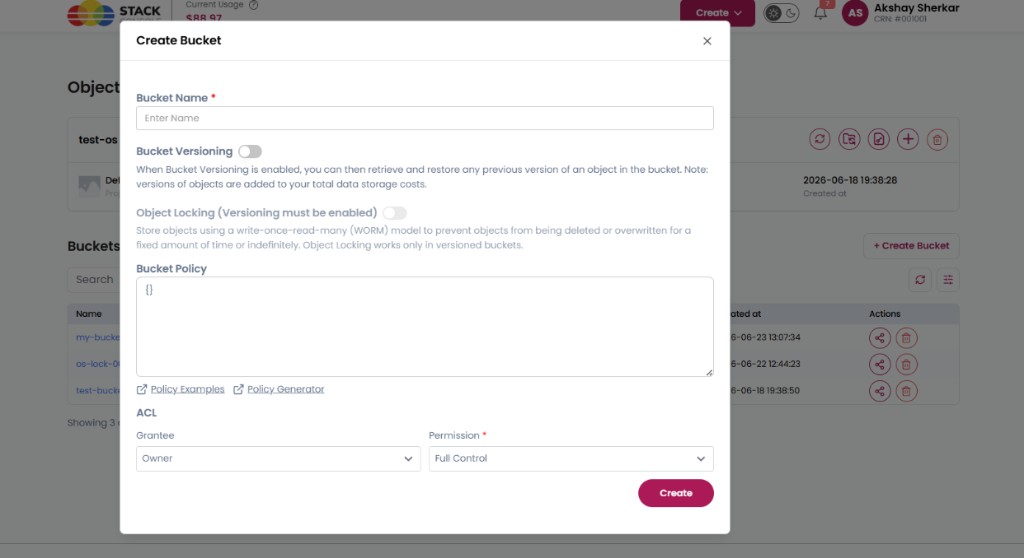
Create Bucket form
Configure the fields below in the order they appear on the form, then click Create.
Bucket Name
Required. Enter a unique bucket name.
Bucket Versioning
Optional. Toggle on to enable versioning.
Keeps multiple versions of an object so customers can restore or recover previous versions. Additional versions increase storage usage and cost.
When Bucket Versioning is enabled, you can retrieve and restore any previous version of an object in the bucket.
Bucket versioning cannot be deactivated if Object Locking is enabled for the bucket.
Object Locking (Versioning must be enabled)
Optional at create time only. Toggle on to enable Object Lock.
Prevents objects from being deleted or overwritten for a specified period or indefinitely (WORM protection). Object Locking works only in versioned buckets.
Object Lock is set on bucket creation and cannot be changed afterward. Versioning must be enabled before Object Locking. Object Lock cannot be added later on an existing bucket.
Bucket Policy
Optional. JSON policy defining who can access the bucket and what actions (read, write, delete, and similar) they are allowed. Defaults to {}.
Use the Policy Examples and Policy Generator links under the field for sample policies and assisted editing.
ACL (Access Control List)
Provides basic access permissions for the bucket — for example Private or Public Read.
Grantee
Required for ACL. Who receives the permission — for example, Owner.
Permission
Required. Permission granted to the grantee — for example, Full Control.
Click Create to provision the bucket on CEPH via the S3 endpoint.
Bucket overview
Open a bucket to view summary details and objects.
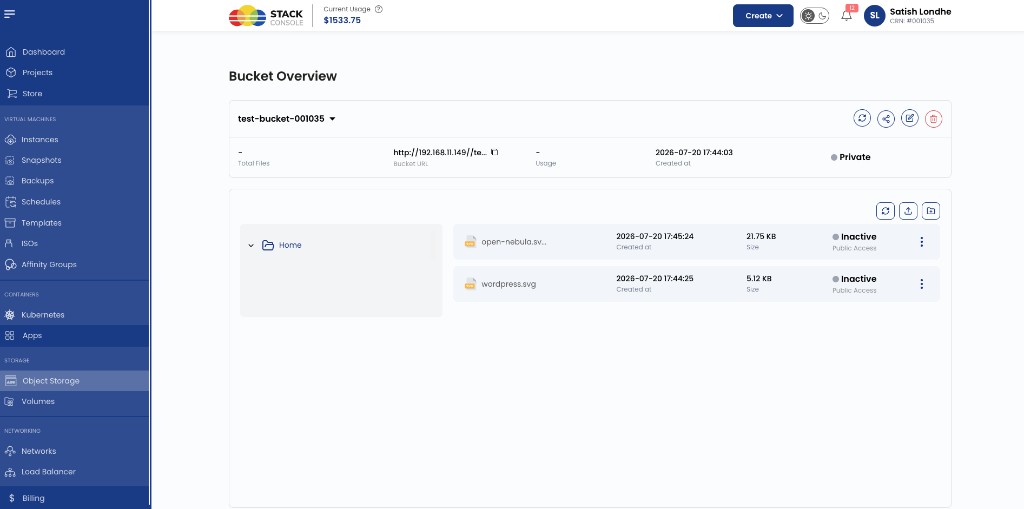
Typical summary fields:
| Field | Description |
|---|---|
| Total Files | Object count in the bucket |
| Bucket URL | S3 / HTTP endpoint URL for the bucket (copyable) |
| Usage | Storage consumed |
| Created at | Creation timestamp |
| Visibility | For example, Private |
Action icons on the bucket header:
| Action | Purpose |
|---|---|
| Refresh | Reload bucket details and object list |
| Share | Open Update Public Access |
| Edit | Update bucket settings (policy, versioning, ACL) |
| Delete | Delete the bucket (subject to Object Lock and contents) |
Inside the bucket, use Upload, New Folder, and the per-file menu for object operations.
Share bucket
Use Share on the bucket overview to update public access for the bucket (or apply public sharing rules that affect how objects are reached by link).
- Open the bucket
- Click the Share icon
- Configure Update Public Access and click Update
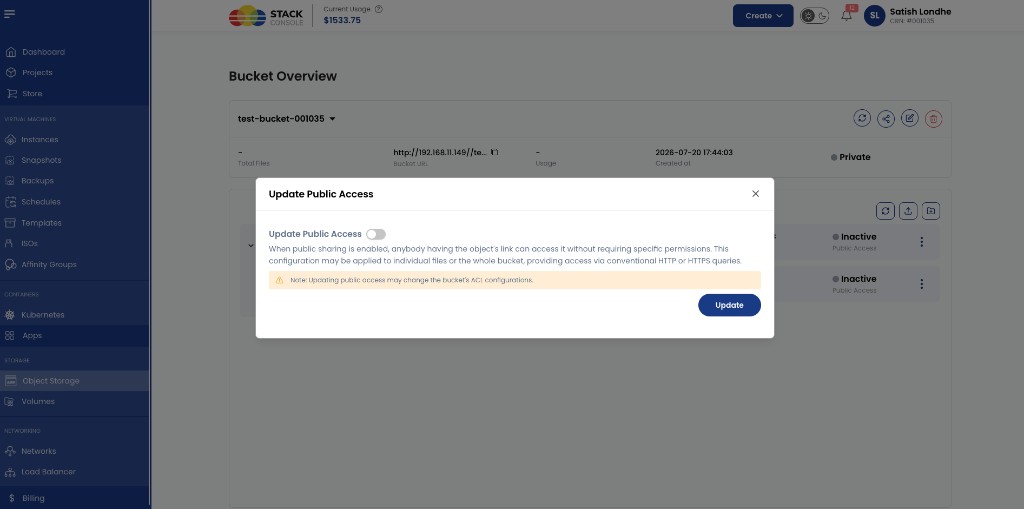
Update Public Access
Optional. Toggle on to allow anyone with the object or bucket link to access content without specific permissions. Public sharing can apply to individual files or the whole bucket over HTTP / HTTPS.
Updating public access may change the bucket's ACL configurations.
For finer-grained sharing (who can read, write, or delete), use Bucket Policy at create or update time, and Policy Examples / Policy Generator when available.
Visibility on the overview (for example, Private) updates after you change public access.
Update bucket
Use Edit / Update on an existing bucket to change settings allowed after creation.
Customer path: Storage → Object Storage → open a bucket → Edit (pencil icon)
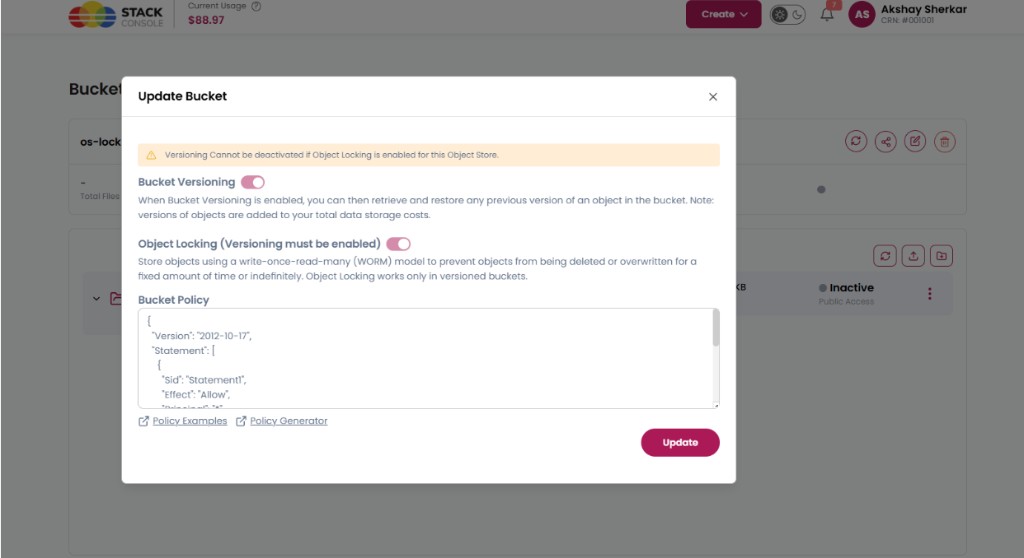
Supported updates include:
- Bucket Versioning — enable if not yet on (cannot disable while Object Lock is enabled)
- Bucket Policy — JSON policy changes
- Object Locking — shown only if enabled at create; cannot be added or removed after creation
If Object Locking is enabled, CMP shows: Versioning cannot be deactivated if Object Locking is enabled for this Object Store.
Click Update to save changes.
For public access changes, use Share bucket on the bucket overview.
Object Lock cannot be enabled or disabled after the bucket is created. Versioning cannot be turned off while Object Lock is enabled.
CMP supports updating bucket ACLs after creation so customers can adjust Private / Public-style access without recreating the bucket.
Object (file) operations
Supported object operations inside a bucket:
| Operation | Description |
|---|---|
| Upload files | Upload objects; large files use multipart upload |
| New Folder | Create a logical prefix / folder in the bucket |
| Download files | Download objects to the client |
| Delete files | Remove objects (subject to Object Lock / versioning rules) |
| Signed URL | Generate a time-limited URL for download or upload without sharing long-lived keys |
| Public sharing | Per-object or bucket-level public access via Share bucket and public access toggles |
Supported file extensions
CMP supports uploading common file types including:
.pdf, .xml, .png, .zip, .svg, .gif, .jpeg, .jpg, .ai, .xlsx, .docx
Other S3-compatible object types may work via the S3 API or external clients regardless of CMP UI upload filters.
File upload goes directly to CEPH (no CMP backend dependency for the object payload). That improves performance for large transfers. CMP still manages credentials, metadata, and usage sync.