Hosting Account Management
Once a customer's Web Hosting service is provisioned, CMP provides self-service management capabilities through the Customer Portal. Customers can inspect service health, monitor disk quotas in real time, launch cPanel via Single Sign-On (SSO), manage passwords, inspect DNS requirements, and view audit trails.
1. Web Hosting Service List
Customer Portal Path: /app/web-hosting
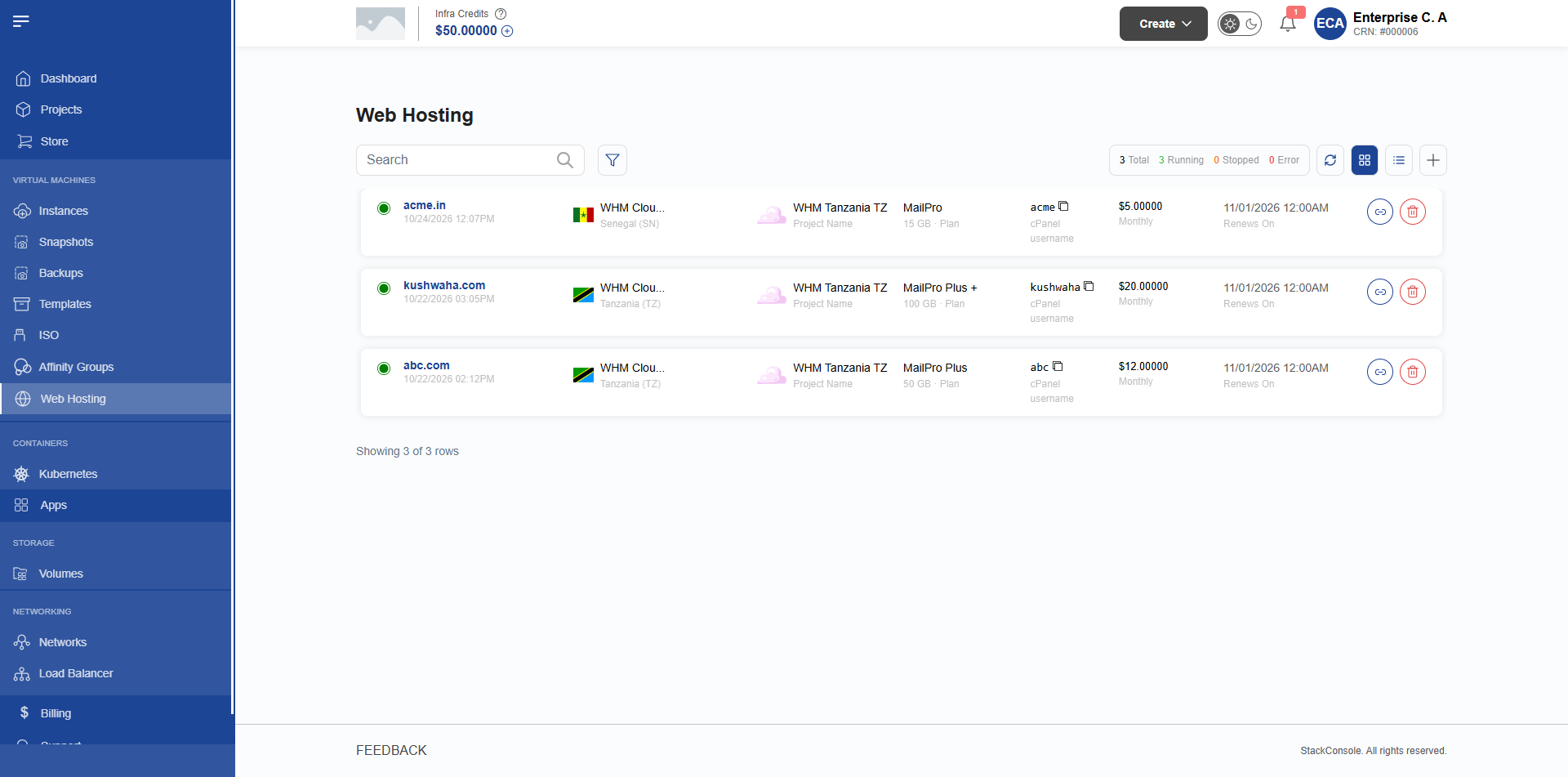
The Web Hosting landing page lists all hosting accounts owned by the customer organization.
Table Columns
- Domain Name: The primary domain assigned to the cPanel account (e.g.,
mybusiness.com). Clicking the domain opens the account management dashboard. - Plan Name: The active commercial package (e.g.,
Starter 10GB). - Region / Server: The datacenter region hosting the WHM server.
- Recurring Price & Cycle: Current renewal charge (e.g.,
$5.00 / Monthly). - Renewal Date: Next scheduled invoice and billing cutoff date.
- Status: Current lifecycle state (
Active,Creating,Suspended, orFailed). - Actions: Quick-action buttons to launch cPanel via SSO or initiate cancellation.
2. Overview Tab
Customer Portal Path: /app/web-hosting/{slug}/overview
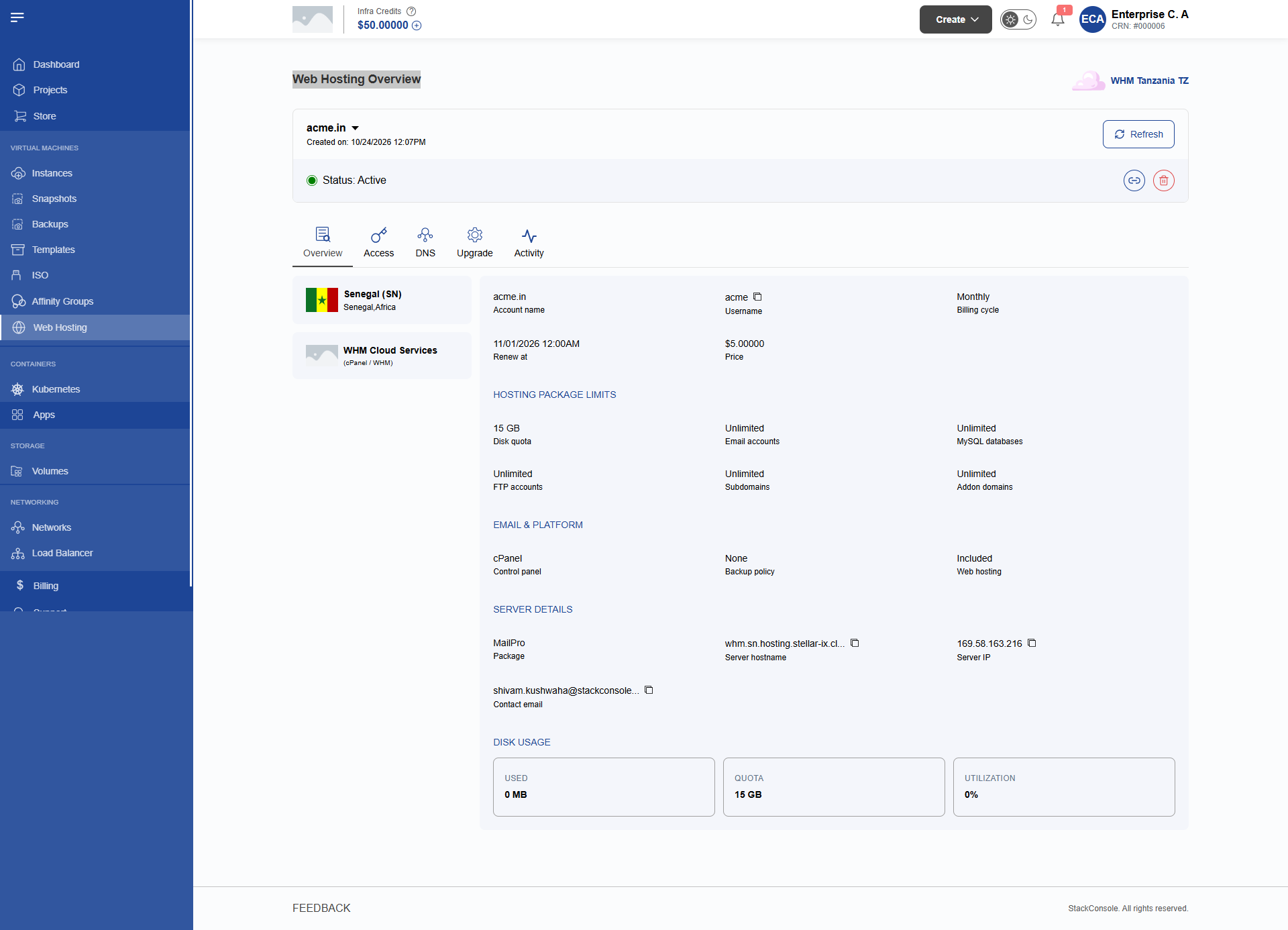
The Overview tab provides a central summary of hosting account status, technical specifications, and storage utilization.
Disk Quota Usage
The storage card queries real-time metrics dynamically via:
GET /api/hosting/accounts/{slug}/usage
- Under the hood, CMP calls WHM's
accountsummaryendpoint to retrieve exact disk consumption. - The portal renders a visual progress bar indicating used storage vs. total plan quota (e.g.,
2.4 GB of 10 GB used (24%)). - Error Handling: If WHM is temporarily unreachable or the account is suspended, the UI displays an Unavailable indicator with a short diagnostic code rather than crashing the page.
Status Banners
- Active: Normal operational state; all features accessible.
- Suspended: Displays a prominent warning banner explaining that the service has been suspended due to an overdue invoice or disciplinary action. In this state, SSO access is disabled.
- Creating: Displays an informational banner indicating that background provisioning is in progress on the server.
3. Access Tab & cPanel SSO
Customer Portal Path: /app/web-hosting/{slug}/access
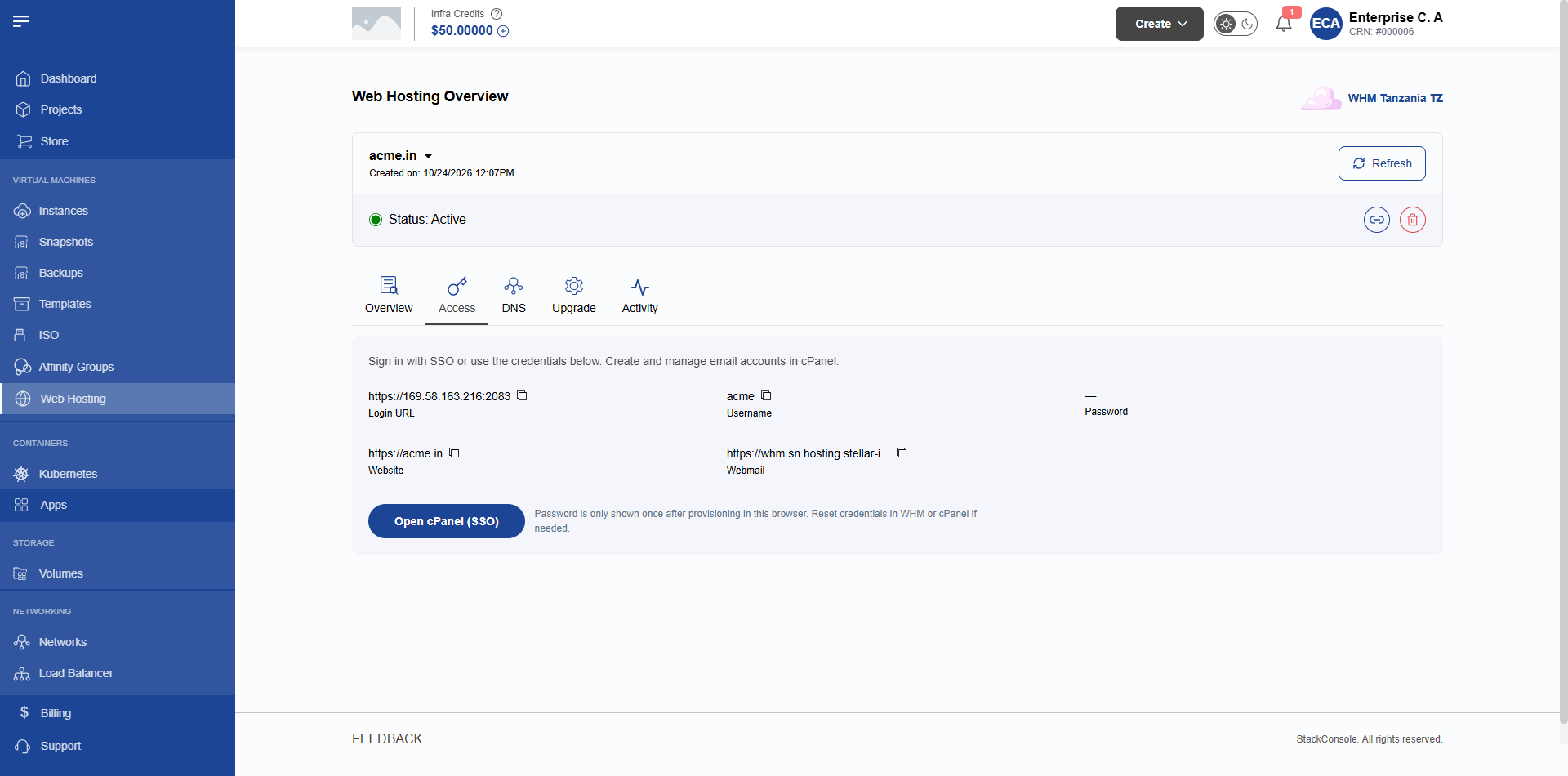
The Access tab provides secure credential management and direct login access to the cPanel control panel.
cPanel Single Sign-On (SSO)
Customers do not need to remember separate WHM or cPanel passwords. They can access cPanel directly with one click:
- Click the Open cPanel button.
- The portal submits an authenticated API request:
POST /api/hosting/accounts/{slug}/sso
- CMP calls WHM's
create_user_sessionAPI to generate a temporary, cryptographically-signed one-time session URL. - CMP opens the secure session URL in a new browser tab, automatically logging the customer into their cPanel dashboard.
- The session generation event is permanently logged in the audit trail as
HOSTING.ACCOUNT.SSO.
The hosting account must be in the Active state. Accounts in creating, suspended, or failed states cannot initiate SSO sessions.
Password Reset
If a customer requires direct cPanel credentials (for instance, to configure an external FTP client or email client):
- In the Reset Password section, enter a new password (or click Generate for a strong random password).
- The password must satisfy CMP's password strength policy (minimum length, mixed case, numbers, and symbols).
- Click Update Password.
- CMP invokes
UpdateHostingAccountPasswordJob, which calls WHM'spasswdAPI to synchronize the new credential immediately.
4. DNS Guidance Tab
Customer Portal Path: /app/web-hosting/{slug}/dns
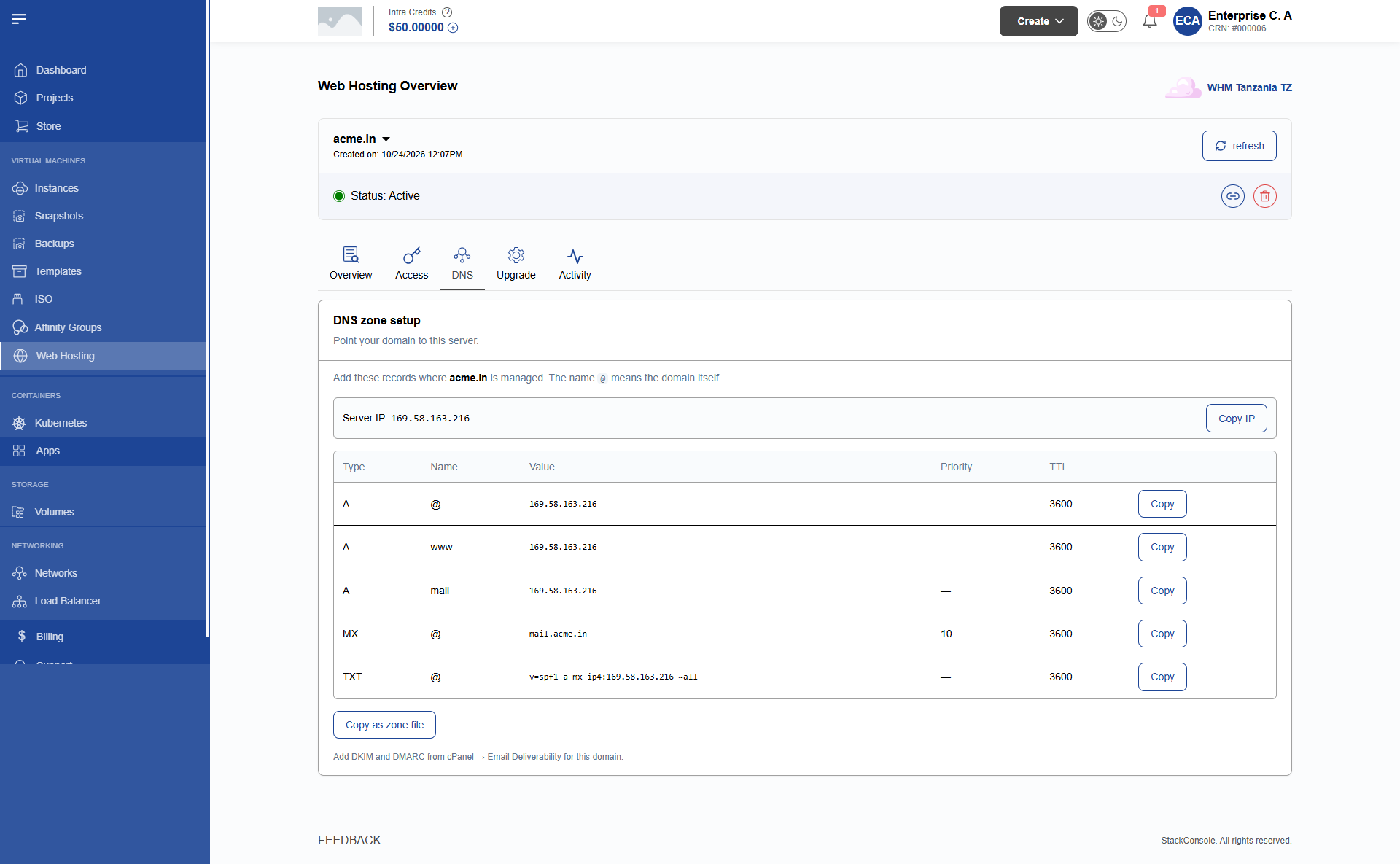
The DNS tab provides setup instructions and record pointers for connecting the customer's domain to the hosting server.
The DNS tab provides DNS guidance and target records; it is not an authoritative DNS zone editor. Customers managing their domains through third-party registrars (such as GoDaddy, Cloudflare, or Namecheap) must copy these records into their respective DNS providers.
Displayed Information
- Authoritative Nameservers: The primary and secondary nameservers assigned to the WHM server (e.g.,
ns1.examplecloud.com,ns2.examplecloud.com). - Server A Record: The primary public IPv4 address of the WHM web server.
- Mail / MX Records: Recommended MX pointer configurations for local or external mail routing.
- Verification Status: Guidance on verifying DNS propagation using public lookup tools.
5. Activity Audit Trail
Customer Portal Path: /app/web-hosting/{slug}/activity-logs
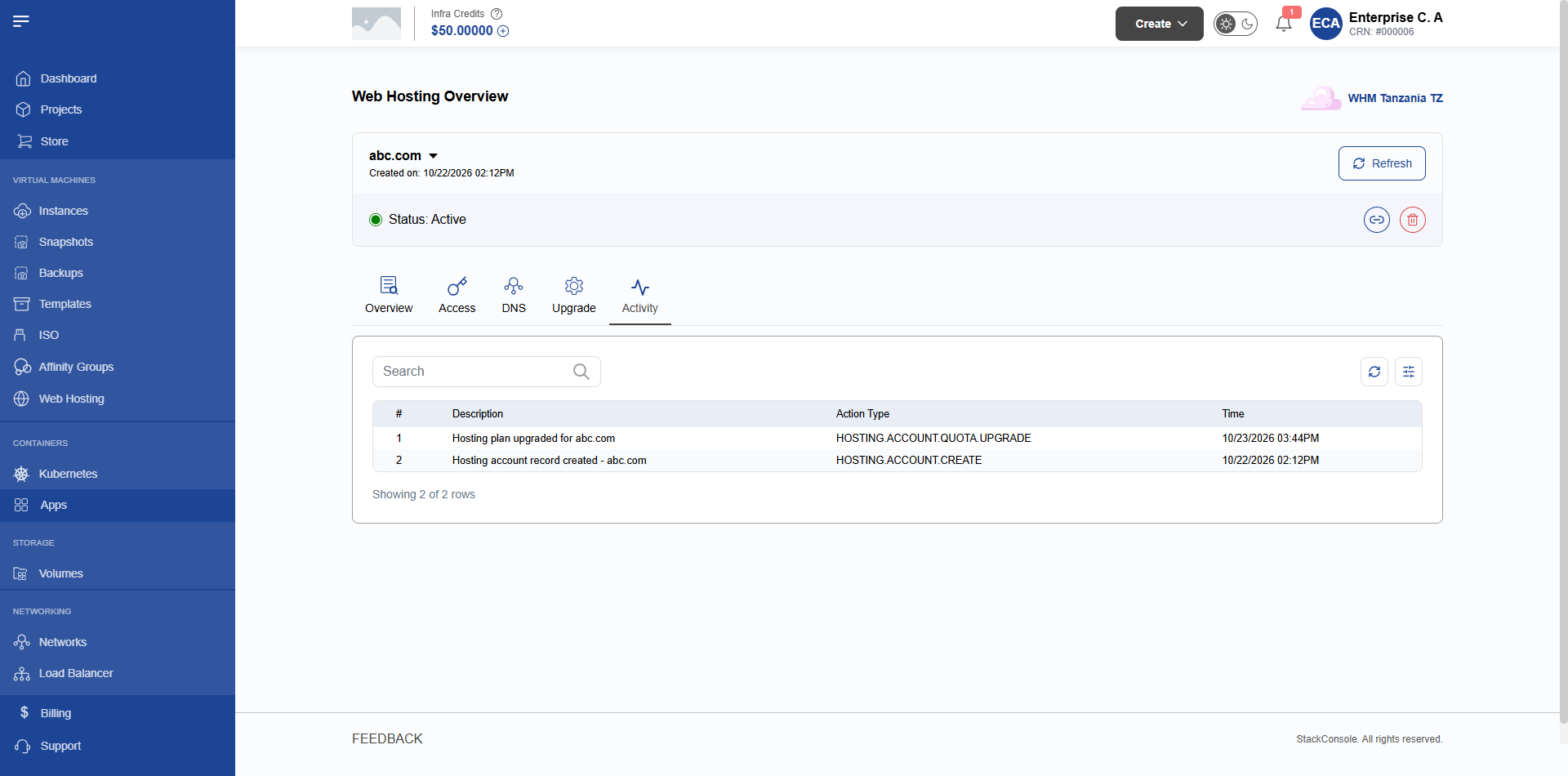
The Activity tab provides a tamper-evident audit log of all operations performed on the hosting account by customers, administrators, and automated background jobs.
Logged Events
| Event Code | Trigger | Details Logged |
|---|---|---|
HOSTING.ACCOUNT.CREATE | Initial purchase order | Domain, selected plan, cPanel username, IP |
HOSTING.ACCOUNT.SSO | Customer clicked "Open cPanel" | User session requested, IP address, timestamp |
HOSTING.ACCOUNT.PASSWORD_UPDATE | Password reset initiated | Triggered user, update timestamp (no plain passwords) |
HOSTING.ACCOUNT.UPGRADE | Plan upgraded | Previous plan, new plan, prorated invoice ID |
HOSTING.ACCOUNT.SUSPEND | Overdue invoice cutoff | Suspension reason, WHM response code |
HOSTING.ACCOUNT.UNSUSPEND | Payment received | Restoration timestamp, settling invoice ID |
HOSTING.ACCOUNT.TERMINATE | Service cancelled | Effective cancellation type (Immediate / End of Period) |