Package & Plan Configuration
In StackConsole CMP, Web Hosting plans are commercial offerings that map directly to underlying WHM packages. This guide covers how to create CMP-compatible packages in WHM, understand critical naming constraints, and map packages to sellable plans and rate cards in CMP.
1. How WHM Packages Map to CMP Plans
The commercial and technical configuration is split between WHM and CMP:
- In WHM: You define the technical resource limits — disk quota, monthly bandwidth, maximum email accounts, MySQL databases, FTP accounts, addon domains, and cPanel feature lists.
- In CMP: You define commercial terms — customer-facing plan names, pricing, billing cycles (monthly, quarterly, annual), rate cards, and region availability. Each CMP plan references the exact
whm_package_name.
2. Creating Packages in WHM
Before configuring plans in CMP, create the corresponding packages in WebHost Manager.
Step-by-Step WHM Package Creation
- Log in to WHM as an administrator or reseller.
- In the navigation search, open Packages → Add a Package.
- Enter the Package Name following the naming rule below.
- Set the resource limits:
- Disk Quota (MB): Total storage allocated to the cPanel account (e.g.,
10240for 10 GB). - Monthly Bandwidth (MB): Traffic allowance (e.g.,
102400for 100 GB). - Max FTP Accounts / Max Email Accounts / Max Databases: Set numerical limits or unlimited.
- Max Subdomains / Max Parked Domains / Max Addon Domains: Define domain limits.
- Disk Quota (MB): Total storage allocated to the cPanel account (e.g.,
- Select the Feature List (typically
default). - Click Add to save the package.
3. Critical Limitation: Package Naming Rules
Detailed package naming rules, the root_ prefix, and WHM screenshots are in the dedicated guide WHM Package Naming.
basic_hosting can be created in WHM and still will not appear in CMP. Use a space instead: basic hosting or Basic Hosting.
Naming Comparison Matrix
| Example Name | Allowed in WHM? | Recognized by CMP? | Guidance |
|---|---|---|---|
basic hosting | Yes | Yes | A simple name with a space. This works. |
Basic Hosting | Yes | Yes | The same name with capitals. This also works. |
basic_hosting | Yes | ❌ No | This will not work. Do not use an underscore in this name. |
starter10gb | Yes | Yes | Letters and numbers, with no underscore. |
web_hosting_pro | Yes | ❌ No | An underscore that is not root_ or a reseller username will not work. |
root_mailpro | Yes | Yes, for a root token | An underscore is valid when the name starts with root_. |
reseller1_hosting | Yes | Only that reseller | The name starts with the reseller username and an underscore, so only that reseller can see the package. |
Basic_Hosting | Yes | ❌ No | This will not work. Use Basic Hosting. |
TestWHM_QA | Yes | ❌ No | The underscore form will not appear in the CMP dropdown. |
starter-plan | Yes | ⚠️ Avoid | Do not use a hyphen. Use basic hosting or Basic Hosting, or root_ when an underscore is required. |
Reseller Prefix
If a package name is preceded by a reseller's username and an underscore, only that reseller can see the package.
WHM applies this on Packages → Add a Package. A name such as reseller1_hosting is visible only to reseller1. A name with no reseller prefix, such as basic hosting, is not limited to one reseller.
CMP lists whatever listpkgs returns for the WHM user and token configured on the provider:
- A root token can see packages with no reseller prefix, and packages that start with
root_. - A reseller token sees that reseller's
username_packages. It does not see another reseller's prefixed packages. - Use a reseller prefix only when that reseller's token is the one CMP uses for this provider.
4. Configuring Web Hosting Plans in CMP
CMP Admin Path: Settings → Billing Setup → Rate Cards → [Select Rate Card] → Packages → Web Hosting
(or Admin → Packages → Web Hosting)
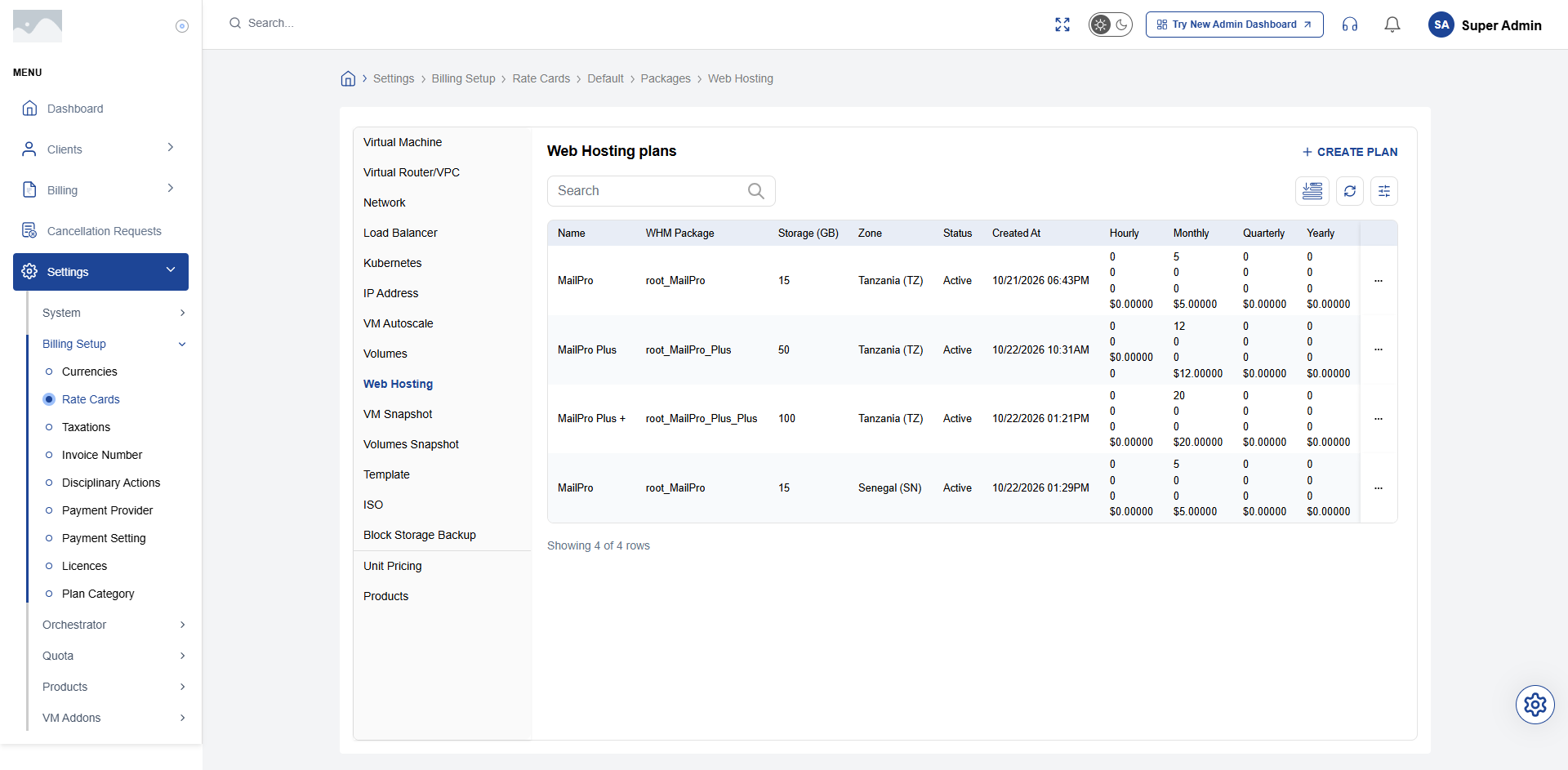
- Open Settings → Billing Setup → Rate Cards.
- Select the target rate card (e.g.,
Defaultor a customer-specific card). - Under the Packages menu, click Web Hosting.
- The list displays all currently configured hosting plans, their status, disk quotas, prices, and mapped WHM package names.
- Click + Create Plan (or select an existing plan and click Edit).
5. Web Hosting Plan Fields
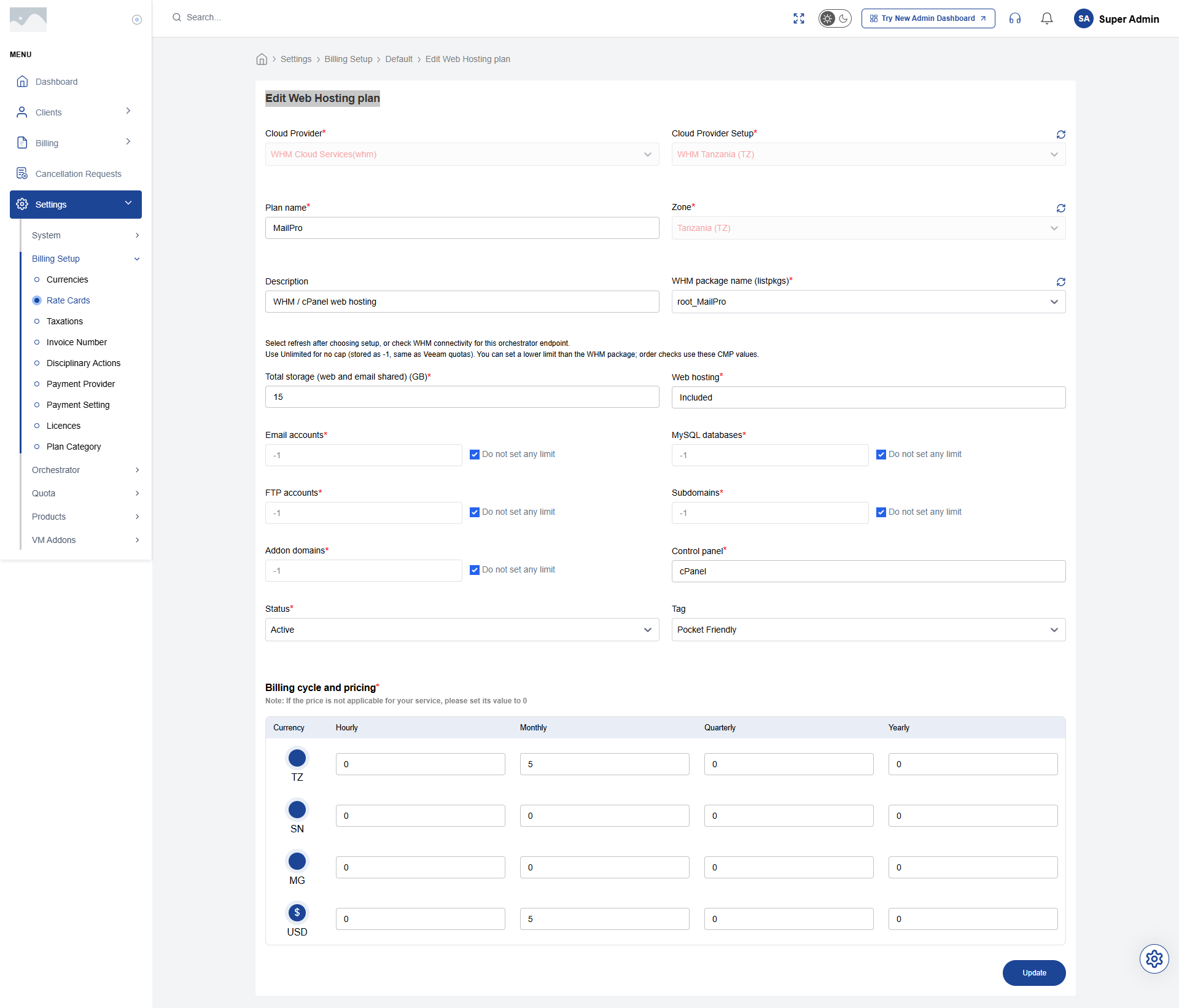
Plan Configuration Fields
Plan Name
Required. Customer-facing display name — for example, Personal Starter, Professional Cloud, or Enterprise Web Hosting. This label appears on the customer purchase card and invoice line items.
Status
Required. Active or Inactive. Set to Active to make the plan available for customer purchase. Set to Inactive to retire the plan while leaving existing subscriptions unaffected.
disk_quota_gb
Required. Integer value representing disk storage in Gigabytes (e.g., 10, 25, 50).
- Important: CMP uses
disk_quota_gbto enforce upgrade eligibility. Customers can only upgrade to a plan with a higherdisk_quota_gbvalue than their current plan.
WHM package name (whm_package_name)
Required. The exact WHM package name returned by WHM's listpkgs API.
- Select the package from the dropdown list.
- If a newly created WHM package does not appear, click the Refresh (↻) icon beside the dropdown to re-query WHM.
- If it still does not appear, check the name.
basic_hostingwill not show.basic hostingandBasic Hostingwill. Also confirm the API token haslist-pkgspermission.
Price & Billing Cycle
Required. Enter the recurring subscription price and select the billing cycle (e.g., $10.00 / Monthly).
Plan Attributes (JSON)
Optional. Additional limits and features stored in the plan attributes (e.g., email accounts, database limits).
{
  "email_accounts": 10,
  "databases": 5,
  "ftp_accounts": 2,
  "ssl_included": true
}
Click Save to commit the plan.
6. Upgrade Eligibility & Quota Rules
CMP implements strict lifecycle and upgrade validation based on package definitions:
- Upgrades Only: CMP supports upgrading from a smaller plan to a larger plan. Downgrades to a lower package tier are blocked by both the customer UI and backend API.
- Quota Comparison: A plan is considered an upgrade only if its
disk_quota_gbexceeds the customer's current plan quota. Selecting a plan with equal or lesser quota returns an HTTP 403 error. - Proration: When an upgrade is confirmed, CMP calculates a prorated charge for the remainder of the active billing cycle before applying the new WHM package via
changepackage.
7. Package Troubleshooting Checklist
If a package does not appear in CMP or fails during provisioning:
| Symptom | Root Cause | Resolution |
|---|---|---|
| Package missing from dropdown | Name uses uppercase letters or un-prefixed underscore | Follow the naming rules in WHM Package Naming. Use a space (such as basic hosting) or prefix an underscore with root_. |
| Package missing from dropdown | Reseller ownership mismatch | Confirm the package was created by the same WHM user that generated the API token. |
Provisioning fails (createacct error) | Package deleted or renamed in WHM | Verify that whm_package_name in CMP matches the active WHM package name exactly. |
Upgrade fails (changepackage error) | New package has equal/lower quota | Ensure the destination plan has a strictly higher disk_quota_gb value. |