WHM Package Creation
End-user limitation and naming guide for CMP Web Hosting plan creation.
Version 1.0 | UAT guidance | 28 October 2026
A package can be created successfully in WHM even when its name contains uppercase letters. During CMP Web Hosting plan creation, that package may not appear in the WHM package dropdown. Use a lowercase package name when creating new WHM packages for CMP.
1. Purpose
This guide explains the naming and creation rule for WHM packages that will later be used in the CMP Web Hosting plan flow. It is written for both technical and non-technical users.
2. What problem was observed?
During testing, the package name TestWHM_QA was entered in WHM and the package could be created and seen in WHM. When the user opened CMP and tried to create a Web Hosting plan, the expected package was not available in the WHM package name (listpkgs) dropdown.
| Step | User action | Observed result |
|---|---|---|
| 1 | Create a package in WHM with TestWHM_QA. | Package is visible in WHM. |
| 2 | Open CMP and start Web Hosting plan creation. | WHM package dropdown does not show the expected package. |
| 3 | Compare with lowercase, compatible package names. | Compatible packages are available in the CMP dropdown. |
3. End-user limitation
For new WHM packages that CMP will consume, use lowercase letters in the package name. Do not treat “WHM accepted the name” as proof that CMP will recognize it.
| Use this | Avoid this | Reason |
|---|---|---|
testwhm_qa | TestWHM_QA | Use lowercase so CMP package discovery can list it. |
root_testwhm_qa2 | TestWHM_QA2 | If the name needs an underscore, prefix it with root_ when the package is owned by root. |
basic hosting or Basic Hosting | basic_hosting | basic_hosting will not work. basic hosting and Basic Hosting will. |
4. Recommended naming standard
- Use lowercase letters: a–z.
- Use numbers only when they add meaning, for example
webhosting10gb. - Use an underscore only where the WHM/CMP naming convention requires it.
- Keep the name short, meaningful, and easy to identify.
Basic Hostingworks.basic_hostingdoes not.- Do not use a hyphen as a separator in the package name. Follow the WHM/CMP naming convention instead.
- If a WHM username prefix is required, use the actual WHM username followed by an underscore, for example
root_whm.
5. WHM visibility precaution
If a package name is preceded by a reseller's username and an underscore, only that reseller can see the package.
WHM shows this note on Packages → Add a Package. A package named reseller1_webhosting is visible only to reseller1. Use that pattern only when reseller-only visibility is intended. A package with no reseller prefix is not limited to one reseller.
A package can exist in WHM and still be missing from CMP. If it is missing, check the package name, the WHM username and token, and the WHM host used by CMP.
CMP reads the package list returned by listpkgs. The package must be returned for the WHM user, token, and host that CMP is using.
Typical examples observed:
root_MailPro— root-owned (root_prefix)root_sk-developer-test-2— root-owned (root_prefix)Shivam Dev— no reseller prefix; visible to the root tokentest2— no reseller prefix; visible to the root tokentest WHM— no reseller prefix; visible to the root tokenTestWHM_QA2— not returned for that token and host, so it is not available in CMP
6. Create a CMP-compatible WHM package
- Log in to WHM with the required administrative or reseller access.
- Open Packages → Add a Package.
- Enter the package name with a space, for example
basic hostingorBasic Hosting. Do not enterbasic_hosting. - Configure disk space, bandwidth, FTP accounts, email accounts, databases, and domains for the plan.
- Review the package name before saving. Confirm that it contains no uppercase letters.
- Save the package in WHM.
- In CMP, open Settings → Billing Setup → Rate Cards and the Web Hosting plan screen.
- Open the WHM package name (listpkgs) dropdown.
- Use the refresh icon beside the dropdown if the list has not refreshed.
- Confirm that the new package is visible and selectable.
7. Screenshots
WHM package list showing the names that triggered the issue:
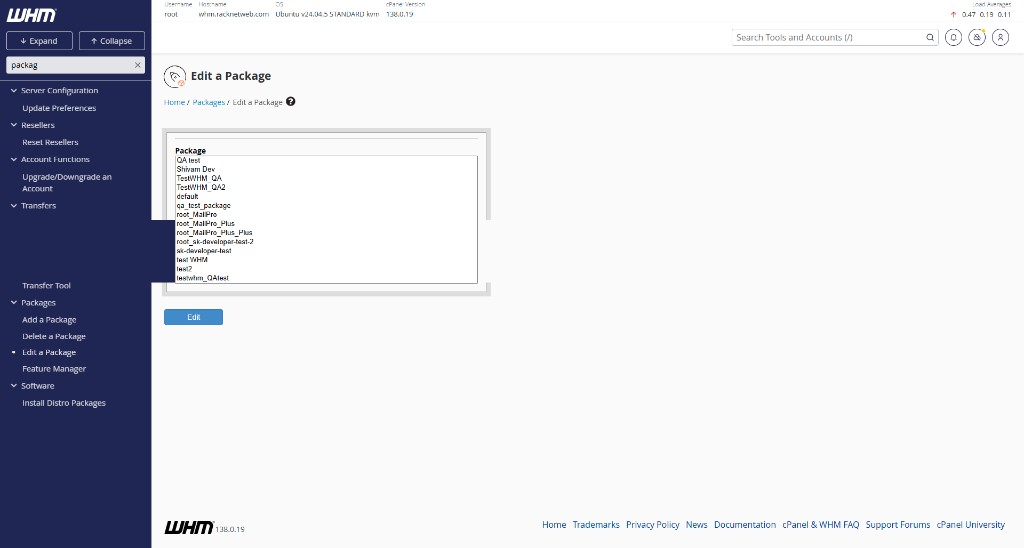
Figure 1. WHM package list. TestWHM_QA and TestWHM_QA2 contain uppercase letters.
WHM Add a Package screen:
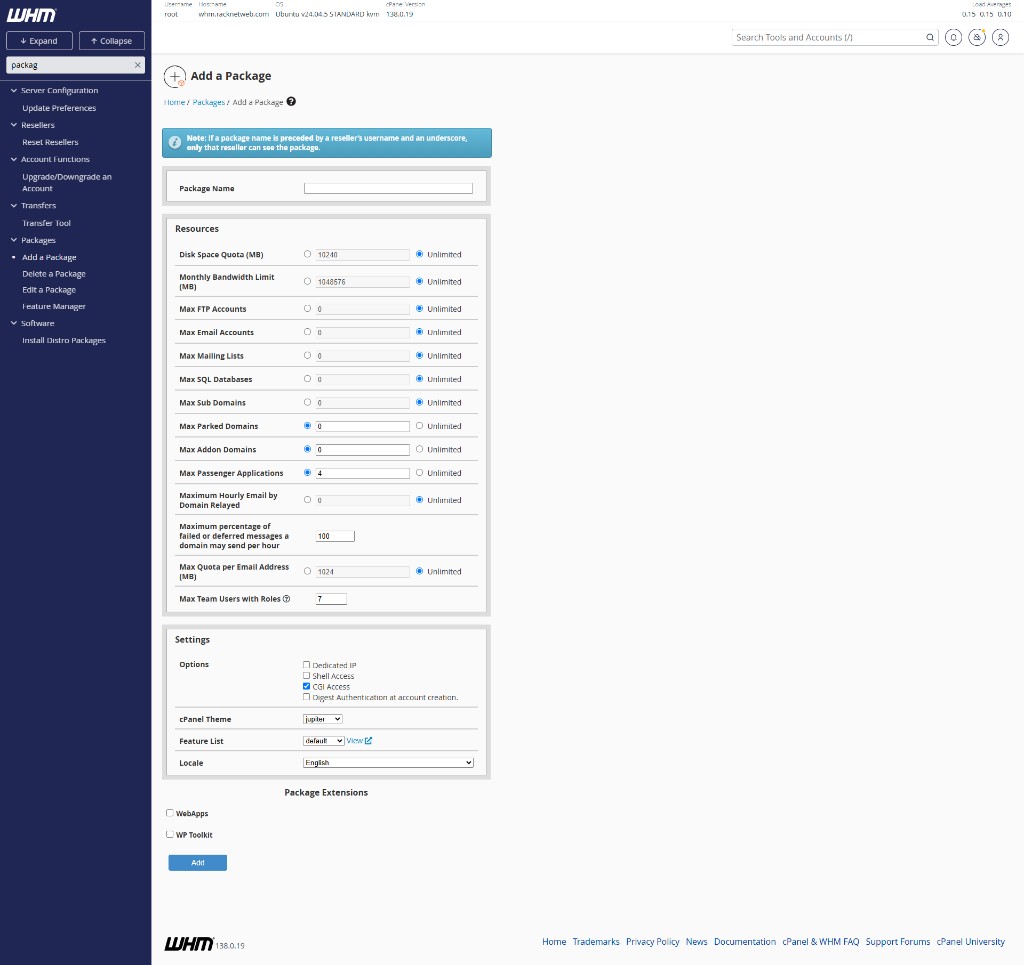
Figure 2. WHM package creation screen. Package Name is entered before saving.
CMP Web Hosting plan package field:
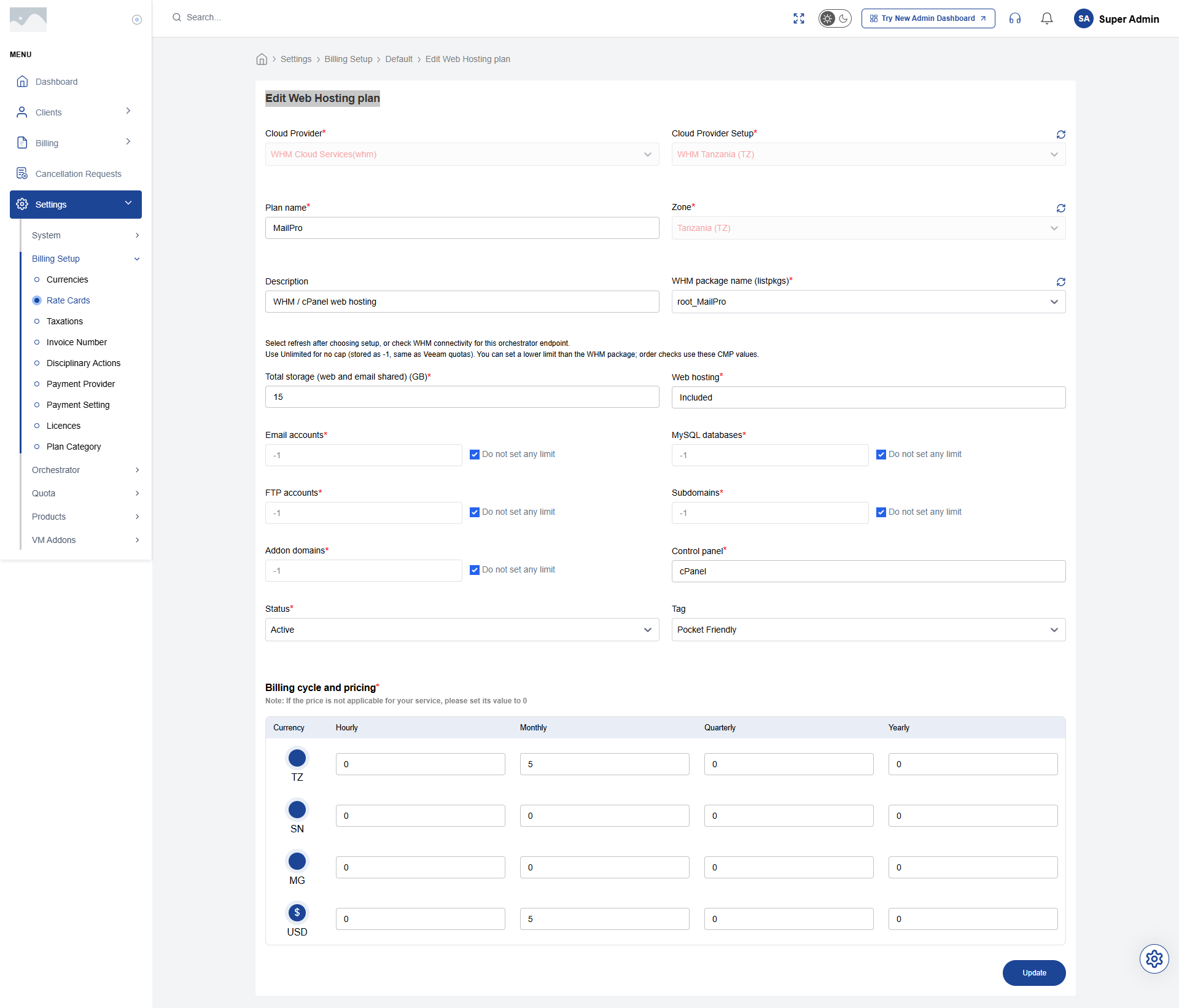
Figure 3. CMP Web Hosting plan. The WHM package name (listpkgs) field lists a package CMP can select. Use refresh beside the field if a new lowercase package is not there yet.
8. If the package is not visible in CMP
- Confirm that the package was created in WHM.
- Check the exact package name for uppercase letters.
- Check whether the name uses a reseller username prefix followed by an underscore.
- Refresh the WHM package dropdown in CMP.
- Confirm CMP is connected to the correct WHM server.
- If it still does not appear, report the package name, WHM server, a screenshot, and the time it was created.
9. Quick checklist
- Prefer
basic hostingorBasic Hosting. - Do not use
basic_hosting. An underscore withoutroot_or a reseller username will not work. - No unnecessary special characters are used.
- A reseller-specific prefix is not used unless it is required.
- The package is visible in WHM.
- The CMP package dropdown has been refreshed.
- The package is visible and selectable in CMP.
- The selected package is mapped to the intended Web Hosting plan.
10. Quick rule for non-technical users
If a WHM package will be used in CMP, create it as basic hosting or Basic Hosting. basic_hosting will not show in CMP. Creating the package successfully in WHM does not by itself guarantee that CMP will display it.