pfSense Deployment Guide
This guide walks customers through deploying a pfSense VNF firewall in CloudStack and connecting workload VMs through it.
This page is for end customers deploying pfSense as a firewall. Your cloud provider must have already published a pfSense VNF template and the required CloudStack networks before you begin. See the Provider Guide for prerequisites.
Architecture you will build
                 Internet
                    │
          Provider WAN Network
          (203.0.113.0/24)
                    │
          pfSense WAN NIC
          203.0.113.10/24
                    │
          ┌─────────┴──────────┐
          │     pfSense VNF    │
          │  Firewall + NAT    │
          └─────────┬──────────┘
                    │
          pfSense LAN NIC
             10.10.10.1/24
                    │
           Customer-LAN (L2)
           10.10.10.0/24
                    │
        ┌───────────┼───────────┐
        │           │           │
      web01       app01       db01
  10.10.10.100  10.10.10.101 10.10.10.102
    gw:10.10.10.1  gw:10.10.10.1  gw:10.10.10.1
IP addresses and VLAN IDs are examples. Your provider will supply the actual network names and CIDRs.
Customer workflow
Step 1 — Deploy the pfSense VNF appliance
Navigate to Networking → VNF Appliances → Add VNF Appliance in CMP (or CloudStack UI).
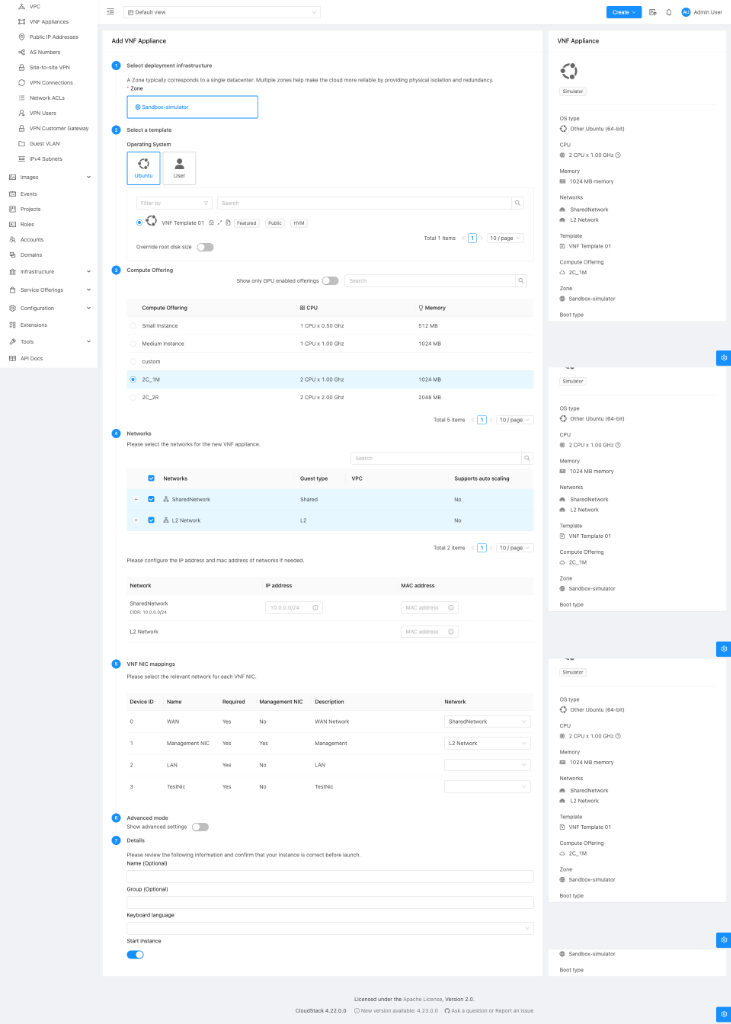
1.1 Select the VNF template
Select the pfSense VNF template published by your provider.
1.2 Select compute offering
Choose a compute offering appropriate for your workload. Minimum recommended:
| Resource | Minimum | Recommended |
|---|---|---|
| vCPU | 1 | 2 |
| RAM | 1 GB | 2 GB |
| Disk | 8 GB | 20 GB |
1.3 Select networks
Select the three networks required for a full pfSense deployment:
| Purpose | Network name (example) | Notes |
|---|---|---|
| WAN | Provider-WAN | Internet/upstream facing |
| Customer LAN | Customer-LAN | Your workload VMs attach here too |
| Management | VNF-Management | pfSense admin UI access |
Your provider will tell you the exact names of these networks. Do not create your own networks unless the provider has documented that step.
1.4 Map VNF NICs to networks
CloudStack presents the VNF NIC mapping screen. Map each NIC role to its corresponding network:
| VNF NIC | Role | Select this network |
|---|---|---|
| NIC 0 | WAN | Provider-WAN |
| NIC 1 | LAN | Customer-LAN |
| NIC 2 | MGMT | VNF-Management |
The template provider has defined the expected NIC roles. Map them exactly as documented — swapping WAN and LAN will cause pfSense to boot with incorrect interface assignments and internet traffic will not work.
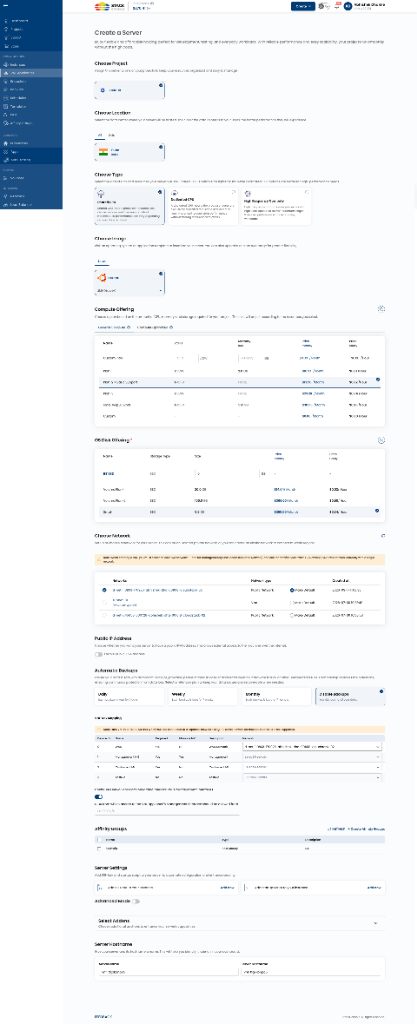
1.5 Deploy
Click Deploy. Wait for the appliance status to show Running.
Step 2 — Access the pfSense management UI
Once deployed, CloudStack provides access information based on the management NIC's network type. Your provider will document the exact method. Common options:
| Management network type | How to reach pfSense UI |
|---|---|
| Isolated network | CloudStack acquires a public IP + creates firewall rules automatically. Use the provided URL. |
| Shared / L2 management network | Connect from within the management VLAN. Use the management NIC IP directly. |
Default pfSense access:
- URL:
https://<management-ip>/ - Default username:
admin - Default password:
pfsense(change immediately)
Step 3 — Configure WAN interface
In pfSense, go to Interfaces → WAN.
| Setting | Example value | Notes |
|---|---|---|
| IPv4 Configuration Type | Static | Or DHCP if the provider's WAN network provides DHCP |
| IPv4 Address | 203.0.113.10 | Your WAN IP from the provider |
| Subnet Mask | 24 | |
| Upstream Gateway | 203.0.113.1 | Provider's gateway — confirm with your provider |
Click Save → Apply Changes.
Test WAN: In pfSense, go to Diagnostics → Ping and ping 8.8.8.8 from the WAN interface. If it replies, your upstream connectivity is working.
Step 4 — Configure LAN interface
In pfSense, go to Interfaces → LAN.
| Setting | Example value |
|---|---|
| IPv4 Configuration Type | Static |
| IPv4 Address | 10.10.10.1 |
| Subnet Mask | 24 |
Click Save → Apply Changes.
4.1 Enable DHCP server on LAN (recommended for initial setup)
Go to Services → DHCP Server → LAN.
| Setting | Example value |
|---|---|
| Enable | ✅ Checked |
| Range — From | 10.10.10.100 |
| Range — To | 10.10.10.200 |
| Gateway | 10.10.10.1 |
| DNS Servers | 8.8.8.8, 8.8.4.4 (or pfSense itself) |
Click Save.
Step 5 — Configure NAT
pfSense uses Automatic Outbound NAT by default, which creates a NAT rule for your LAN subnet to go out through the WAN.
Verify: Firewall → NAT → Outbound — you should see an automatic rule for 10.10.10.0/24 → WAN address.
If not, switch to Hybrid Outbound NAT and add:
| Field | Value |
|---|---|
| Interface | WAN |
| Source | 10.10.10.0/24 |
| Translation | Interface address |
Step 6 — Configure firewall rules
By default, pfSense's LAN interface allows all outbound traffic. Verify under Firewall → Rules → LAN:
- A default "allow LAN to any" rule exists.
- WAN rules: by default, inbound traffic from WAN is blocked (stateful firewall — return traffic for established connections is allowed automatically).
For the initial test, the defaults work. Tighten firewall rules based on your security requirements.
Step 7 — Create workload VM
Create a normal VM in CMP/CloudStack.
7.1 Select network
On the network selection screen, select Customer-LAN — the same L2 network attached to pfSense's LAN NIC.
If you attach your workload VM to a regular Isolated Network (not Customer-LAN), CloudStack's Virtual Router will be the gateway — not pfSense. Traffic will bypass your firewall entirely.
pfSense will not appear in the network selection list when creating a VM. That is expected and correct. Simply select Customer-LAN and the topology handles the routing relationship.
7.2 IP configuration
If pfSense DHCP is enabled, the VM will receive:
| Setting | Value |
|---|---|
| IP | 10.10.10.100 (or next available) |
| Gateway | 10.10.10.1 (pfSense LAN IP) |
| DNS | As configured in pfSense DHCP |
If using static IPs, configure the VM OS:
# Example — Ubuntu (adjust interface name)
ip addr add 10.10.10.100/24 dev eth0
ip route add default via 10.10.10.1
echo "nameserver 8.8.8.8" >> /etc/resolv.conf
Step 8 — Test connectivity
Run these tests in order:
8.1 VM → pfSense LAN
ping 10.10.10.1
✅ Expected: replies from pfSense LAN IP.
If this fails: Check that the VM is on Customer-LAN, that pfSense LAN interface is up, and that there are no Layer 2 issues on the network.
8.2 VM → pfSense WAN
ping 203.0.113.10
✅ Expected: replies (if pfSense firewall allows ICMP from LAN to WAN — may need to enable in pfSense).
8.3 VM → Internet
ping 8.8.8.8
curl https://google.com
✅ Expected: internet reachable through pfSense NAT.
If ping works but curl fails: Check DNS. Try curl https://8.8.8.8 or add a DNS server in pfSense DHCP settings.
8.4 Check NAT is working
In pfSense: Status → Traffic Graphs or Diagnostics → States — you should see active states for your VM's outbound connections.
Step 9 — Port forwarding (publish a service)
To expose a VM service on the internet:
Example: Expose web01 (10.10.10.101) web server on TCP 443.
9.1 Ensure a public IP is reachable on pfSense WAN
Confirm with your provider that 203.0.113.20 (or another IP) routes to your pfSense WAN.
9.2 Add port forward rule in pfSense
Go to Firewall → NAT → Port Forward → Add:
| Field | Value |
|---|---|
| Interface | WAN |
| Protocol | TCP |
| Destination | WAN address (or specific IP) |
| Destination Port Range | 443 |
| Redirect Target IP | 10.10.10.101 |
| Redirect Target Port | 443 |
| Description | web01 HTTPS |
Click Save → Apply Changes.
pfSense automatically adds a matching firewall rule on WAN.
9.3 Traffic flow
Internet
    │
203.0.113.20:443
    │
pfSense WAN
    │  NAT/Port Forward
    │
10.10.10.101:443
    │
web01 VM
Troubleshooting
VM cannot ping pfSense LAN (10.10.10.1)
| Check | Action |
|---|---|
| VM is on correct network | Confirm VM is attached to Customer-LAN (not an Isolated Network) |
| pfSense LAN interface is up | pfSense UI → Status → Interfaces → LAN: Up? |
| NIC mapping is correct | pfSense may have WAN/LAN swapped — check Interfaces → Assignments |
| VLAN trunking | Confirm the hypervisor host trunks VLAN 200 to both the VM and pfSense |
| pfSense LAN IP | Interfaces → LAN should show 10.10.10.1 |
VM can ping pfSense but cannot reach Internet
| Check | Action |
|---|---|
| pfSense WAN connectivity | Diagnostics → Ping → ping 8.8.8.8 from WAN interface |
| WAN gateway | Interfaces → WAN → Gateway configured and correct? |
| NAT rule | Firewall → NAT → Outbound — rule for LAN subnet exists? |
| Firewall rules | Firewall → Rules → LAN — allow LAN to any rule exists? |
| DNS | Try ping 8.8.8.8 vs ping google.com to isolate DNS issues |
pfSense management UI inaccessible
| Check | Action |
|---|---|
| Management NIC network | Is VNF-Management network reachable from your location? |
| CloudStack public IP | Did CloudStack assign and configure a public IP for the management NIC? |
| pfSense HTTPS service | Is the pfSense HTTPS service listening? Try from within pfSense console |
| Firewall / security groups | Check any CloudStack firewall or security group rules on the management network |
| HTTPS port | Default is 443 — provider may have set a different port in VNF metadata |
Traffic bypasses pfSense
| Check | Action |
|---|---|
| VM default gateway | Is the VM gateway set to 10.10.10.1 (pfSense LAN IP), not some other IP? |
| CloudStack Virtual Router | Is the VM on an Isolated Network (VR is gateway) instead of Customer-LAN (L2)? |
| Routing table on VM | ip route show — what is the default route? |
| pfSense interface assignment | Are WAN/LAN swapped? pfSense → Interfaces → Assignments |
What pfSense provides vs what CloudStack provides
| Function | Who provides it |
|---|---|
| VM deployment and NIC attachment | CloudStack |
| VNF template and NIC definitions | Provider |
| IP forwarding / routing | pfSense (must be enabled in the OS) |
| DHCP for Customer-LAN VMs | pfSense (configured by customer) |
| NAT / outbound internet | pfSense (Outbound NAT) |
| Firewall rules | pfSense |
| Port forwarding | pfSense |
| VPN (OpenVPN / IPSec / WireGuard) | pfSense |
| DNS resolver | pfSense (optional) |
| High availability / CARP | pfSense + provider network design |
| Public IP assignment | CloudStack + Provider routing |