CloudStack B&R-Based Backup
When CloudStack Backup and Recovery (B&R) is configured, CMP uses CloudStack B&R APIs to manage VM backups. The customer schedules, runs, and restores from the VM in CMP — no agents and no manual backup setup on the customer side.
Backup is disabled at onboarding. The provider must choose this model and complete CloudStack B&R prerequisites first. See Backup — provider decision.
| You are here if… | Otherwise use… |
|---|---|
Enable Provider Backup = Yes in Cloud Provider Setup | Automated Volume Snapshot as Backup when Enable Provider Backup = No |
| CloudStack B&R is configured with a provider plugin |
CloudStack B&R can use the Veeam Backup & Replication plugin at the CloudStack level. That is orchestrator-integrated VM backup in CMP — not the standalone Veeam VSPC orchestrator.
See Backup and Recovery.
Concepts
What CloudStack B&R is
CloudStack 4.14 introduced a Backup and Recovery framework; it is production-ready from 4.20+. The framework:
- Exposes standard backup APIs in CloudStack (create, schedule, restore, list, and so on)
- Delegates actual backup storage to a provider plugin (Veeam, Networker, NAS, and others)
- Supports SLA/policy-based backups and adhoc / user-scheduled backups
Official reference: About Backup And Recovery
How CMP fits in
Customer (CMP VM screen)
        |
        v
   CMP → CloudStack B&R APIs
        |
        v
   Provider plugin (operator configured)
        |
        v
   Backup storage (Veeam / Networker / NAS / …)
- The cloud operator installs and configures the plugin in CloudStack and imports backup offerings.
- CMP maps customer actions to CloudStack API calls — same customer experience as other VM features.
- The customer does not log into Veeam or Networker to configure jobs for CloudStack VMs on this path.
Snapshot-as-backup vs B&R-based — at a glance
| Automated Volume Snapshot as Backup | CloudStack B&R-Based Backup | |
|---|---|---|
| CMP setting | Enable Provider Backup = No | Enable Provider Backup = Yes |
| Under the hood | Scheduled CloudStack snapshots (no backup engine in CMP) | CloudStack B&R + provider plugin |
| Typical ACS version | Pre-4.20 or no plugin | 4.20+ with plugin configured |
| Customer in CMP | Schedule / backup / restore on VM | Schedule / backup / restore on VM |
Supported backup providers
Provider plugins are configured in CloudStack by the operator — not in CMP.
| Provider | Hypervisor | CloudStack docs |
|---|---|---|
| Veeam Backup and Replication | VMware | Veeam plugin |
| DELL EMC Networker | KVM | Networker plugin |
| NAS B&R | KVM (4.20+) | NAS plugin |
Switching to CloudStack B&R-Based Backup
Switching backends means changing Enable Provider Backup in Cloud Provider Setup for the CloudStack connection. That applies to all VMs on that connection — you cannot run Automated Volume Snapshot as Backup and CloudStack B&R-Based Backup side by side in CMP.
Before you switch
- Understand the difference between Automated Volume Snapshot as Backup and CloudStack B&R-Based Backup
- Ensure the backup provider plugin is installed and configured in CloudStack
- Test backup and restore on a non-production VM first
Recommended steps
- Plan the cutover — all VMs on this CloudStack connection will use the new backend after the change
- Disable Automated Volume Snapshot as Backup on VMs that still have it (this deletes CMP-managed snapshots)
- Configure the CloudStack backup provider and import backup offerings (B&R path)
- Set Enable Provider Backup to
Yesin Cloud Provider Setup - Enable CloudStack B&R-Based Backup on VMs via CMP or CloudStack admin UI
- Verify backup jobs run successfully and test restore on a non-production VM
Restoring a Backup
Restoring a backup recovers the VM's disk from the selected backup point.
Prerequisites: VM Must Be in a Stopped State
The virtual machine must be in a STOPPED state before initiating a backup restore.
- Stopping the VM before restore is a manual process.
- Starting the VM after the restore completes is also a manual process.
CMP does not automatically power off or restart the virtual machine during a restore operation to protect against unexpected downtime or data corruption. The administrator or user must manage the VM power state manually.
Step-by-Step Restore Workflow
-
Stop the Virtual Machine (Manual):
- Navigate to the Virtual Machine Overview page.
- Use the power control icons or the Power Management tab to gracefully stop the VM.
- Confirm that the VM status displays as Stopped.
-
Navigate to the Backups Tab:
- In the VM overview tabs, open the Backups tab.
- Locate the target backup point in the backups list.
-
Initiate Restore:
- Click the actions menu on the desired backup row and choose Restore Backup.
- A confirmation dialog appears reminding you:
"The virtual machine must be in a STOPPED state before reverting a snapshot."
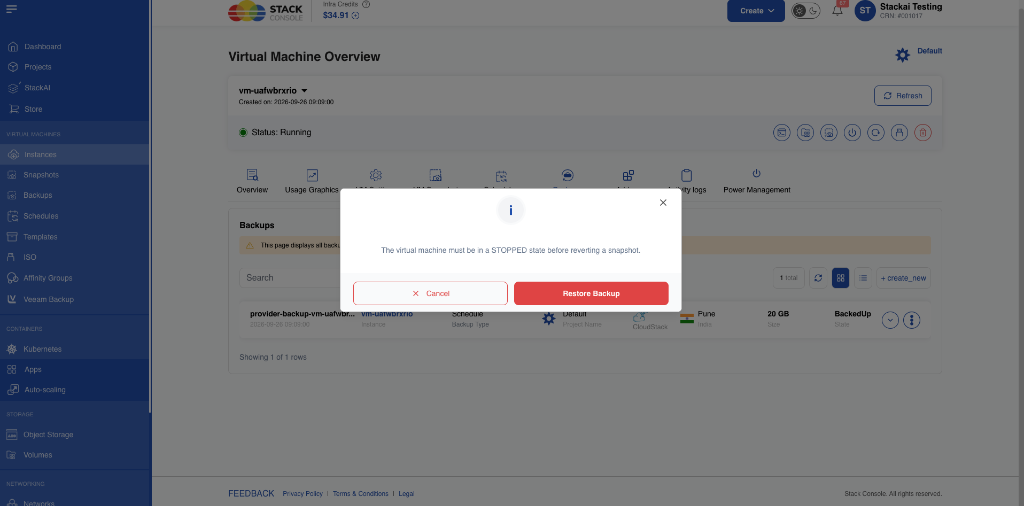 Figure: Restore Backup confirmation modal reminding the user that the VM must be stopped.
- Click the red Restore Backup button to confirm.
-
Monitor in Activity Logs:
- CMP invokes CloudStack B&R restore APIs with the underlying provider plugin.
- Go to the Activity logs tab to track the operation (
VIRTUAL_MACHINE_BACKUP.RESTORE).
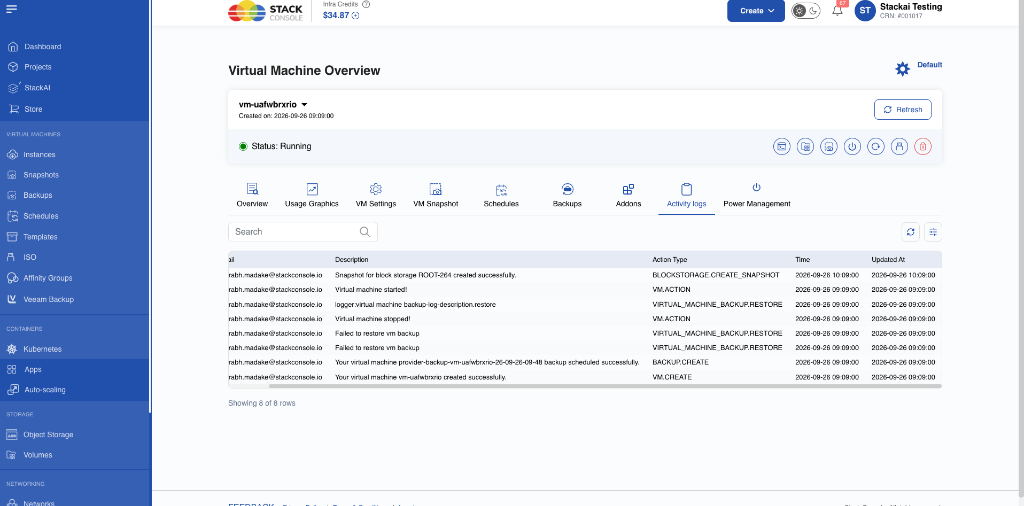 Figure: Activity logs tracking the restore lifecycle: VM stopped, backup restored (
VIRTUAL_MACHINE_BACKUP.RESTORE), and VM started. -
Start the Virtual Machine (Manual):
- After the restore operation successfully completes, return to the VM Overview or Power Management tab.
- Manually Start the virtual machine.
Validation and Error Handling (Running VM)
If a restore is attempted while the VM is not in a stopped state:
-
Modal Notice: The restore modal explicitly states: "The virtual machine must be in a STOPPED state before reverting a snapshot."
-
Error Banner: If submitted while the VM is running, CMP immediately halts the operation and displays an error message at the top of the screen:
"Existing VM should be stopped before being restored from backup"
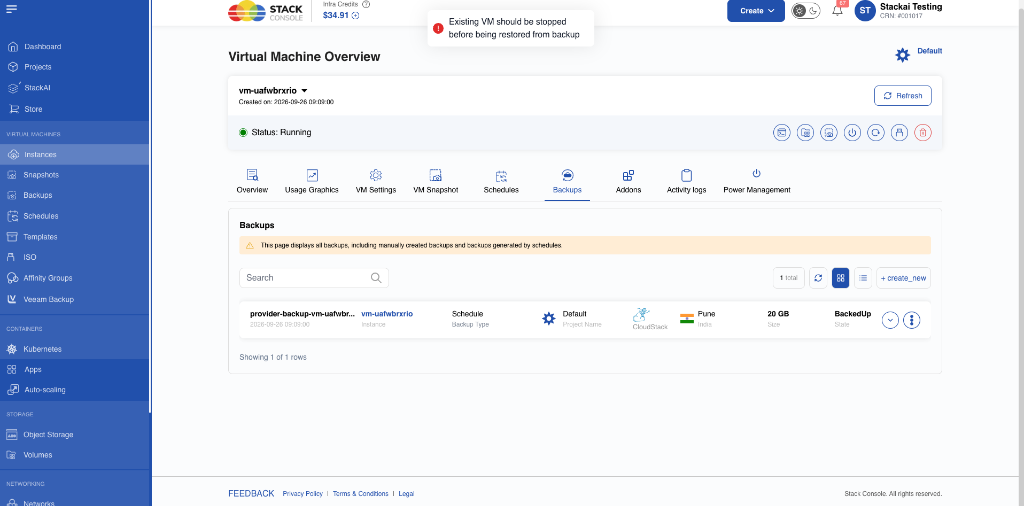 Figure: CMP validation error notification when attempting to restore a backup while the VM is running.
-
Activity Log: The failed attempt is logged under the VM's Activity logs as
Failed to restore vm backup(VIRTUAL_MACHINE_BACKUP.RESTORE). The VM's disk remains untouched.
Admin setup and billing
| Topic | Page |
|---|---|
| Packages, physical vs virtual billing | VM Backup packages |
| Enable Provider Backup | Cloud Provider Setup |
| CloudStack B&R configuration | CloudStack — Backup and Recovery |