Automated Volume Snapshot as Backup
When Enable Provider Backup is No, CMP does not run a separate backup engine. It automates scheduled CloudStack volume snapshots on the VM root disk and exposes them in CMP as the VM backup and recovery mechanism — schedule, retain, restore, and bill via the VM Backup package.
Typical for CloudStack before 4.20, or when CloudStack Backup & Recovery (B&R) is not configured.
CMP uses Automated Volume Snapshot as Backup. Internally, the scheduler takes a snapshot of the VM root volume — not a full VM (instance) snapshot.
VM snapshots have hypervisor- and environment-specific restrictions (memory capture, storage type, concurrent volume operations, and similar). Root volume snapshots are the consistent recovery mechanism CMP relies on for this backup path.
Additional data volumes on the VM are not included in automated backup snapshots unless your deployment configures otherwise.
Backup is disabled at onboarding. The provider must choose this model and complete CloudStack snapshot prerequisites first. See Backup — provider decision.
| You are here if… | Otherwise use… |
|---|---|
Enable Provider Backup = No in Cloud Provider Setup | CloudStack B&R-Based Backup when Enable Provider Backup = Yes |
| CloudStack before 4.20, or no B&R plugin configured |
Concepts
VM Backup vs manual snapshots
| VM Backup (CMP product) | Manual snapshots | |
|---|---|---|
| Purpose | Scheduled, retained, billable recovery points | One-off save before a change |
| Under the hood | Automated root volume snapshots | Customer-triggered CloudStack VM or volume snapshots |
| Who sets schedule | Customer (or policy) in CMP on the VM | Customer triggers each snapshot |
| Billing | VM Backup package (BACKUP) — hourly per GB | Volumes Snapshot package if billed |
| CMP path | VM → Backup | VM / Volume → Snapshots |
Manual snapshot behaviour is documented under Snapshots. This page covers Automated Volume Snapshot as Backup and the CloudStack volume snapshot mechanics it relies on.
How Automated Volume Snapshot as Backup works
Customer enables backup / schedule on VM (CMP)
              |
              v
CMP calls CloudStack volume snapshot API on the VM root volume
              |
              v
Snapshots stored in CloudStack secondary storage
              |
              v
CMP bills via VM Backup package; enforces retention
- CMP is a scheduler and billing layer — not a backup engine.
- Recovery uses CloudStack root volume snapshots created on a schedule.
- The customer does not manage snapshot jobs in CloudStack — only in CMP.
- When backup is disabled, CMP stops billing and deletes all associated snapshots.
Volume snapshots (CloudStack)
A volume snapshot is a point-in-time capture of a disk (root or data volume). It does not capture CPU or memory state.
- Automated backup on this path snapshots the root volume only
- Snapshots can also be taken manually for root disks and data disks
- Taking snapshots of a running VM's root disk may require CloudStack global settings on KVM — see below
If root volume snapshots fail on running KVM VMs, set kvm.snapshot.enabled = true in CloudStack Global Settings. This is often required for Automated Volume Snapshot as Backup on KVM.
Supported hypervisors: XenServer, VMware vSphere, KVM
Not supported: Oracle VM (OVM)
Restoring a volume snapshot
| Option | Description |
|---|---|
| Create Volume from Snapshot | Mount restored volume to recover specific files |
| Create Template from Snapshot | Boot a new instance from the template (root disk only) |
| Revert to Snapshot | Revert volume to snapshot state (storage/hypervisor dependent) |
VM / instance snapshots (CloudStack reference)
Full VM (instance) snapshots capture instance state including optional memory. CMP automated backup does not use this path — it is documented here because manual snapshot and CloudStack admin workflows may still reference instance snapshots.
- Memory capture supported only on NFS storage
- For other storage types, snapshot with memory will fail
- Supported on: VMware, XenServer, KVM (NFS only for memory)
- Cannot attach or delete volumes when stored snapshots exist — delete snapshots first
- Service offering changes discard memory-included snapshots automatically
- Cannot take VM and volume snapshots simultaneously on the same instance
Reference: CloudStack — Instance snapshots
Product behaviour (schedule, retention, billing)
The VM Backup product on this path is scheduled root volume snapshot automation — exposed to customers as backup in CMP.
Retention
- Each schedule specifies how many recurring snapshots to retain
- Oldest snapshots are deleted automatically when the limit is exceeded
- Set
backup_limitin global settings for maximum snapshots per VM
Billing
- Billed hourly based on VM backup storage size
- Rate:
hourly_rate × storage_GB - Billing starts when backup is enabled; stops when disabled
- All snapshots are deleted when backup is disabled
Package setup: VM Backup packages
Restrictions
- Backup backend is fixed application-wide by Enable Provider Backup in Cloud Provider Setup — see Backup
- When this connection uses Automated Volume Snapshot as Backup, CloudStack B&R-Based Backup is not available in CMP (and vice versa)
Restoring a Backup
In this backup model, backups are automated volume snapshots of the VM's root disk. Therefore, restoring a backup means restoring (reverting to) that snapshot.
Prerequisites: VM Must Be in a Stopped State
The virtual machine must be in a STOPPED state before initiating a backup restore.
- Stopping the VM before restore is a manual process.
- Starting the VM after the restore completes is also a manual process.
CMP does not automatically power off or restart the virtual machine during a restore operation to protect against unexpected downtime or data corruption. The administrator or user must manage the VM power state manually.
Step-by-Step Restore Workflow
-
Stop the Virtual Machine (Manual):
- Navigate to the Virtual Machine Overview page.
- Use the power control icons or the Power Management tab to gracefully stop the VM.
- Confirm that the VM status displays as Stopped.
-
Navigate to the Backups Tab:
- In the VM overview tabs, open the Backups tab.
- Locate the target backup point in the backups list.
-
Initiate Restore:
- Click the actions menu on the desired backup row and choose Restore Backup.
- A confirmation dialog appears reminding you:
"The virtual machine must be in a STOPPED state before reverting a snapshot."
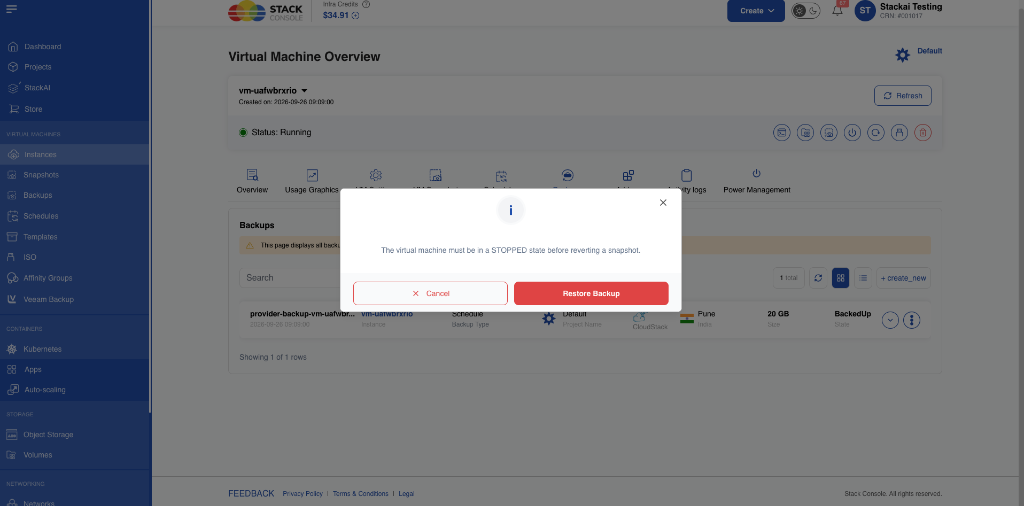 Figure: Restore Backup confirmation modal reminding the user that the VM must be stopped.
- Click the red Restore Backup button to confirm.
-
Monitor in Activity Logs:
- CMP calls CloudStack to revert the root volume snapshot.
- Go to the Activity logs tab to track the operation (
VIRTUAL_MACHINE_BACKUP.RESTORE).
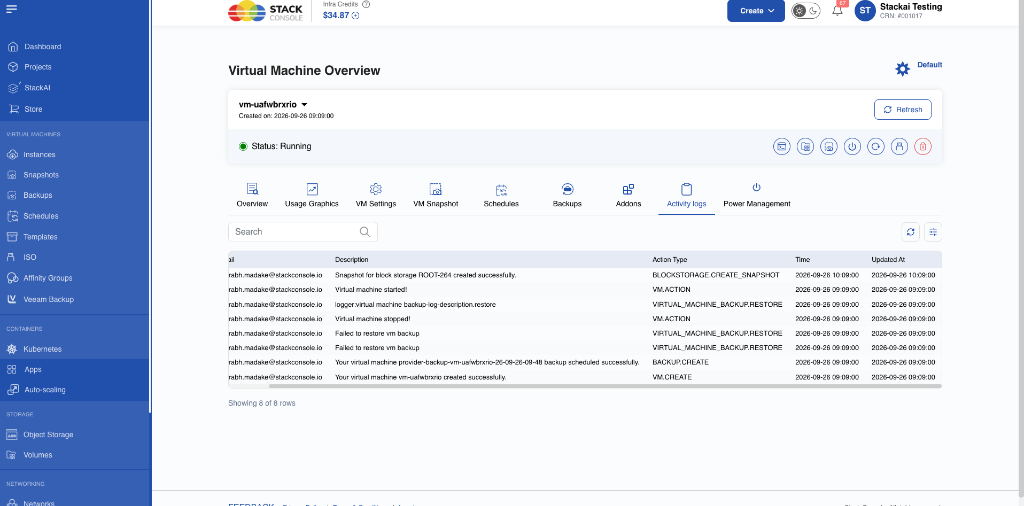 Figure: Activity logs tracking the restore lifecycle: VM stopped, backup restored (
VIRTUAL_MACHINE_BACKUP.RESTORE), snapshot restored, and VM started. -
Start the Virtual Machine (Manual):
- After the restore operation successfully completes, return to the VM Overview or Power Management tab.
- Manually Start the virtual machine.
Validation and Error Handling (Running VM)
If a restore is attempted while the VM is not in a stopped state:
-
Modal Notice: The restore modal explicitly states: "The virtual machine must be in a STOPPED state before reverting a snapshot."
-
Error Banner: If submitted while the VM is running, CMP immediately halts the operation and displays an error message at the top of the screen:
"Existing VM should be stopped before being restored from backup"
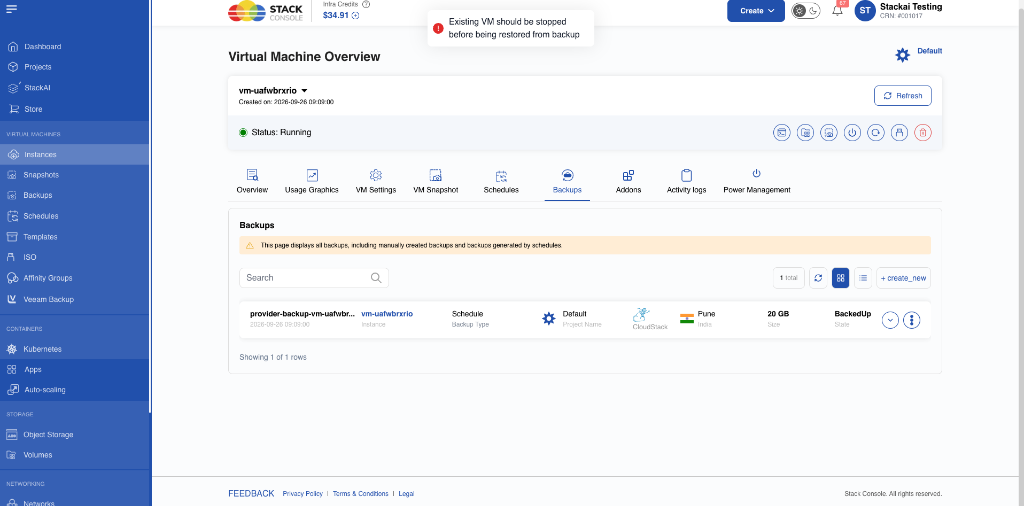 Figure: CMP validation error notification when attempting to restore a backup while the VM is running.
-
Activity Log: The failed attempt is logged under the VM's Activity logs as
Failed to restore vm backup(VIRTUAL_MACHINE_BACKUP.RESTORE). The VM's disk remains untouched.