Rate Cards
Rate cards define what customers can buy and how much they pay. A rate card is a pricing catalogue — it contains packages (Virtual Machine, Volumes, IP Address, and so on) with orchestrator mappings and billing rates.
CMP supports multiple rate cards. Use a default rate card for standard self-service customers, and create additional rate cards for enterprise or negotiated pricing.
CMP path: Settings → Billing Setup → Rate Cards
Settings → Billing Setup → Rate Cards → [Rate Card Name] → Packages
Ensure all required packages are added and set to Active on a rate card before assigning it to customers or marking it as default. A rate card with missing package types (for example, no VM or Volumes packages) will cause provisioning or billing failures for customers on that rate card.
Multiple rate cards
| Rate card type | Typical use |
|---|---|
| Default | Standard pricing for self-registered and general customers |
| Customer-specific | Enterprise or negotiated pricing agreed by the sales team — for example, discounted VM tiers or custom unit pricing for one account |
As a CMP super admin, you can create as many rate cards as needed. Each rate card has its own set of packages and prices, independent of other rate cards.
Example: Your Default rate card sells a 2 vCPU VM at $20/month. For enterprise customer Acme Corp, create a rate card Acme Enterprise with the same packages at $15/month and assign that rate card to the Acme account during onboarding.
How customers get a rate card
Admins can assign customer-specific rate cards so pricing matches negotiated agreements.
| Scenario | Rate card assignment |
|---|---|
| Admin onboarding | Admin selects Price Rate Card on Register Client → Step 2 — customized pricing from the start of the customer lifecycle. See Admin registration flow |
| Self-registration | No rate card selector on the signup form — CMP automatically assigns the rate card marked Mark as Default |
Assign the correct rate card during admin onboarding whenever sales has agreed custom pricing. For self-registered customers, ensure the Mark as Default rate card is correct before opening self-registration.
Change rate card (beta)
Change Rate Card is in beta. More flexibility and automation are planned — see Roadmap. Change rate cards after registration only when the account meets the conditions below, and prefer assigning the correct card at onboarding.
CMP lets an admin change the assigned rate card for a customer account after registration, with limits that protect billing integrity.
CMP path: Clients → All Clients → [Customer] → Billing Setup → Price Card Setting → Change Price Card
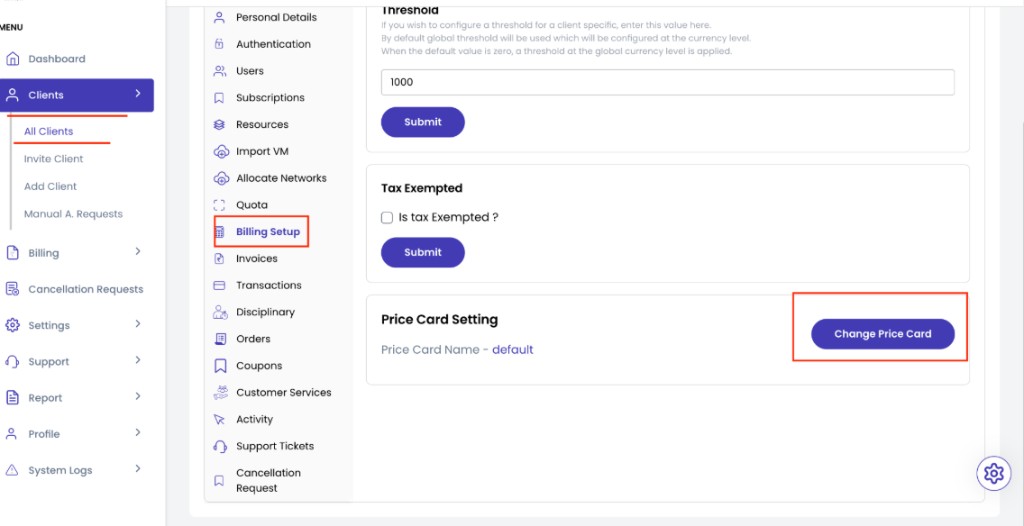
The Price Card Setting section shows the current card (for example, Price Card Name - default). Use Change Price Card only when the account still has no services.
| Situation | Supported? |
|---|---|
| Account is new and has no services / resources | Yes — admin can change the assigned rate card |
| Any service or resource already exists on the account | No — changing the rate card is not supported |
Once a customer has created any service, their assigned rate card is fixed. CMP does not support moving active customers to a different rate card today.
Resellers — change rate card not available
Resellers do not have a change rate card option.
Partner model and reseller pricing (margins on assigned plans): Reseller · Reseller billing.
When a reseller is created, CMP replicates the assigned rate card into the reseller’s database. Changing the rate card later from the super admin side does not update that replicated copy on the reseller. Because of this replication model, change rate card is not available for resellers at this time.
Current limitations
| Limitation | Supported today? | Current behaviour |
|---|---|---|
| Change customer rate card after services exist | No | Allowed only while the account has no services (beta) |
| Change rate card for resellers | No | Rate card is replicated at reseller creation; super-admin changes do not propagate |
| Bulk update rate cards / packages | No | Each package must be opened and updated individually |
| Replicate a rate card with full feature set | No | Create a new rate card and configure packages manually |
To offer different pricing today, create a new rate card, add packages one by one, and assign it during admin onboarding before the customer provisions services. Existing customers on another rate card cannot be moved. Resellers must receive the correct rate card at creation time.
Roadmap
The following rate card capabilities are on the CMP product roadmap and not yet available:
| Feature | Planned capability |
|---|---|
| Change any rate card at any time | Reassign a customer (and related account types as designed) to a different rate card even after services exist, with billing-safe behaviour |
| Bulk update rate cards | Update prices or settings across multiple packages / rate cards in one operation |
| Replicate with all possible features | Duplicate an existing rate card including packages and related configuration — with optional price adjustment by percentage or fixed amount — so the copy is usable without rebuilding each package by hand |
These roadmap items are under development. Behaviour and availability may vary by deployment until they are released.
Create a rate card
- Open Settings → Billing Setup → Rate Cards
- Click Add Rate Card (form title: Add Rate Card)
- Complete each field below
- Click Submit
- Open the new rate card and configure Packages for each service type before assigning it to customers
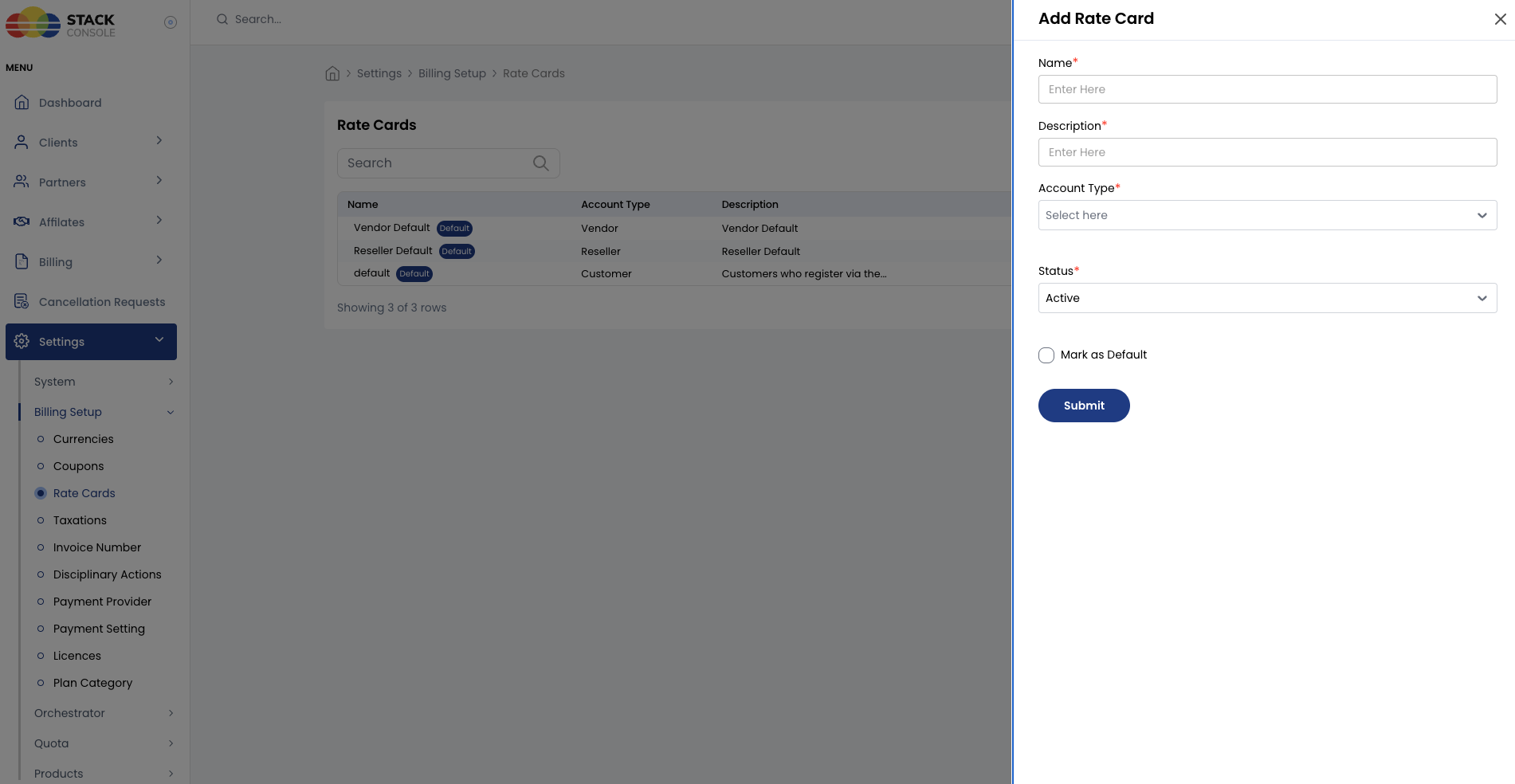
Each field below matches the Add Rate Card form.
Name
Required. Display name for the rate card — for example, Default, Enterprise Gold, or Acme Corp Pricing.
Description
Required. Short description of the rate card purpose — for example, Standard public pricing or Negotiated pricing for Acme Corp enterprise agreement.
Account Type
Required. Select which account type this rate card applies to — Customer, Reseller, or Vendor. Match the account type of accounts that will use this rate card.
Status
Required. Controls whether the rate card is available for assignment.
| Status | Behaviour |
|---|---|
| Active | Rate card can be assigned to customers and used for package configuration |
| Inactive | Hidden — use while configuring packages or retiring a rate card |
Mark as Default
Optional. When enabled, this rate card is automatically assigned to customers who self-register through the public registration form. Only one rate card should be marked as default at a time.
Configure packages on a rate card
After creating a rate card, add packages under:
Settings → Billing Setup → Rate Cards → [Rate Card Name] → Packages
Each package type (Virtual Machine, Volumes, IP Address, and so on) is configured separately. Orchestrator-specific guides below explain form fields and CloudStack prerequisites.
Many guides reference Rate Cards → Default → Packages as the example path. Replace Default with your rate card name when configuring customer-specific rate cards.
Orchestrator rate card guides
| Orchestrator | Status | Documentation |
|---|---|---|
| CloudStack (ACS) | ✅ Available | CloudStack Packages |
| OpenStack | 🔲 Coming soon | OpenStack — package documentation will be added in a future release |
| VMware vSphere | 🔲 Coming soon | VMware — package documentation will be added in a future release |
| Proxmox VE | 🔲 Coming soon | Proxmox — package documentation will be added in a future release |
| OpenNebula | 🔲 Coming soon | OpenNebula — package documentation will be added in a future release |
CloudStack package types
If you use CloudStack, see CloudStack Packages for the full list:
- Virtual Machine
- Virtual Router/VPC
- Load Balancer
- Kubernetes
- IP Address
- VM Autoscale
- Volumes
- Volumes Snapshot
- Template
- ISO
- VM Backup
- Unit Pricing
- Products
Validation checklist
Before marking a rate card Active and assigning it to customers:
- All required package types for your service catalogue are configured under this rate card
- Packages are set to Active with pricing for each supported currency and billing cycle
- Storage Settings and orchestrator prerequisites are complete (CloudStack zones, templates, offerings)
- Mark as Default is set on exactly one rate card if self-registration is enabled
- Enterprise rate cards are assigned to the correct accounts during admin onboarding