Payment Modes
A payment mode (also called billing mode in CMP) defines how customers pay for services. CMP supports three payment modes:
| Mode | Summary |
|---|---|
| Prepaid | Wallet top-up; usage deducted in real time |
| Postpaid | Invoice at period end; card can auto-charge |
| Manual | Offline payment; admin verifies and marks invoices paid |
Payment mode is separate from billing cycles (hourly, monthly, yearly) and billing rules (how charges are calculated).
Set per customer: Clients → Register Client (new onboarding) or Clients → [Customer] → Billing Setup (existing account)
| Goal | Payment mode |
|---|---|
| Wallet top-up, real-time deduction | Prepaid |
| Saved card, auto-charge at invoice time | Postpaid |
| Bank transfer / offline payment | Manual |
| Service contracts (DATE_TO_DATE term, monthly installment) | Prepaid, Postpaid, or Manual — enable per mode on Update Billing Rule |
| Assign payment mode (admin) | Clients → Register Client — see Admin registration flow |
| Assign payment mode (self-registration) | Public signup — see Registration flow |
| Configure platform payment modes | Settings → Billing Setup → Payment Mode Settings — StackConsole team only; configure before go-live |
| Review live portal billing config | Billing → Invoices → Billing Settings |
| Change payment mode after onboarding | Only Manual → Postpaid is supported — see Changing payment mode |
Pages in this section
- Prepaid — wallet, two billing models (infra credit vs service usage), low-balance handling, upgrades
- Postpaid — threshold, auto-charge, frozen invoices, consolidated billing
- Manual — registration workflows, offline payment, admin verification
Also related: Low Infra Credit Notifications (prepaid-only; under Billing & Invoicing)
The three payment modes
| Mode | How customer pays | Card auto-charge? |
|---|---|---|
| Prepaid | Wallet top-up | No |
| Postpaid | Invoice settlement | Yes — when card on file and gateway supports variable recurring charges |
| Manual | Outside CMP (bank, cheque, cash, UPI) | No — admin marks paid |
Prepaid:  Top up wallet  →  Provision  →  Wallet deducted  →  Month-end invoice (record)
Postpaid: Provision  →  Usage tracked  →  Invoice  →  Card auto-charge or portal pay
Manual:   Provision  →  Usage tracked  →  Invoice  →  Offline pay  →  Admin marks paid
Payment Mode vs. Catalogue Pricing
Does Assigning Prepaid vs. Postpaid Change the Service Price?
No. The underlying catalogue price configured in the Rate Card remains the single source of truth for base service costs, regardless of whether an account is provisioned as Prepaid or Postpaid.
The payment mode primarily governs timing and collection — when and how the financial obligation is realized:
- Prepaid: The obligation is settled in advance (before or at the start of the billing period via wallet/gateway).
- Postpaid: The obligation is settled in arrears (after consumption, at cycle end, or via Threshold triggers).
Account mode conversion from Prepaid to Postpaid is NOT currently supported in CMP.
- This capability is on the product roadmap for a future release, but is not yet available.
- Payment mode is fixed at customer registration (only Manual → Postpaid auto-conversion upon saving a card is supported).
- Admins and customers cannot switch an existing Prepaid account to Postpaid. Do not raise support tickets for account mode changes; if a customer requires postpaid billing, a new postpaid client account must be onboarded.
Pricing Comparison: Monthly Prepaid vs. Monthly Postpaid
Consider a VM package priced at $100/month on the active Rate Card:
| Dimension | Scenario A: Monthly Prepaid Account | Scenario B: Monthly Postpaid Account |
|---|---|---|
| Billing Cycle | Monthly (1-month commitment) | Monthly (1-month commitment) |
| Rate Card Price | $100.00 | $100.00 |
| When Billed | Upfront (at service creation or cycle renewal) | In arrears (after the service month completes) |
| Collection Trigger | Prepaid wallet deduction / immediate gateway payment | Invoice generated → saved card auto-charged or portal settlement |
| Interim Invoicing | N/A (wallet balance checks block creation if low) | Subject to Threshold spending caps (e.g. $500 interim invoice) |
To see how payment modes combine with billing cycles, collection triggers, and calculation rules, see the CMP Billing Model in Billing Overview.
Assigning payment mode
Payment mode is set when the account is created — either by an admin during onboarding or by the customer during self-registration. Choose carefully: payment mode is effectively fixed after onboarding and cannot be changed except Manual → Postpaid.
| Path | Who selects payment mode | CMP entry point |
|---|---|---|
| Admin onboarding | Admin selects mode and rate card | Clients → Register Client — see Admin registration flow |
| Self-registration | Customer selects mode (if multiple enabled) | Public signup form — see Registration flow |
Admin onboarding — Register Client
When an admin onboards a new customer, payment mode is selected in the Register Client wizard. This is a one-time decision — prepaid and postpaid accounts cannot be converted later.
CMP path: Clients → Register Client
Admin registration flow
| Step | Name |
|---|---|
| 1 | Basic Details — customer account information |
| 2 | Payment Mode & Pricing Settings — payment mode, rate card, and mode-specific fields |
| 3 | Quota Management — assign account quotas |
| 4 | Success — onboarding complete |
On Step 2 — Payment Mode & Pricing Settings, the admin selects the payment mode and Price Rate Card. Mode-specific fields (threshold, status, payment method) appear based on the selection.

Payment mode conversion is not supported for prepaid ↔ postpaid or prepaid/manual ↔ postpaid/manual changes. Only Manual → Postpaid can be done later. Choose the correct mode before the customer provisions services.
Step 2 — Payment Mode & Pricing Settings
Shared fields on Step 2 for all modes:
| Field | Required | Description |
|---|---|---|
| Payment Mode | Yes | PREPAID, POSTPAID, or MANUAL |
| Price Card Type | Yes | Select Rate Card |
| Price Rate Card | Yes | Rate card for this customer (for example, default). Use + Add for additional rate cards |
Mode-specific fields and screenshots:
Step 2 — Manual (admin)
| Field | Required | Description |
|---|---|---|
| Threshold | Yes | Spending cap (for example, 2000) — see Manual — Threshold |
| Status | Yes | For example, Active. CMP shows: "This is a manual account. Please select the appropriate status manually." |

Account is typically activated immediately when status is Active — no card or wallet payment required.
Step 2 — Postpaid (admin)
| Field | Required | Description |
|---|---|---|
| Payment Method | Yes | Credit Card. CMP shows: "This account will be activated once the credit card is attached." |
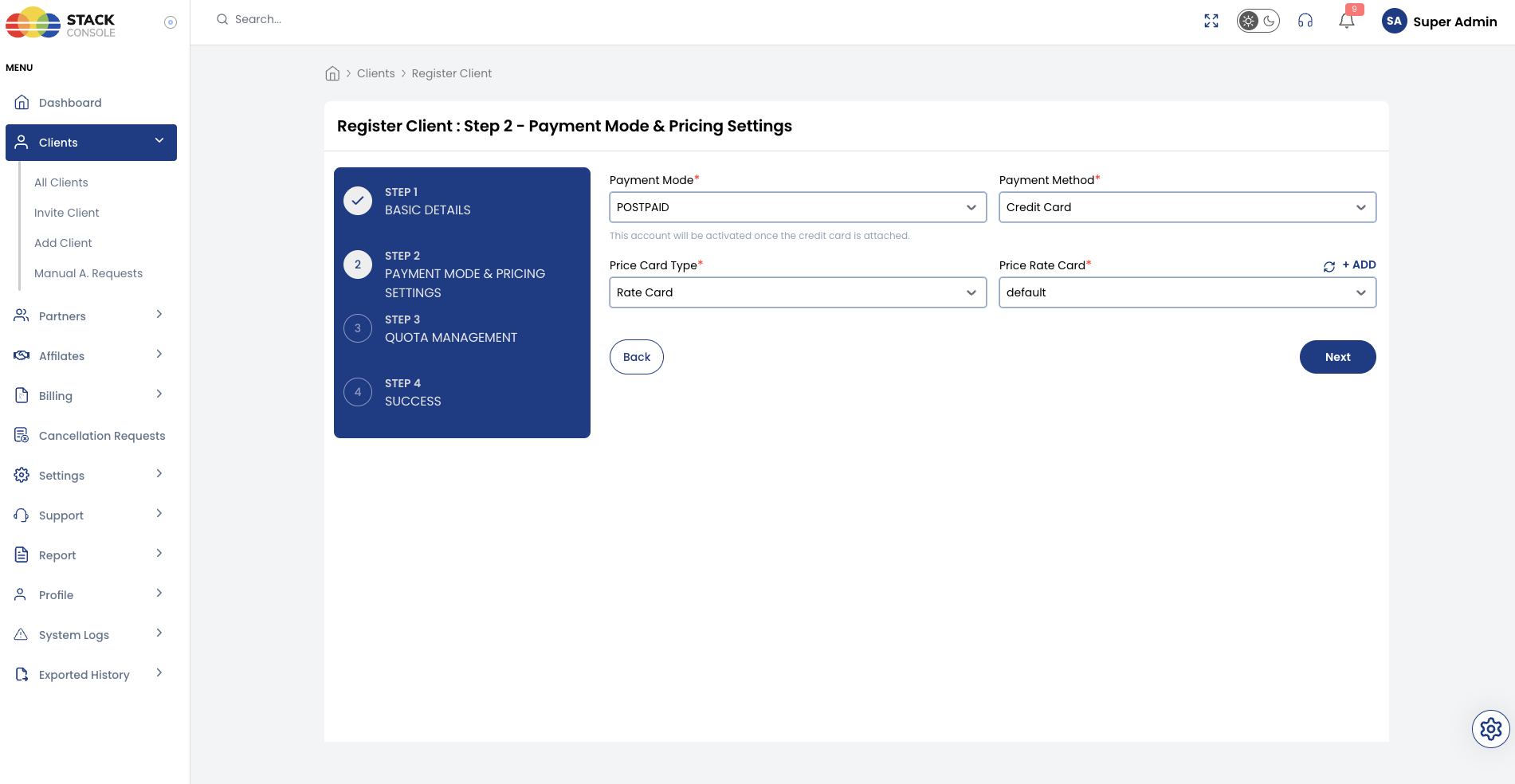
Account stays pending until the customer attaches a credit card.
Step 2 — Prepaid (admin)
CMP shows: "This account will be activated once the payment is completed."

Account stays pending until the customer completes the initial wallet top-up. No Threshold or Status on Step 2.
Behaviour by mode (admin onboarding)
| Mode | Admin sets on Step 2 | Account activation |
|---|---|---|
| Manual | Threshold, Price Rate Card, Status | Immediate when status is Active |
| Postpaid | Payment Method (Credit Card), Price Rate Card | Pending until customer attaches card |
| Prepaid | Price Rate Card only | Pending until customer completes initial payment |
Admin selects the Price Rate Card during onboarding — self-registered customers get the default rate card automatically. See How customers get a rate card.
Self-registration
When self-registration is enabled, end customers complete a multi-step signup flow. Payment mode is selected on Step 2 — Complete Payment — but only if more than one mode is enabled for Customer in Payment Mode Settings.
| Visible modes on signup | Customer experience |
|---|---|
| One mode only | That mode is assigned automatically — no choice on the form |
| Multiple modes | Customer selects PREPAID or POSTPAID (or MANUAL if enabled for Customer) |
Registration flow
| Step | Name |
|---|---|
| 1 | Verify Email Address |
| 2 | Complete Payment — billing details, payment mode selection, and initial payment |
On Step 2 — Complete Payment, the customer provides billing details, selects a payment mode, and completes the required payment action before the account is activated.

Step 2 — Complete Payment fields
| Section / field | Description |
|---|---|
| I'm signing up as an | Individual or Company |
| Billing Details | Currency, Country, State, City, Address, Postal Code |
| I want my account to be* | Payment mode selection — radio buttons for each mode enabled for Customer (for example, PREPAID, POSTPAID). Modes marked Recommended in Payment Mode Settings show a badge. Use Compare to view mode differences |
| Buy Infra Credits | Shown when PREPAID is selected — customer must purchase initial wallet credits to activate the account |
| Select Amount* | Predefined top-up amounts configured in Settings → Billing Setup → Currencies → Configure (for example, $10, $20, $30) |
| Choose a payment method | Active payment gateway for the selected currency (for example, Stripe) |
| Coupon | Optional coupon code entry |
| Summary | Cost of Infra Credits, Total Payable Amount, Effective wallet balance |
| Proceed | Completes payment and activates the account |
Modes disabled for Customer in Payment Mode Settings do not appear on the self-registration form. For example, if MANUAL has Disable for → Customer checked, customers only see PREPAID and POSTPAID — manual mode is available only when an admin assigns it during admin onboarding.
Behaviour by mode (self-registration)
| Mode | Self-registration behaviour |
|---|---|
| Prepaid | Customer selects a top-up amount and pays via the configured gateway. Account activates after payment — wallet balance shown as Effective wallet balance |
| Postpaid | Customer adds and validates a saved card (requires a gateway with Has Save Card and auto-charge support). Account activates after card attachment |
| Manual | Registration is sent for admin approval — account stays pending until approved. Only shown if Manual is not disabled for Customer |
Self-registered customers are automatically assigned the default rate card — there is no rate card selection on the signup form. See How customers get a rate card.
Payment Mode Settings (platform-wide)
CMP path: Settings → Billing Setup → Payment Mode Settings
This screen controls which payment modes are available platform-wide — including which account types can select each mode during admin onboarding and self-registration.

The listing shows each payment mode with its current configuration. Click Actions → Update Mode on any row to edit.
Update Mode

| Field | Required | Description |
|---|---|---|
| Name | Yes | Internal mode identifier — PREPAID, POSTPAID, or MANUAL. Shown in the list Name column and on the edit form |
| Display Name | Yes | Label shown in the CMP UI — list column and edit form |
| Description | Yes | Short description (for example, Prepaid System, Postpaid System, Manual Payment System) — list column and edit form |
| Disabled For / Disable for | No | List column: account types that cannot select this mode. Edit form: checkboxes for Admin, Customer, Vendor, Reseller — checked types are hidden from onboarding and registration. For example, MANUAL disabled for Customer means only admins can assign manual mode |
| Recommended | No | List column: Yes/No. Edit form: toggle — when enabled, CMP highlights this mode as the recommended option where a choice is offered |
| Status | Yes | Active or inactive — inactive modes are not available for new assignments. List column and edit dropdown |
| Actions | — | List only — open menu → Update Mode to open the edit panel |
Payment Mode Settings is a platform-level configuration. Changes are reserved for the StackConsole team, or should be made only with StackConsole support.
Do not change these settings after go-live or while customers are actively using the platform. Mid-stream changes can break billing workflows, cause provisioning errors, and leave existing accounts in inconsistent states.
Plan your payment mode strategy before launch — which modes are available to customers, resellers, and vendors — and treat this configuration as fixed once production onboarding begins.
- If a mode is disabled for Customer, it does not appear on the self-registration form for end customers.
- If multiple modes are enabled for Customer, the signup form shows a choice; if only one is enabled, that mode is assigned automatically.
- Recommended affects which mode is pre-selected or highlighted when a choice is shown.
Related billing setup
Configure payment gateways, currencies, and top-up amounts alongside Payment Mode Settings — but before go-live:
| Area | CMP path | What to configure |
|---|---|---|
| Payment gateways | Settings → Billing Setup → Payment Setting | Credentials + branch assignment; Disable on Registration; Has Save Card; Is Default for Postpaid — see Payment Gateways |
| Currency gateways | Settings → Billing Setup → Currencies → Configure (Step 2) | Mandatory — assign payment gateways to each currency — see Assign gateway to currency |
| Payment providers | Settings → Billing Setup → Payment Provider | Per-gateway Has Autocharge, logos — see each gateway page (for example, Stripe) |
| Currency & top-up | Settings → Billing Setup → Currencies → Configure | Add Top-Up Amount — predefined wallet amounts for prepaid registration |
CMP does not convert prepaid accounts when a customer adds a card. Manual accounts do auto-convert to postpaid when a card is saved — see Changing payment mode.
Changing payment mode
Payment mode conversion is limited. Most modes cannot be changed after onboarding.
| Conversion | Supported? | How |
|---|---|---|
| Prepaid → Postpaid | ❌ Not supported | Planned on product roadmap (not currently available) |
| Prepaid → Manual | ❌ Not supported | Not planned |
| Postpaid → Prepaid | ❌ Not supported | Not planned |
| Postpaid → Manual | ❌ Not supported | Not planned |
| Manual → Postpaid | ✅ Only supported conversion | Automatic when the customer saves a credit or debit card |
Manual → Postpaid (automatic on card save)
When a manual customer adds and saves a credit or debit card, CMP automatically converts the account to postpaid. No separate admin action is required.
After conversion:
- The account payment mode changes from Manual to Postpaid
- Unpaid invoices can be auto-charged to the saved card
- Future invoices follow standard postpaid auto-charge behaviour
Adding a card does not convert prepaid or postpaid accounts to another payment mode. Only manual accounts auto-convert to postpaid when a card is saved.
Manual accounts cannot be converted to prepaid.
Choosing a payment mode
| Scenario | Recommended mode |
|---|---|
| Self-service wallet top-up | Prepaid |
| Self-service with saved card | Postpaid |
| Enterprise bank transfer / purchase order | Manual |
Hourly invoices (all modes)
For hourly services, invoices are generated at the end of the month or on the 1st of the following month — regardless of payment mode. All hourly usage in the month is consolidated into a single invoice.
See Billing Cycles for fixed-cycle and mandatory-hourly service rules.
Shared invoicing topics
| Topic | Summary |
|---|---|
| VM upgrade billing | Prepaid: separate payable invoice per upgrade. Postpaid: line items on period-end invoice |
| Early deletion (fixed cycle) | No refund — full period still charged; admin may grant free credits |
| Admin-generated custom invoices | Do not auto-charge postpaid cards; for non-catalogue items |
| Free credits & discounts | Discounts at service creation only; free credits settle existing invoices |
| Partial payment | Admin marks invoices paid — especially in manual mode |
| One consolidated invoice | One Account One Invoice (OAOI) — postpaid/manual; DATE_TO_DATE not supported |
Related
- Billing Settings (admin) — see enabled modes and prepaid receipt flag on this portal
- Billing Overview
- Billing Cycles
- Billing Rules
- Billing FAQs