Taxation
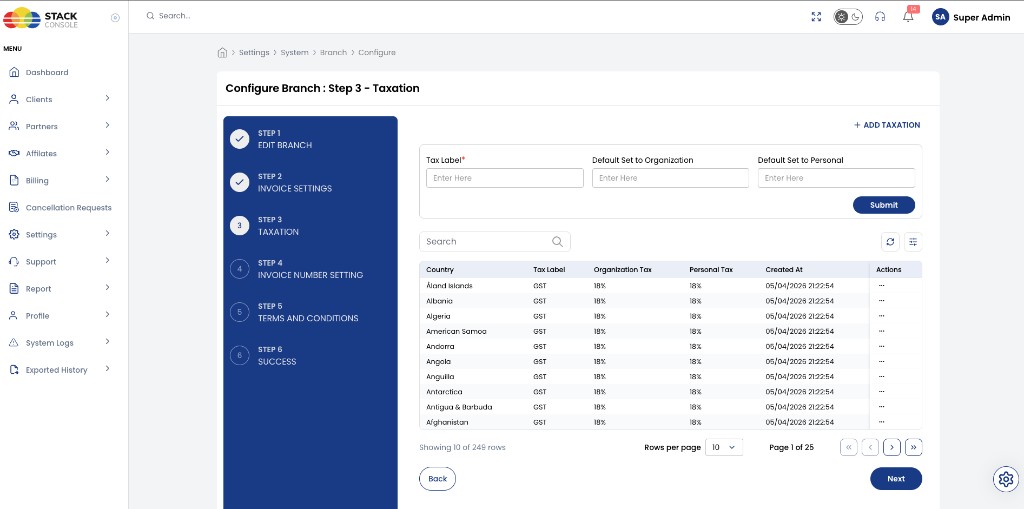
In CMP, taxation is managed at the branch level. For each country, you set a tax label and separate percentages for Organization and Personal customers.
CMP path: Settings → System → Branch → [branch] → Configure → Taxation (wizard Step 3)
img/screenshots/cmp-branch-taxation.png
How tax is applied
| Rule | Behaviour |
|---|---|
| Customer mapped to a branch | Invoice uses that branch’s tax row for the customer’s country of registration |
| Organization vs Personal | CMP applies Organization Tax or Personal Tax based on the customer account type |
| Customer on the Default branch | Default branch tax rates apply |
| Granularity | Country-level rates only (not state / city) |
Customers are mapped to a branch by country — see Branches.
CMP supports country-level tax percentages (with Organization / Personal values). State-level or multi-rate structures beyond that are not available.
Add taxation
Click + Add Taxation, then complete the form and Submit.
Tax Label
Required. Name printed or used for the tax (for example GST, VAT).
Default Set to Organization
Required / used as default. Default tax percentage for organization accounts when applying or seeding rates (enter the numeric percent as shown on the form).
Default Set to Personal
Required / used as default. Default tax percentage for personal accounts.
Use these defaults when adding or bulk-applying rates; then adjust individual countries in the table if needed.
Taxation list
The table lists tax configuration per country for this branch:
| Column | Meaning |
|---|---|
| Country | Country the rate applies to |
| Tax Label | Label such as GST |
| Organization Tax | Percent for organization customers (for example 18%) |
| Personal Tax | Percent for personal customers (for example 18%) |
| Created At | When the row was created |
| Actions | Edit or delete the country tax row |
Search and filters help locate a country when many rows exist (CMP may ship with a large country list).
Click Next to continue to Invoice number settings.
Tax exempt customers
For testing or special accounts, mark a customer tax-exempt:
Path: Clients → [customer] → Billing Setup → Is Tax Exempted?
See Billing overview and FAQ — billing & pricing.