Invoice settings
When CMP generates invoices, branch-level details from this form appear on the document. Configure them in the branch Configure wizard (Step 2: Invoice Settings).
CMP path: Settings → System → Branch → [branch] → Configure → Invoice Settings
These settings apply to invoices for customers mapped to that branch — see Branches.
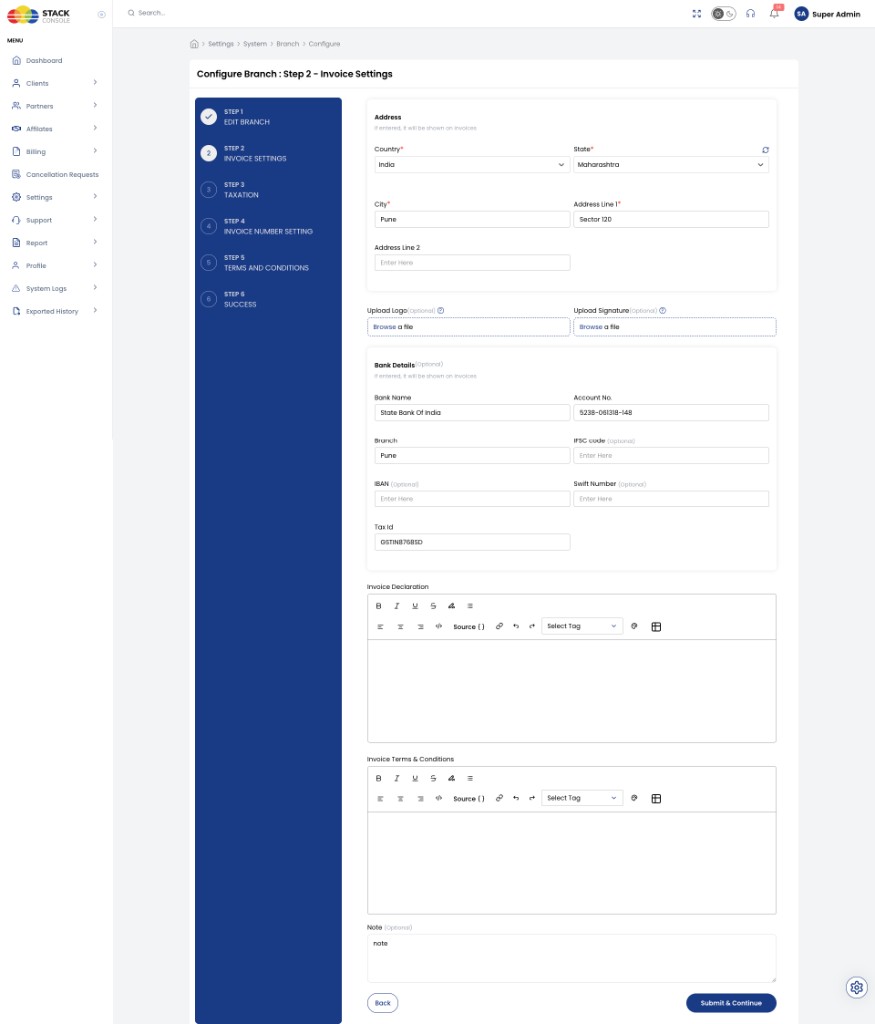
Address
Helper text: If entered, it will be shown on invoices.
Country
Required. Country for the branch address (for example India).
State
Required. State or province (for example Maharashtra).
City
Required. City (for example Pune).
Address Line 1
Required. Primary street / locality line (for example Sector 120).
Address Line 2
Optional. Additional address line.
Upload Logo / Signature
Upload Logo
Optional. Browse and upload an invoice logo. Use when the invoice logo differs from the main brand logo. If empty, CMP uses the logo from Branding Settings.
Upload Signature
Optional. Browse and upload a digital signature image. Appears on invoices only when provided.
Bank Details
Optional section. Helper text: If entered, it will be shown on invoices. Useful with Manual payment mode so customers can pay offline.
Bank Name
Optional. Name of the bank (for example State Bank Of India).
Account No.
Optional. Bank account number.
Branch
Optional. Bank branch name or location (for example Pune).
IFSC code
Optional. IFSC for Indian bank transfers.
IBAN
Optional. International bank account number where applicable.
Swift Number
Optional. SWIFT / BIC code for international transfers.
Tax Id
Optional. Tax identifier printed with bank / legal details (for example GSTIN).
Invoice Declaration
Optional. Rich-text declaration shown on invoices. Supports formatting and Select Tag placeholders where available in CMP.
Invoice Terms & Conditions
Optional. Rich-text terms and conditions printed on the invoice PDF. Supports formatting and Select Tag placeholders.
This is separate from customer registration / portal Terms and Conditions — see Platform Features → Terms and Conditions.
Note
Note
Optional. Extra free-text notes printed on invoices.
Click Submit & Continue to proceed to Taxation.