Create Custom Invoice
Administrators can manually generate custom, ad-hoc invoices for a client directly from the CMP Admin Panel.
This is typically used for services or one-off items that are not defined in the system catalogue (for example custom consulting, migration assistance, dedicated hardware setups, or manual fee adjustments).
- Manual Payment Mode is an account settlement method where all platform invoices are settled offline (e.g. via bank transfer or cheque).
- Admin-Generated Custom Invoices are ad-hoc billing documents created directly by an administrator for non-catalogue items. They can be issued to any account type (Prepaid, Postpaid, or Manual).
Where to create a custom invoice
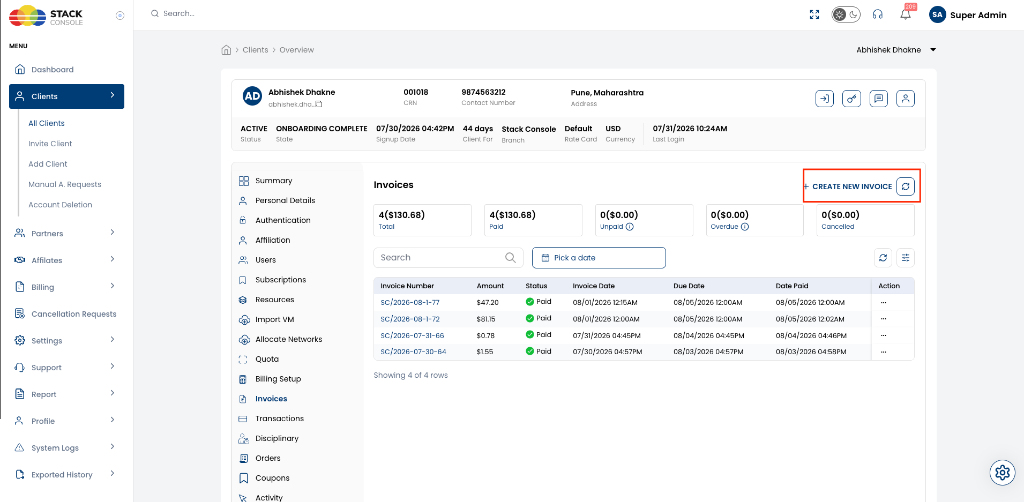
Custom invoices are created from the target client's profile in the Admin Panel:
- In the admin navigation menu, go to Clients → All Clients.
- Select the client name to open their profile.
- In the client sub-menu, navigate to Invoices.
- Click the + CREATE NEW INVOICE button in the top-right corner.
Form fields & configuration
The Create Invoice form allows you to define billing dates, tax percentages, status, and custom line items:
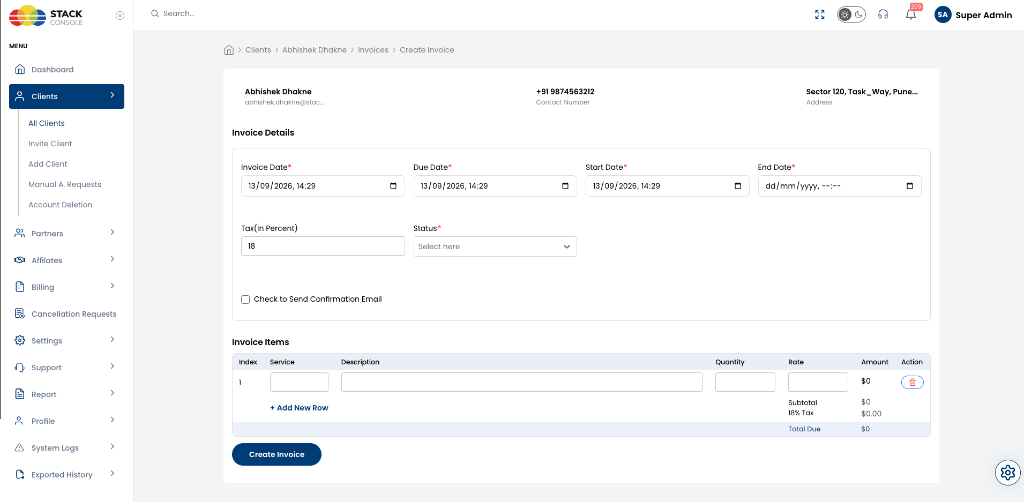
1. Invoice Details
| Field | Required | Description |
|---|---|---|
| Invoice Date | Yes | The date and time the invoice is issued. Defaults to current timestamp. |
| Due Date | Yes | The payment deadline for the invoice. |
| Start Date | Yes | The start date of the service or engagement period. |
| End Date | Yes | The end date of the service or engagement period. |
| Tax (in Percent) | No | Applicable tax percentage (for example, 18 for 18% GST/VAT). |
| Status | Yes | Select the initial invoice status (e.g., Unpaid or Paid). |
| Check to Send Confirmation Email | No | When checked, an email notification with invoice details is automatically dispatched to the customer. |
2. Invoice Items (Line Items)
Admins can add multiple custom line items to the invoice:
| Field | Description |
|---|---|
| Service | Short name or identifier of the service (e.g. Cloud Migration, Consulting). |
| Description | Detailed explanation of the work or deliverable provided. |
| Quantity | Number of units or hours billed. |
| Rate | Unit price per item in the client's assigned billing currency. |
| Amount | Automatically computed total for that row (Quantity × Rate). |
| Action | Delete row icon to remove line items. |
- Click + Add New Row to add additional line items.
- Subtotal, Tax, and Total Due are calculated dynamically at the bottom of the table.
Once all details are entered, click Create Invoice to generate the document.
Settlement & Auto-Charge Rules
| Account Payment Mode | How Custom Invoices Are Settled |
|---|---|
| Postpaid | An admin-generated custom invoice marked as Unpaid will never auto-charge the customer's credit card immediately. It must be settled manually by the customer in their portal or marked Paid by an admin. |
| Prepaid | Custom invoices do not automatically deduct from the prepaid wallet balance upon creation. The customer can pay via their portal (or redeem available Free Credits), or an admin can mark it paid. |
| Manual | Follows the standard manual settlement workflow: the customer pays offline and the admin marks the invoice as Paid (or partially paid). |
Services that are natively provisioned and metered by CMP (such as Virtual Machines, Load Balancers, Kubernetes clusters, Block Storage, etc.) are tracked and invoiced automatically through their configured billing cycles. They cannot be directly linked or injected into manual custom invoice line items.