Branches (Multi-Branch Management)
CMP branches represent regional or legal entities of your cloud business. Each branch has its own invoice branding, tax percentage, and operational countries. Customers are mapped to a branch from their country of registration.
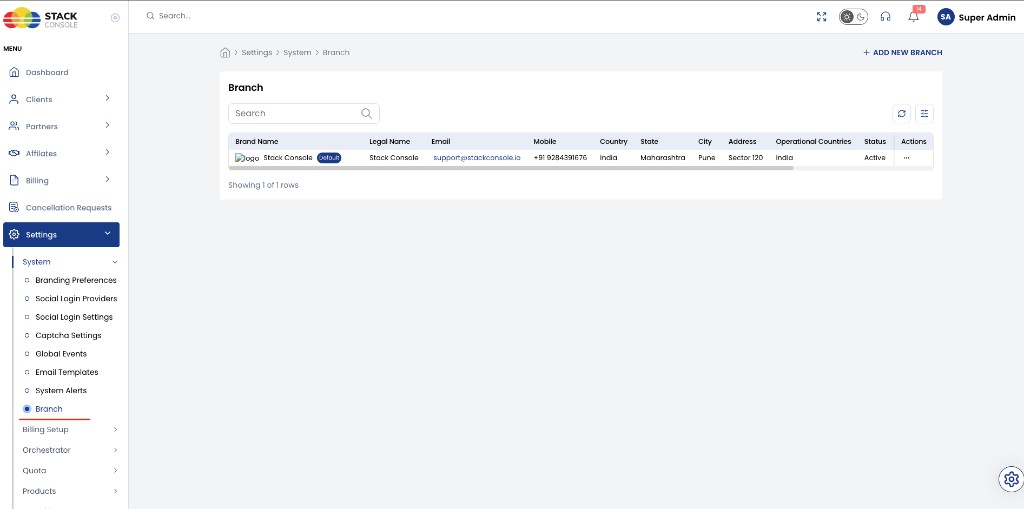
CMP path: Settings → System → Branch
You must assign each branch to the relevant gateways under Settings → Billing Setup → Payment Setting (Payment Gateway Settings).
A payment gateway is visible to customers only when it is mapped to their branch. If the branch is not assigned on the gateway, customers under that branch will not see that payment option on registration, wallet top-up, or invoice payment — even if credentials and currency setup are correct.
| Goal | Action |
|---|---|
| Add a regional entity | + Add New Branch and complete the Configure wizard |
| India vs US taxation | Separate branches with matching Operational Countries |
| Customers in countries without a branch | Handled by the Default branch |
| Payment gateway per region | Assign gateways to branches — Payment Gateways |
Why multi-branch management?
Use branches when you operate subsidiaries or regional offices that must follow local tax and invoice rules, while still managing everything in one CMP.
Example: Company ABC has one branch in India and another in the US:
- The India branch follows Indian taxation; customers registered in India are billed under that branch
- The US branch follows US taxation; US customers are mapped to that branch
Each branch stays compliant locally; admins manage all branches from one console.
How taxation works without a branch in every country
Branches are tied to operational countries. At registration (or when the customer country is set), CMP maps the customer automatically:
| Situation | What happens |
|---|---|
| Customer’s country matches a branch’s Operational Countries | Customer is billed under that branch, with that branch’s tax rules |
| No branch lists the customer’s country | Customer is assigned to the Default branch; billing and tax follow the default branch |
You do not need a branch for every country — cover the countries you operate in, and keep one Default branch for everyone else.
Tax percentages are documented under Taxation.
Configure wizard overview
Path: Settings → System → Branch → + Add New Branch (opens Configure)
| Step | Docs |
|---|---|
| 1. Create Branch | This page — fields below |
| 2. Invoice Settings | Invoice settings |
| 3. Taxation | Taxation |
| 4. Invoice Number Setting | Invoice number settings |
| 5. Terms and Conditions | In-step form (Platform) · Terms overview |
| 6. Success | Finish |
Mark as Default becomes available only after you complete all configuration steps. Only one branch can be default.
Create Branch (Step 1)
img/screenshots/cmp-branch-create-step1.png
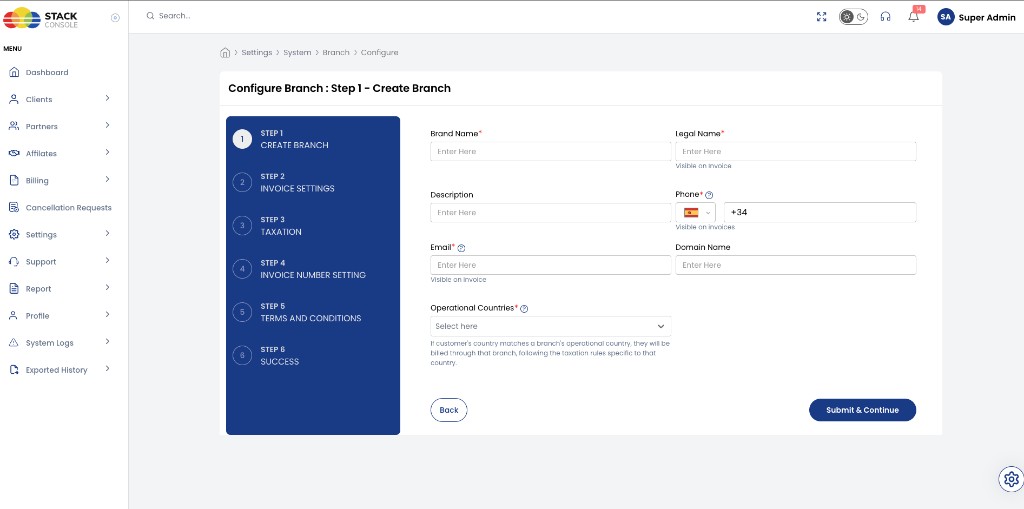
Brand Name
Required. Internal reference name for the branch. Currently not shown elsewhere in CMP as a customer-facing brand label.
Legal Name
Required. Official legal name of the branch. Appears on invoices (helper text: Visible on invoice).
Description
Optional. Internal description of the branch.
Phone
Required. Support contact number shown on invoices (typically your support team number).
Required. Support contact email shown on invoices (typically your support team email).
Domain Name
Optional. Reference field. Currently not used by CMP for routing or branding.
Operational Countries
Required. Countries where this branch operates. If a customer’s country matches one of these, they are billed through this branch with that country’s tax rules.
Form helper text: If customer's country matches a branch's operational country, they will be billed through that branch, following the taxation rules specific to that country.
Mark as Default
Optional (after full setup). Only one branch can be default. The default branch receives customers whose country does not match any branch’s operational countries.
Mark as Default is available only after all configuration steps for the branch are complete.
Click Submit & Continue to proceed to invoice settings.
Branch list
The Branch list shows configured branches with columns such as Brand Name (with Default badge when applicable), Legal Name, Email, Mobile, Country / State / City / Address, Operational Countries, and Status.
Use + Add New Branch to start the wizard, or the row actions menu to manage an existing branch.
Related platform behaviour
| Area | How branches matter |
|---|---|
| Payment gateways | Required: assign each gateway to the branch(es) where it should appear — otherwise customers do not see it |
| Manual payment | Show bank details from invoice settings on invoices |
| Invoices | Legal name, address, logo, tax, number, and terms come from the customer’s branch |
| Terms and Conditions | Step 5 configures in-step registration T&C with placeholders |