Freeze
Freeze is the first disciplinary stage. It restricts new activity and changes while leaving existing services reachable so customers can still operate workloads and settle dues.
When freeze is applied
After the configured freeze grace days from:
| Mode | Start of clock |
|---|---|
| Prepaid | Wallet balance goes negative |
| Postpaid | Invoice becomes overdue |
Example: Negative balance on the 15th, freeze grace = 3 days → freeze starts on the 18th. A reminder with Send before = 1 emails on the 17th. Values 0 / 1 / 2 mean same day as freeze, 1 day before, or 2 days before — see Reminder emails and timing.
Immediate freeze — set days to 0
To apply FREEZE immediately when the prepaid wallet goes negative or a postpaid invoice becomes due / overdue, set The no. days after the … action to be applied for FREEZE to 0.
| FREEZE days | Behaviour |
|---|---|
| 0 | Freeze on Day 0 — as soon as balance goes negative (prepaid) or the invoice is due/overdue (postpaid) |
| 3 (typical default) | Freeze on Day 3 — three days after that trigger |
There is no separate “immediate freeze” toggle. Use 0 days on the FREEZE row (global or account-level Disciplinary Setting).
Configure days and reminders under Settings → Billing Setup → Disciplinary Actions (global) or Clients → Disciplinary (account) — see Disciplinary Actions.
Worked example
Assumptions: FREEZE = 3 days, reminder = 1 day before. Trigger Day 0 = 15th (postpaid invoice overdue or prepaid wallet negative). Due balance remains unpaid.
| Date | Event | Result |
|---|---|---|
| 15th | Day 0 — overdue / negative balance | Account still ACTIVE; dues unpaid |
| 17th | Reminder email (1 day before freeze) | Customer (and staff emails if configured) notified |
| 18th | FREEZE applied | Cannot create or modify paid services; existing VMs keep running; billing/invoices continue |
If FREEZE days = 0 instead of 3, freeze is applied on the 15th (Day 0) as soon as the balance goes negative or the invoice is due — no grace period.
Full freeze → suspend → terminate calendar: Practical timeline example.
If the customer pays on the 16th or 17th, freeze on the 18th should not apply for that cleared balance.
What happens when an account is frozen
| Allowed | Restricted |
|---|---|
| Access existing services | Create new paid services |
| Use running workloads as they are | Change or perform actions that modify existing services |
In short: creation and modifications are blocked; access to existing services remains.
End-customer UI (portal)
When FREEZE is applied, the customer portal still loads so the account holder can review services and settle dues. What they see:
| UI element | Behaviour |
|---|---|
| Status banner | Pink/red bar at the top: Your account status is FREEZE |
| Create / deploy | Attempting to create a service (for example Review & Deploy on a new VM) shows an error and does not complete |
| Error message | Your account has disciplinary actions applied. You cannot create any services. |
| Existing services | Navigation and access to existing workloads remain available |
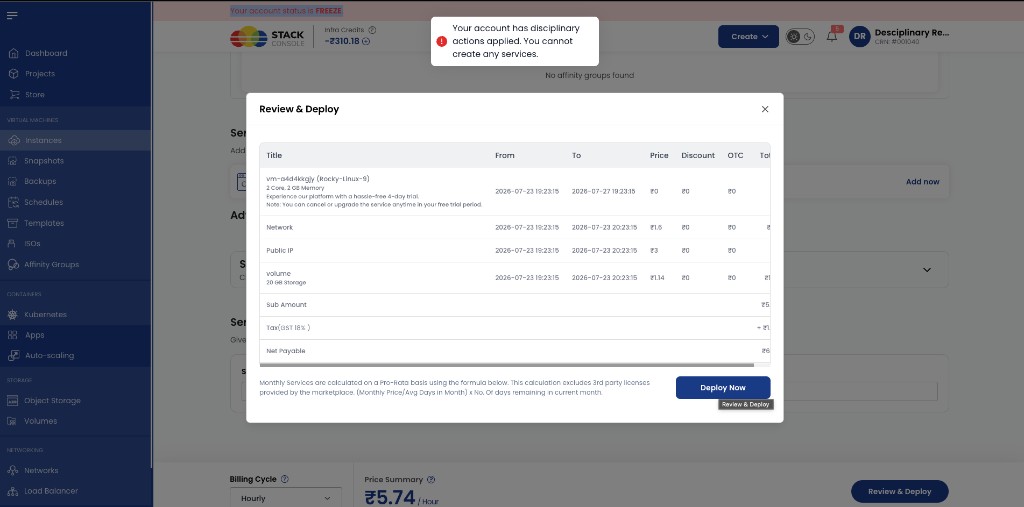
The customer should top up the wallet (prepaid) or pay overdue invoices (postpaid) so the account returns to ACTIVE. Until then, new paid services and modifications stay blocked.
Billing and invoicing while frozen
| Topic | Behaviour |
|---|---|
| Services | Stay active and allocated |
| Billing | Continues normally — resources still running |
| Invoices | Renewal and usage invoices keep generating on each service’s billing cycle |
Freeze does not stop billing. It only limits commercial/operational actions on the account.
Admin options
- Revoke freeze if the customer needs temporary relief
- Exclude the account from further disciplinary automation
- Add team notification emails for freeze events
See Disciplinary Actions — admin controls and account-level settings.
Related
- Disciplinary Actions
- Suspend — next stage
- Terminate
- Prepaid
- Postpaid