Email Notifications
CMP includes an automated email dispatch engine that triggers transactional messages for critical user and infrastructure events — such as account onboarding, service provisioning, VM lifecycle operations, invoice generation, payment failures, and security notices.
All default email templates are pre-generated with the help of AI tools to provide complete, professionally written baseline content out-of-the-box. Administrators can fully customize any template’s subject line, copy, layout, and localized translations for each supported language.
Email Template Management
Administrators can view, search, filter, and edit all platform email templates from the admin console.
CMP path: Settings → System → Email Templates
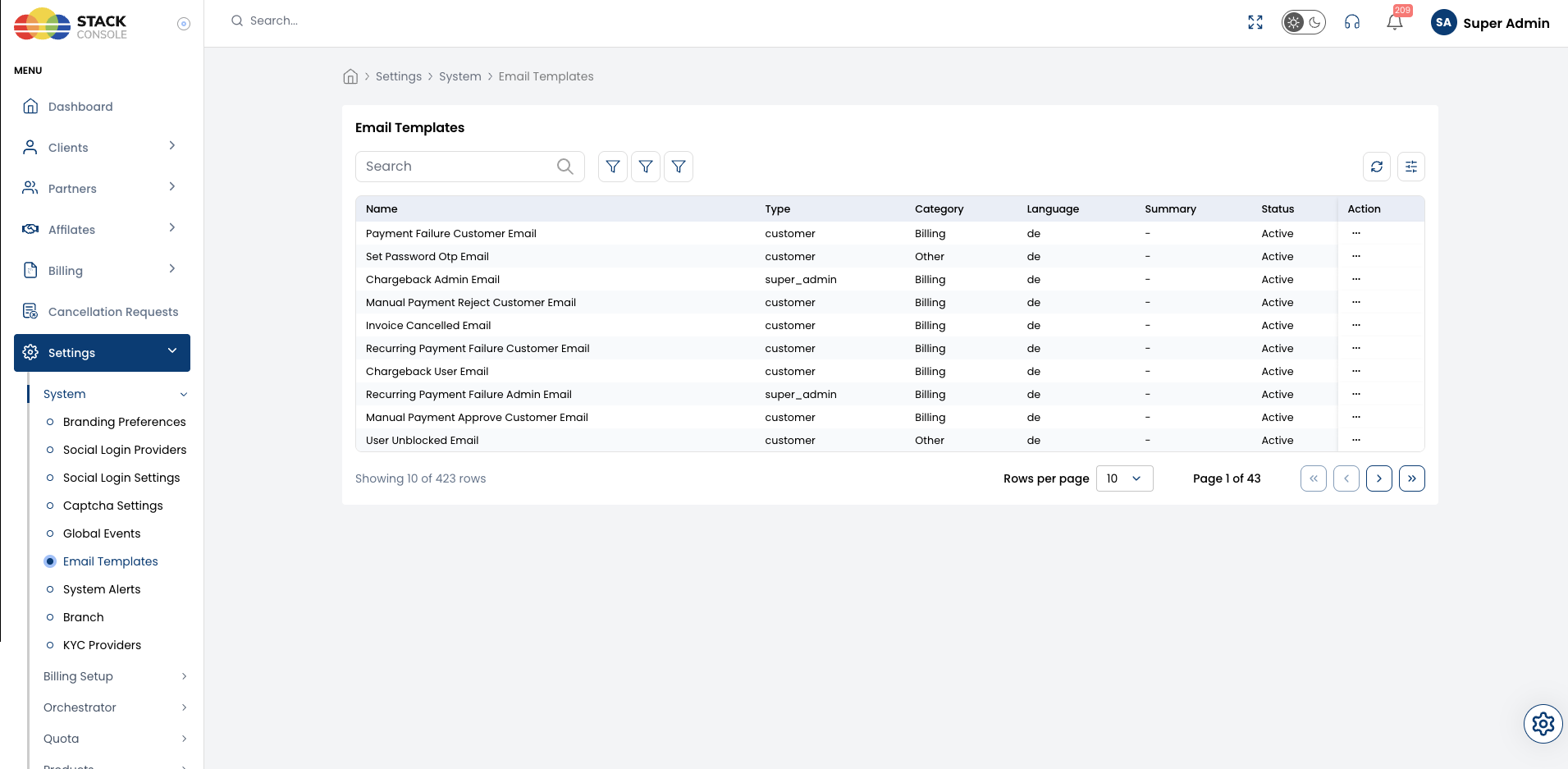
Template Inventory Overview
The Email Templates list provides a searchable inventory of all system email notifications (over 400+ built-in templates covering diverse platform events):
| Column | Description |
|---|---|
| Name | System name of the email notification event (e.g. Payment Failure Customer Email, VM Created, Invoice Cancelled Email). |
| Type | The intended recipient audience: customer (end user) or super_admin (cloud provider staff). |
| Category | Functional classification of the email (e.g. Billing, Services, Other). |
| Language | The two-letter locale code for this template copy (e.g. en, de, es, fr). |
| Summary | Optional admin description or notes regarding this template version. |
| Status | Operational state: Active (system will send this template) or Inactive (email dispatch suppressed). |
| Action | Action menu (...) to edit template contents and parameters. |
AI-Generated Baseline Templates
To accelerate cloud deployment and maintain high-quality communications:
- All baseline email template bodies, subjects, and layouts are created with the help of AI tools.
- Templates include structured data tables (e.g. IP addresses, compute specs, OS details, billing totals) formatted cleanly for desktop and mobile email clients.
- Default messaging maintains professional cloud provider tone, clear instructions, and standard security notices.
Administrators do not need to build email templates from scratch, but retain full freedom to modify every word, style, or structure.
Customizing an Email Template
To customize any email message:
- Navigate to Settings → System → Email Templates.
- Locate the desired template family using the search bar (e.g.
VM CreatedorPayment Failure). - Click the Action menu (
...) on the specific language row and select Edit.
CMP path: Settings → System → Templates → Edit Email Template
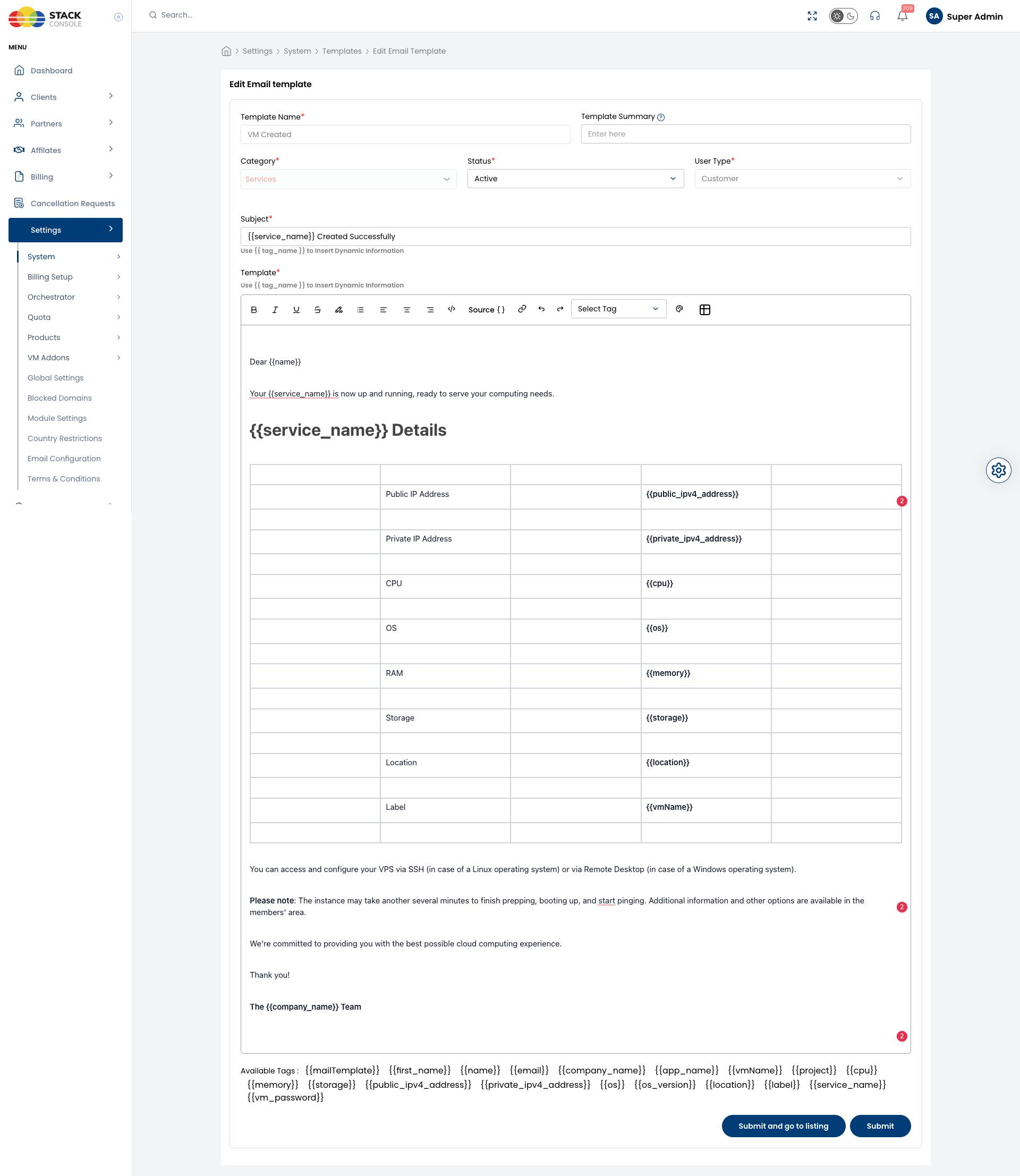
Form Fields
Template Name
Required. Display name of the email template family (e.g. VM Created).
Template Summary
Optional. Internal administrative summary or description explaining the context of this email.
Category
Required. Functional grouping for the email. Select Services, Billing, or Other.
Status
Required. Select Active to enable dispatch, or Inactive to disable sending this email notification.
User Type
Required. Identifies whether the email is targeted at Customer accounts or Admin / Super Admin staff.
Subject
Required. The email subject line displayed in recipient inboxes. Dynamic tags can be embedded directly within the subject (e.g. {{service_name}} Created Successfully).
Template
Required. The visual body of the email. Supports:
- WYSIWYG Rich-Text Editor: Format headings, bold/italic text, numbered/bulleted lists, text alignment, and tables directly.
- HTML Source View (
</>): Toggle into raw HTML mode to fine-tune custom CSS styles, branded logos, or responsive layouts. - Dynamic Variable Tags: Insert contextual platform variables using the double-curly bracket syntax
{{ tag_name }}.
Dynamic Variable Tags
Dynamic variable tags use double curly braces (e.g. {{ tag_name }}) to automatically inject real-time platform data into an email when triggered.
Available tags vary based on the specific template context. Each email event only has access to parameters provided by the triggering action. For example, instance IP addresses and root passwords exist only in VM lifecycle emails, while invoice numbers and failure reasons exist only in billing emails.
How to Find and Insert Tags in a Template
- Toolbar Dropdown (
Select Tag): Click the Select Tag dropdown in the WYSIWYG editor toolbar to insert supported variables directly at your cursor position. - Available Tags Reference: Review the Available Tags section displayed immediately beneath the editor box. It dynamically renders the exact list of variables supported for that specific template.
Tags by Template Context
While each template exposes its own specific variable set, typical categories include:
| Context / Template Family | Common Available Tags | Injected Data |
|---|---|---|
| Global / All Templates | {{name}}, {{first_name}}{{email}}{{company_name}}, {{app_name}} | Recipient customer or contact name Recipient email address Cloud provider brand / platform display name |
| Compute & VM Operations (e.g. VM Created, VM Deleted, Backups) | {{service_name}}{{vmName}}{{public_ipv4_address}}{{private_ipv4_address}}{{cpu}}, {{memory}}, {{storage}}{{os}}, {{os_version}}{{location}}{{label}}{{vm_password}}{{project}} | Provisioned service or package name Internal VM identifier / hostname Allocated public IPv4 address Private subnet IP address vCPU, RAM, and disk storage specifications Operating system template details Datacenter zone / region User-assigned instance label Initial temporary root/admin password Associated customer project |
| Billing & Invoices (e.g. Invoice Created, Payment Failure, Threshold) | {{invoice_number}}{{total_amount}} / {{amount}}{{currency}}{{invoice_date}}, {{due_date}}{{payment_method}}{{threshold_limit}} | Generated invoice reference number Total billed or due amount Currency code or symbol (e.g. USD, EUR) Invoice generation and due dates Payment method used (e.g. Credit Card, Offline) Configured customer spending cap |
| Account & Authentication (e.g. Set Password OTP, User Registered) | {{otp}}{{reset_link}} / {{login_url}}{{username}}{{ip_address}} | One-time password code Action link to reset password or login Account username or handle Client IP address associated with the event |
| Quota & Support (e.g. Quota Request Approved, Tickets) | {{quota_name}}{{requested_limit}}{{ticket_id}}, {{subject}} | Name of the compute or network quota resource Requested resource capacity limit Support ticket identifier and subject |
Always verify tags against the Available Tags list shown for that template. Inserting a tag from an unrelated context (e.g. placing {{public_ipv4_address}} in an invoice payment reminder) will resolve to blank text because the billing event does not pass VM networking metadata.
Saving Changes
- Click Submit to save changes and remain on the editing screen.
- Click Submit and go to listing to save changes and return to the Email Templates overview table.
Multi-Language Email Delivery
CMP natively synchronizes email templates with the platform's multi-language system:
- Per-Language Copies: When a language is enabled in CMP (such as German
de, Frenchfr, or Uzbekuz), CMP automatically generates a localized copy of every template for that language. - Recipient Language Preference: When an event occurs (e.g. invoice created or VM deployed), CMP checks the recipient's saved App Language in their profile (Profile → Account Preferences → App Language).
- Dispatch Resolution:
- If a template exists for the customer's selected language and is Active, CMP dispatches that localized version.
- If the customer has not selected a language, or if the template for that locale is inactive, CMP automatically falls back to English (
en).
- Independent Customization: Admins can edit each language version independently without altering the templates of other languages.